XML technologies / XSL-FO / Reference / Elements in XSL-FO / fo:block-container
(Excerpt from “XSL-FO ― The Reference” by Manuel Montero Pineda & Steffen Herkert, 2016, dpunkt.verlag)
A | B | C | D | E | F | G | H | I | J | K | L | M | N | O | P | Q | R | S | T | U | V | W | X | Y | Z
Recommendation section: 6.5.3
Category: 6.5 Block-level Formatting Objects
Description
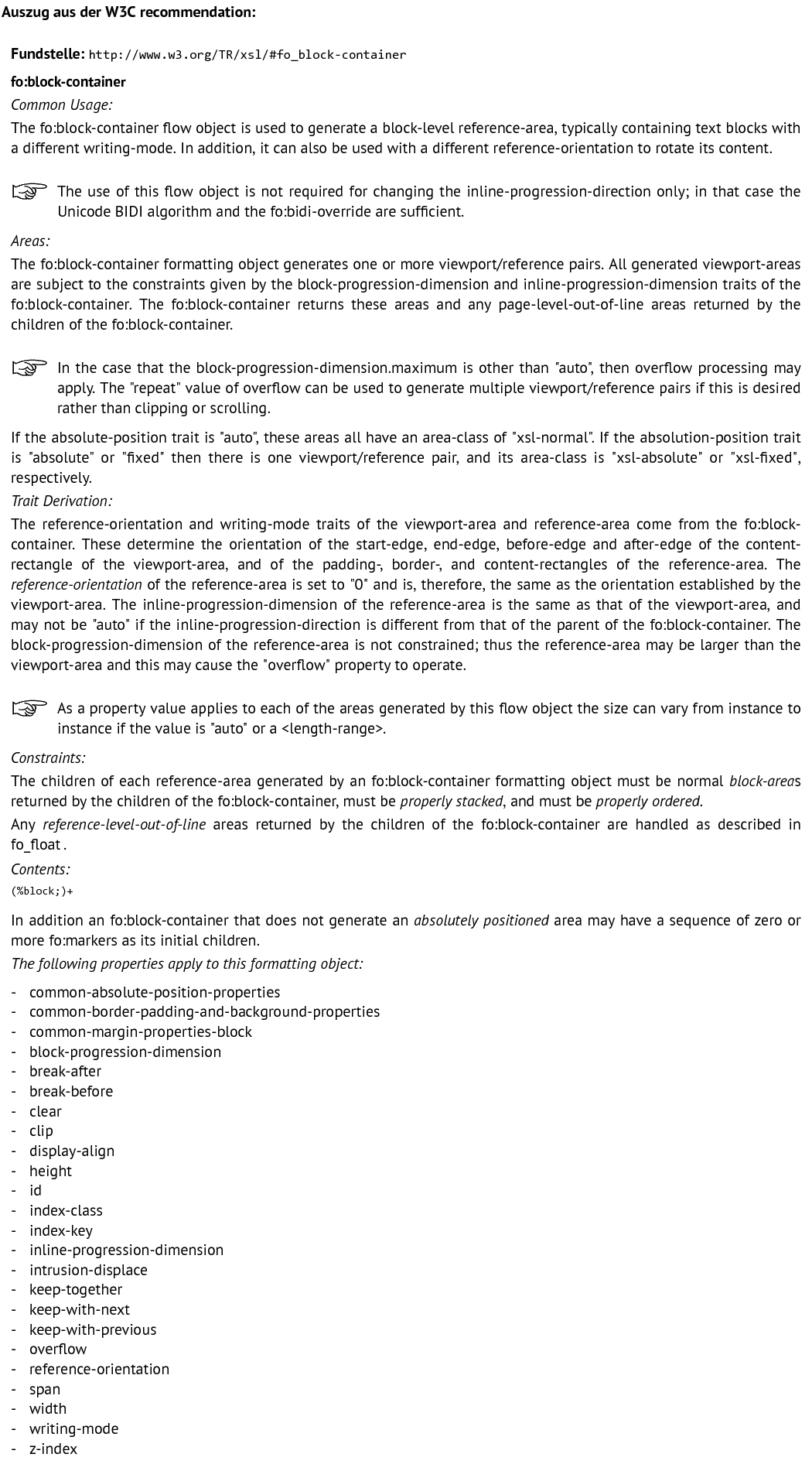
Within Block containers, you can group any number of blocks. Attributes can specify the container’s desired position in the document.
XSL-FO version: 1.0
Parent elements
<fo:basic-link> , <fo:bidi-override> , <fo:block> , <fo:block-container> , <fo:float> , <fo:flow> , <fo:footnote-body> , <fo:inline> , <fo:inline-container> , <fo:list-item-body> , <fo:list-item-label> , <fo:marker> , <fo:multi-case> , <fo:multi-toggle> , <fo:static-content> , <fo:table-caption> , <fo:table-cell> and <fo:wrapper>
Child elements
This element creates a rectangular area allowing many kinds of elements, such as tables, lists and graphics. Attributes provide various layout settings. Blocks can be nested arbitrarily. Settings from parent blocks are inherited unless different settings are specified for the child block (inheritance). | |
A block container can group any number of blocks. Attributes can be used to specify the container’s desired position in the document. | |
This element marks the start of a "change region", which is ended by its matching fo:change-bar-end. The change region has a change bar running along either the start or end edge of the column. The change bar’s appearance is determined by the values of the corresponding properties. | |
This element marks the end of a "change region" started by its matching fo:change-bar-begin. | |
This element positions content relative to a display block, for example to wrap text around graphics or create marginal notes. | |
This element marks the start of an "indexed range" associated with an index key. The range is closed by a corresponding fo:index-range-end. | |
This element marks the end of an "indexed range" started by its matching fo:index-range-begin. | |
This element creates an area for displaying a list or enumeration. | |
This element allows switching between different sets of properties. | |
This element allows switching between different subtrees of formatting objects. | |
This element retrieves the area marked in <fo:marker>, for example for running headings. | |
Together with <fo:marker>, this element allows areas in tables to be repeated. | |
This element creates a table. | |
This element creates a table with a caption above or below it. | |
Properties for a group of formatting objects can be specified in <fo:multi-properties>. |
Attributes
This attribute fixes a fo:block-container at a position on a page or page area. The block container is positioned on the page or area where its anchoring in the text flow would normally place it. | |
This attribute sets several background properties at once: color (background-color), a background graphic (background-image), its repetition (background-repeat) when the image does not fill the entire reserved area (tiling), scrolling behavior (background-attachment), and positioning (background-position). Any number and combination of these properties may be specified, separated by spaces. Unspecified properties use their respective individual defaults. | |
This attribute determines whether the background moves when the foreground is scrolled. | |
This attribute specifies a background color. | |
This attribute creates a background image in the element using a path given by uri-specification. | |
This property sets the horizontal and vertical position of a background image specified by background-image, simultaneously. By default, the background image is aligned with the top-left corner of the element containing the reference. Positioning can use percentages percentage, absolute measurements length or constants. Either one value or two space-separated values may be given. With two values, the first is always horizontal and the second vertical. One value applies horizontally, with 50% assumed vertically.<fo:block-container background-image="hintergrund.eps" background-position="75%>One value may even be an absolute measurement while the other is a percentage percentage. <fo:block-container background-image="hintergrund.eps" background-position="75mm 10%> One or two values may also be specified when using constants.<fo:block-container background-image="hintergrund.eps" background-position="top right"> A single value applies to the axis for which it is defined. The other axis is set to center. <fo:block-container background-image="hintergrund.eps" background-position="top"> | |
This property sets the horizontal position of the marked area using a percentage value (percentage), an absolute measurement (length), or a predefined value (left, center, right). | |
This property sets the vertical position of the marked area using a percentage value (percentage) or an absolute measurement (length). | |
This property specifies how a background image (background-image) is repeated, or tiled, within an area. By default, the background image is repeated. | |
This attribute defines the height of a display area toward the bottom of the page. The components .minimum, .maximum and .optimum can optionally specify the height more precisely. | |
This attribute simultaneously sets values for all four borders (top, left, bottom and right): width (border-width), color (border-color) and style (border-style). Values may be given for one, two or all three properties. Separate two or three values with spaces. | |
This attribute sets the color of the bottom border. The after side depends on the prevailing writing direction. In Western writing (top to bottom, left to right), it is at the bottom. With another writing direction, it could also be at the top. | |
This attribute sets the style of the bottom border. The after side depends on the prevailing writing direction. In Western writing (top to bottom, left to right), this is the bottom. With another writing direction, it could be the top. | |
This attribute sets the bottom border’s width. The after region follows the writing direction: it is at the bottom for Western writing (top to bottom, left to right), but may be at the top for another direction. | |
This attribute sets the color of the top border. The before side depends on the prevailing writing direction. In Western writing (top to bottom, left to right), it is at the top. With another writing direction, it could also be at the bottom. | |
This attribute sets the style of the top border. The before side depends on the prevailing writing direction. In Western writing (top to bottom, left to right), this is the top. With another writing direction, it could be the bottom. | |
This attribute sets the top border’s width. The before region follows the writing direction: it is at the top for Western writing (top to bottom, left to right), but may be at the bottom for another direction. | |
This attribute sets the bottom border’s width (border-bottom-width), color (border-bottom-color) and style (border-bottom-style). Values may be given for one, two or all three properties. Separate two or three values with spaces. | |
This attribute sets the bottom border’s color. | |
This attribute sets the style of the bottom border. | |
This attribute sets the width of the bottom border. | |
This attribute sets a uniform color for all four borders of an area (top, left, bottom, and right). | |
This attribute sets the color of the right border. The end side depends on the prevailing writing direction. In Western writing (top to bottom, left to right), it is on the right. With another writing direction, such as Arabic, it can also be on the left. | |
This attribute sets the style of the right border. The end side depends on the prevailing writing direction. In Western writing (top to bottom, left to right), this is the right. With another writing direction, it could be the left. | |
This attribute sets the right border’s width. The end region follows the writing direction: it is on the right for Western writing (top to bottom, left to right), but may be on the left for another direction. | |
This attribute sets the left border’s width (border-left-width), color (border-left-color) and style (border-left-style). Values may be given for one, two or all three properties. Separate two or three values with spaces. | |
This attribute sets the left border’s color. | |
This attribute sets the style of the left border. | |
This attribute sets the width of the left border. | |
This attribute sets the right border’s width (border-right-width), color (border-right-color) and style (border-right-style). Values may be given for one, two or all three properties. Separate two or three values with spaces. | |
This attribute sets the right border’s color. | |
This attribute sets the style of the right border. | |
This attribute sets the width of the right border. | |
This attribute sets spacing between adjacent cells of a table (fo:table). Property border-collapse must also be set to separate. The value applies to both width and height. Using the corresponding components for height (block-progression-direction) and width (inline-progression-direction) allows them to be specified separately. | |
This attribute sets the color of the left border. The start side depends on the prevailing writing direction. In Western writing (top to bottom, left to right), it is on the left. With another writing direction, such as Arabic, it can also be on the right. | |
This attribute sets the style of the left border. The start side depends on the prevailing writing direction. In Western writing (top to bottom, left to right), this is the left. With another writing direction, it could be the right. | |
This attribute sets the left border’s width. The start region follows the writing direction: it is on the left for Western writing (top to bottom, left to right), but can be on the right for another direction. | |
This attribute sets a uniform style for all four borders of an area (top, left, bottom, and right). | |
This attribute sets the top border’s width (border-top-width), color (border-top-color) and style (border-top-style). Values may be given for one, two or all three properties. Separate two or three values with spaces. | |
This attribute sets the top border’s color. | |
This attribute sets the style of the top border. | |
This attribute sets the width of the top border. | |
This attribute sets a uniform width for all four borders of an area (top, left, bottom, and right). | |
This attribute specifies the distance of a positioned object (fo:block-container) measured from the bottom edge of its immediate parent block area. | |
This attribute determines whether a new column or page should begin after the area on which it is set. | |
This attribute determines whether the block, on which it is set, must always begin in a new column or on a new left or right page. | |
For an object that allows text to flow around it (fo:float), typically an image, this specifies whether another such object may appear to its left, right or both sides, or whether it must wait in the text flow until an existing floating object has ended. | |
This attribute determines how an area is clipped if its height or width exceeds the allotted space. The specification requires two other properties with particular values: the area must be positioned with position="fixed" or position="absolute", and the W3C Recommendation also requires property overflow with a value other than visible. | |
This attribute sets the vertical alignment of content in the marked area. | |
This attribute sets a right-side indent for an area. The end side depends on the prevailing writing direction. In Western writing (top to bottom, left to right), it is on the right. With another writing direction, such as Arabic, it can also be on the left. | |
This attribute sets the height of the marked area. For a variable height with fixed limits, attributes min-height and max-height can be used. With these attributes, height is an optimum value. Height depends on the area’s orientation, specified by attribute reference-orientation. If the area is rotated, height becomes width and width becomes height. | |
This attribute uniquely identifies an object so that other objects can reference it. | |
This attribute defines an index class for individual index entries (index-key) or an entire area. All index entries in that area belong to the class. When referencing index entries (fo:index-key-reference) belonging to different classes, their page numbers are listed separately even if they are consecutive. For example, "1-8" becomes "1-4,5-8" if entries on pages 1-4 belong to one class and pages 5-8 to another. This is useful when pages are grouped into sections with different numbering systems. A range such as "I-14" can thus be avoided and replaced with "I-V,1-14". | |
This attribute defines an index entry. The supplied value is used as the entry’s identifier. An index entry reference (fo:index-key-reference) can reference all entries with this identifier and add their page numbers to a page citation list (fo:index-page-citation-list). | |
This attribute assigns a specified width to an inline area. The area occupies exactly that width, and the following inline area starts at its end. If the content requires more space, it overflows and may overlap the following area. No line break may occur within the area assigned an inline width. | |
This attribute determines how an area is filled with content when element fo:float embeds an object inside it. Content may fill all space not occupied by the object, or leave whitespace above and below it, forming a column. This can create marginal-note columns. | |
This attribute prevents line, column or page breaks within the marked area. It can be refined using the component attributes keep-together.within-line (for line breaks), keep-together.within-column (for column breaks) and keep-together.within-page (for page breaks). Specifying keep-together alone is equivalent to setting all three components to the same value. If keep-together is combined with one component, it applies to the other two. A priority can also be assigned to resolve a conflicting instruction, such as a page-break-after specification within the area. | |
This attribute prevents column breaks within the marked area and overrides the general keep-together setting. A priority can resolve conflicting instructions, such as page-break-after within the area. | |
This attribute prevents line breaks within the marked area and overrides the general keep-together setting. A priority can resolve conflicting instructions, such as page-break-after within the area. | |
This attribute prevents page breaks within the marked area and overrides the general keep-together setting. A priority can resolve conflicting instructions, such as page-break-after within the area. | |
This attribute prevents line, column or page breaks between the marked area and the following area. It can be refined with component attributes keep-with-next.within-line (for line breaks), keep-with-next.within-column (for column breaks) and keep-with-next.within-page (for page breaks). Specifying keep-with-next alone is equivalent to setting all three components to the same value. Combined with one component, keep-with-next applies to the other two. A priority may also resolve conflicting specifications, for example a page-break-after instruction within the area. | |
This attribute prevents column breaks between the marked area and the following area, overriding the general keep-with-next setting. A priority may resolve conflicting specifications, such as page-break-after within the area. It takes effect only when the following area is defined on the Following-Sibling axis in the FO document. | |
This attribute prevents line breaks between the marked area and the following area, overriding the general keep-with-next setting. A priority may resolve conflicting specifications, such as page-break-after within the area. It takes effect only when the following area is defined on the Following-Sibling axis in the FO document. | |
This attribute prevents page breaks between the marked area and the following area, overriding the general keep-with-next setting. A priority may resolve conflicting specifications, such as page-break-after within the area. It takes effect only when the following area is defined on the Following-Sibling axis in the FO document. | |
This attribute prevents line, column or page breaks between the marked area and the preceding area. It takes effect only when the preceding area is defined on the Preceding-Sibling axis in the FO document. It can be refined with component attributes keep-with-previous.within-line (for line breaks), keep-with-previous.within-column (for column breaks) and keep-with-previous.within-page (for page breaks). Specifying keep-with-previous alone is equivalent to setting all three components to the same value. Combined with one component, keep-with-previous applies to the other two. A priority may also resolve conflicting specifications, for example a page-break-after instruction within the area. | |
This attribute prevents column breaks between the marked area and the preceding area, overriding the general keep-with-previous setting. A priority may resolve conflicting specifications, such as page-break-after within the area. It takes effect only when the preceding area is defined on the Preceding-Sibling axis in the FO document. | |
This attribute prevents page breaks between the marked area and the preceding area, overriding the general keep-with-previous setting. A priority may resolve conflicting specifications, such as page-break-after within the area. It takes effect only when the preceding area is defined on the Preceding-Sibling axis in the FO document. | |
This attribute prevents page breaks between the marked area and the preceding area, overriding the general keep-with-previous setting. A priority may resolve conflicting specifications, such as page-break-after within the area. It takes effect only when the preceding area is defined on the Preceding-Sibling axis in the FO document. | |
This attribute shrinks or expands an area at its left edge relative to the parent area. It applies only when position is not static. The other values of position determine the reference area for left. Without a value (0mm), the edge coincides with the parent edge. A positive value shrinks the area at that edge; a negative value expands it. | |
This attribute sets the top, right, bottom and left margins of an area relative to its immediate parent block area. With one value it applies to the left (margin-left), right (margin-right), top (margin-top) and bottom (margin-bottom). With two values, the first sets top and bottom (margin-top and margin-bottom), the second left and right (margin-left and margin-right). With three, the first sets top (margin-top), the second left and right (margin-left and margin-right), the third bottom (margin-bottom). Four values follow the usual order: top (margin-top), right (margin-right), bottom (margin-bottom), left (margin-left). | |
This attribute sets the bottom margin of an area relative to its immediate parent area. The other margins are specified by margin-top (top), margin-right (right), margin-left (left). A value set here overrides any corresponding value specified by margin. | |
This attribute sets the left margin of an area relative to its immediate parent area. The other margins are specified by margin-top (top), margin-right (right), margin-bottom (bottom). A value set here overrides any corresponding value specified by margin. | |
This attribute sets the right margin of an area relative to its immediate parent area. The other margins are specified by margin-top (top), margin-left (left), margin-bottom (bottom). A value set here overrides any corresponding value specified by margin. | |
This attribute sets the top margin of an area relative to its immediate parent area. The other margins are specified by margin-right (right), margin-left (left), margin-bottom (bottom). A value set here overrides any corresponding value specified by margin. | |
If an area has size limits, its content may require more space than is available, producing overflow. The overflow attribute controls its treatment: display it despite the limit (visible), hide it (hidden), provide scrolling (scroll), or raise an error (error-if-overflow). The default, auto, uses system-dependent handling; inherit uses the ancestor settings. Scrolling comes from CSS and is available only in browsers. In PDF output, this setting is usually ignored and the overflow is displayed in full. Likewise, not every formatter raises an error for error-if-overflow. | |
Padding is the inner spacing of an area, between content and border, which need not be visible. An element can use the padding attribute to set top (padding-top), right (padding-right), bottom (padding-bottom) and left (padding-left) spacing together. One value sets all sides equally. Multiple values are separated by spaces. With two values, the first sets top and bottom, the second right and left. With three, the first is top, the second right and left, and the third bottom. Four values follow top, right, bottom, left. All assignments are independent of writing direction. | |
Padding is the inner spacing of an area, between content and border, which need not be visible. An element can use the padding-after attribute to set spacing to the bottom edge, depending on the writing direction selected by attribute writing-mode. With lr-tb (within lines: left to right; lines: top to bottom) and rl-tb (within lines: right to left; lines: top to bottom), padding-after remains spacing to the bottom edge. With tb-rl (within columns: top to bottom; columns: right to left), it concerns the left edge. It always concerns the edge parallel to the line or column that closes the area. | |
Padding is the inner spacing of an area, between content and border, which need not be visible. An element can use the padding-before attribute to set spacing to the top edge depending on the writing-mode attribute. With lr-tb (within lines: left to right; lines: top to bottom) and rl-tb (within lines: right to left; lines: top to bottom), padding-before remains spacing to the top edge. With tb-rl (within columns: top to bottom; columns: right to left), it concerns the left edge. It always concerns the edge parallel to the line or column that opens the area. | |
Padding is the inner spacing between content and border, which need not be visible. Attribute adding-bottom sets spacing to the bottom edge independently of writing-mode. It overrides padding, padding-after and padding-after.length (with lr-tb and rl-tb). | |
Padding is the inner spacing of an area, between content and border, which need not be visible. An element can use the padding-end attribute to set spacing to the right edge depending on writing-mode. With rl-tb (within lines: right to left; lines: top to bottom), padding-end concerns the left edge; with tb-rl (within columns: top to bottom; columns: right to left), the bottom edge; only with lr-tb (within lines: left to right; lines: top to bottom), the right edge. It always concerns the edge at the end of a line or column, creating a line or column break. | |
Padding is the inner spacing between content and border, which need not be visible. Attribute padding-left sets spacing to the left edge independently of writing-mode. It overrides padding, padding-start and padding-start.length (with lr-tb and rl-tb). | |
Padding is the inner spacing between content and border, which need not be visible. Attribute padding-right sets spacing to the right edge independently of writing-mode. It overrides padding, padding-end and padding-end.length (with lr-tb and rl-tb). | |
Padding is the space inside an area: the distance from the content to the border. (The border need not be visible.) An element can use padding-start to specify the space to the left border, depending on the writing direction selected by writing-mode. With rl-tb (within lines: right to left; lines: top to bottom), padding-start refers to the right border. With tb-rl (within columns: top to bottom; columns: right to left), it refers to the top border. Only with lr-tb (within lines: left to right; lines: top to bottom) is it the left border. It always concerns the border at the start of the line or column. | |
Padding is the inner spacing between content and border, which need not be visible. Attribute padding-top sets spacing to the top edge independently of writing-mode. It overrides padding, padding-before and padding-before.length (with lr-tb and rl-tb). | |
This attribute controls a possible page break after the marked area. It may forbid the break, for example by moving the last lines of the paragraph to the next page. It can also force a break to the next page, or to the next right-hand (odd-numbered) or left-hand page. This is commonly used for book chapters that must always begin on a particular side. | |
This attribute controls a possible page break before the marked area. It may forbid the break, for example by moving the last lines of the preceding paragraph to the next page. It can also force a break to the next page, or to the next right-hand (odd-numbered) or left-hand page. This is commonly used for book chapters that must always begin on a particular side. | |
This attribute controls a potential page break within the marked area. It can prohibit page breaks there. To avoid a prohibited break, the entire area is moved to the next page. | |
This attribute rotates an object in 90° increments only (0°, 90°, 180°, 270°). | |
This attribute shrinks or expands an area at its right edge relative to the parent area. It applies only when position is not static. The other values of position determine the reference area for right. Without a value (0mm), the edge coincides with the parent edge. A positive value shrinks the area at that edge; a negative value expands it. | |
This attribute sets the space before the immediately following area. This space is applied only if an area is defined on the Following-Sibling axis in the FO document. If a page break occurs after this area, the space is ignored on the following page. This attribute can combine several spacing values. | |
This attribute determines how spacing to the following area, specified in space-after, applies when an area is split by a break. Treating it as one area ignores the breaks and shows only spacing to the following area. Alternatively, treating the parts independently inserts that spacing before each break too. | |
This attribute sets the maximum permitted space before the immediately following area. It allows a limit to be set when the processor automatically distributes areas on a page or in a column. This space is applied only if an area is defined on the Following-Sibling axis in the FO document. In this respect, the attribute differs from the margin attributes. | |
This attribute sets the minimum permitted space before the immediately following area. It allows a limit to be set when the processor automatically distributes areas on a page or in a column. This space is applied only if an area is defined on the Following-Sibling axis in the FO document. In this respect, the attribute differs from the margin attributes. | |
This attribute sets the optimum space before the immediately following area. When the processor automatically distributes areas on a page or in a column, it attempts to maintain this space whenever possible. This space is applied only if an area is defined on the Following-Sibling axis in the FO document. In this respect, the attribute differs from the margin attributes. | |
If an area specifies space-after and the following area specifies space-before, only one value sets their separation. Priority is calculated from the corresponding space-after.precedence and space-before.precedence attributes. When equal, space-after takes precedence. | |
This attribute sets the space after the immediately preceding area. This space is applied only if an area is defined on the Following-Sibling axis in the FO document. If a page break occurs after this area, the space is ignored on the following page. This attribute can combine several spacing values. | |
This attribute specifies how the space after the immediately preceding area, defined by space-before, is applied when a break divides an area into two parts. The split area can still be treated as a single area, ignoring the breaks and applying the space only after the preceding area. Alternatively, each part can be treated as independent, so the space is also inserted after each break. | |
This attribute limits the maximum separation from the preceding area when the processor distributes areas on a page or column automatically. Unlike the margin attributes, the spacing is applied only if an area is defined on the Preceding-Sibling axis in the FO document. | |
This attribute sets the minimum permitted space after the immediately preceding area. It allows a limit to be set when the processor automatically distributes areas on a page or in a column. This space is applied only if an area is defined on the Preceding-Sibling axis in the FO document. In this respect, the attribute differs from the margin attributes. | |
This attribute sets the optimum space after the immediately preceding area. When the processor automatically distributes areas on a page or in a column, it attempts to maintain this space whenever possible. This space is applied only if an area is defined on the Preceding-Sibling axis in the FO document. In this respect, the attribute differs from the margin attributes. | |
If an area has space-before and the preceding area has space-after, only one value determines their separation. The corresponding space-after.precedence and space-before.precedence attributes determine priority. If the values are equal, space-after takes precedence. | |
This attribute leaves an area’s multi-column layout and spans all columns defined in the area’s element, such as fo:region-body (column-count). It can specify only that all columns or no columns are spanned. | |
This attribute sets an indent at the beginning of every line in an area. | |
This attribute specifies the distance of a positioned object (fo:block-container) measured from the top edge of its immediate parent block area. | |
This attribute sets the width of the marked area. For a variable width with fixed limits, attributes min-width and max-width can be used. With these attributes, width is an optimum value. Width depends on the area’s orientation, specified by reference-orientation. If the area is rotated, width becomes height and height becomes width. | |
This attribute sets the writing direction. Applied to page masters (fo:simple-page-master), writing-mode affects the placement of fo-region-body, fo-region-before, fo-region-after, fo-region-start and fo-region-end. On tables, writing-mode controls the horizontal alignment of columns or cells, or vertical alignment for rows. Tables can thus be displayed in landscape format, for example. | |
This attribute defines the stacking order of overlapping elements. An element whose value for z-index is 3 is above one with value 2. Elements sharing a z-index value are displayed in the order in which they occur in the code. |
Support:
Conformance level | Antenna House | FOP | RenderX XEP | Altsoft XML2PDF | Compart DocBridge |
Extended | J | P | J | J | J |
XSL-FO example:
<fo:root font-family="Arial" font-size="10pt" line-height="1.2em" xmlns:fo="http://www.w3.org/1999/XSL/Format" xmlns:cpfo="http://www.compart.net/xmlns/cpfo" xmlns:svg="http://www.w3.org/2000/svg" xmlns:axf="http://www.antennahouse.com/names/XSL/Extensions">
<fo:layout-master-set>
<fo:simple-page-master master-name="Inhalt-Seiten" margin="0mm 0mm 0mm
                      0mm" page-height="297mm" page-width="210mm">
<fo:region-body margin="10mm 10mm 10mm
                        10mm" column-count="3" column-gap="3mm"/>
<fo:region-before extent="10mm"/>
<fo:region-after extent="10mm"/>
<fo:region-start extent="10mm"/>
<fo:region-end extent="10mm"/>
</fo:simple-page-master>
</fo:layout-master-set>
<fo:page-sequence master-reference="Inhalt-Seiten">
<fo:static-content flow-name="xsl-region-before">
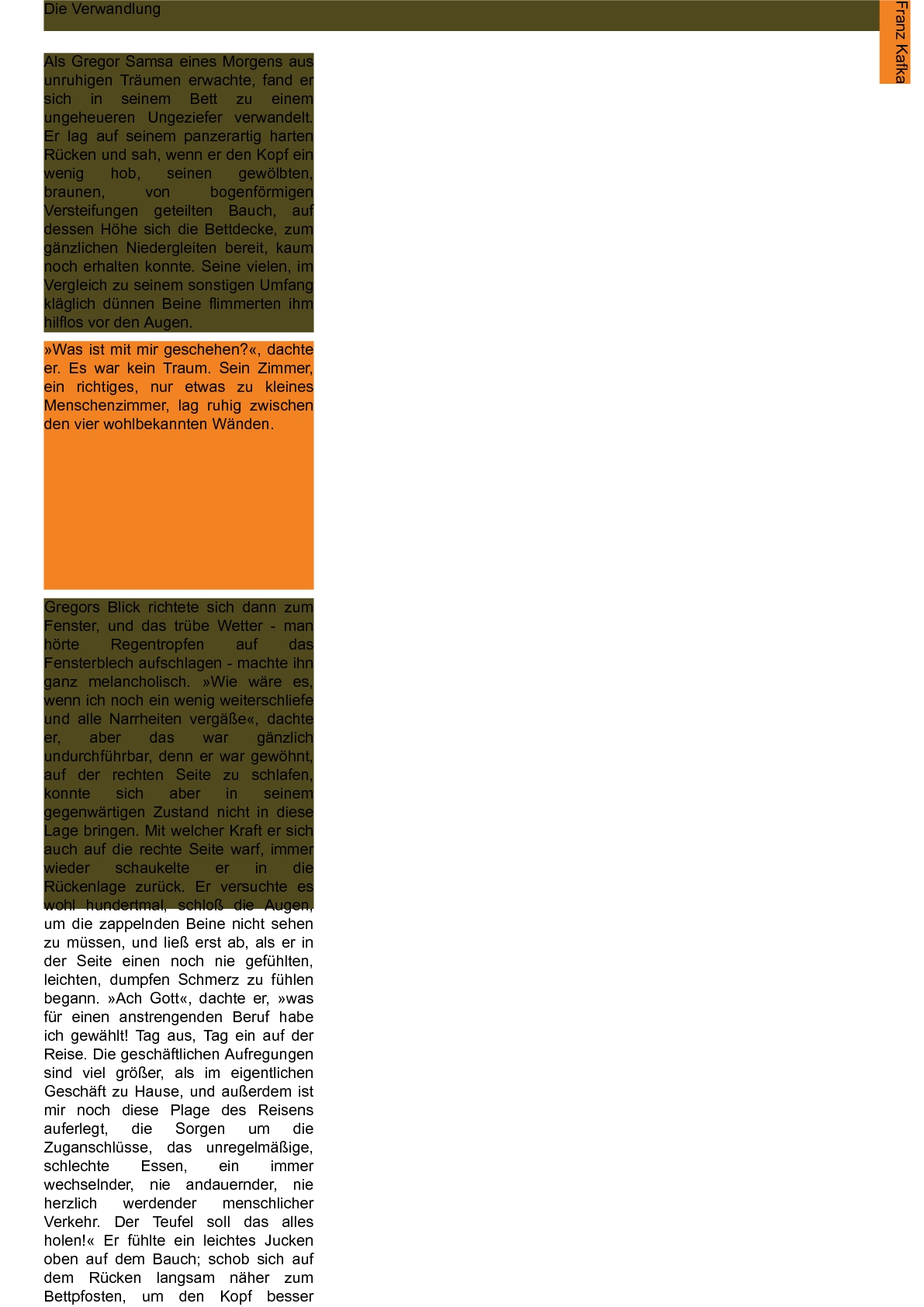
<fo:block-container height="7mm" background-color="#4F491D">
<fo:block>
Die Verwandlung
</fo:block>
</fo:block-container>
</fo:static-content>
<fo:static-content flow-name="xsl-region-end">
<fo:block-container reference-orientation="-90" height="7mm" background-color="#F38222">
<fo:block>
Franz Kafka
</fo:block>
</fo:block-container>
</fo:static-content>
<fo:flow flow-name="xsl-region-body">
<fo:block-container min-height="16em" height="20em" max-height="8em" background-color="#4F491D" keep-together.within-page="always" margin-top="2mm">
<fo:block text-align="justify">
Als Gregor Samsa eines Morgens aus unruhigen Träumen erwachte, fand er sich in
                seinem Bett zu einem ungeheueren Ungeziefer verwandelt. Er lag auf seinem
                panzerartig harten Rücken und sah, wenn er den Kopf ein wenig hob, seinen gewölbten,
                braunen, von bogenförmigen Versteifungen geteilten Bauch, auf dessen Höhe sich die
                Bettdecke, zum gänzlichen Niedergleiten bereit, kaum noch erhalten konnte. Seine
                vielen, im Vergleich zu seinem sonstigen Umfang kläglich dünnen Beine flimmerten ihm
                hilflos vor den Augen.
</fo:block>
</fo:block-container>
<fo:block-container min-height="16em" height="20em" max-height="8em" background-color="#F38222" keep-together.within-page="always" margin-top="2mm">
<fo:block text-align="justify">
»Was ist mit mir
                geschehen?«, dachte er. Es war kein Traum. Sein Zimmer, ein richtiges, nur etwas zu
                kleines Menschenzimmer, lag ruhig zwischen den vier wohlbekannten Wänden.
</fo:block>
</fo:block-container>
<fo:block-container min-height="16em" height="20em" max-height="8em" background-color="#4F491D" keep-together.within-page="always" margin-top="2mm">
<fo:block text-align="justify">
Gregors Blick richtete sich dann zum Fenster, und das trübe Wetter - man hörte
                Regentropfen auf das Fensterblech aufschlagen - machte ihn ganz melancholisch. »Wie
                wäre es, wenn ich noch ein wenig weiterschliefe und alle Narrheiten vergäße«, dachte
                er, aber das war gänzlich undurchführbar, denn er war gewöhnt, auf der rechten Seite
                zu schlafen, konnte sich aber in seinem gegenwärtigen Zustand nicht in diese Lage
                bringen. Mit welcher Kraft er sich auch auf die rechte Seite warf, immer wieder
                schaukelte er in die Rückenlage zurück. Er versuchte es wohl hundertmal, schloß die
                Augen, um die zappelnden Beine nicht sehen zu müssen, und ließ erst ab, als er in
                der Seite einen noch nie gefühlten, leichten, dumpfen Schmerz zu fühlen begann. »Ach
                Gott«, dachte er, »was für einen anstrengenden Beruf habe ich gewählt! Tag aus, Tag
                ein auf der Reise. Die geschäftlichen Aufregungen sind viel größer, als im
                eigentlichen Geschäft zu Hause, und außerdem ist mir noch diese Plage des Reisens
                auferlegt, die Sorgen um die Zuganschlüsse, das unregelmäßige, schlechte Essen, ein
                immer wechselnder, nie andauernder, nie herzlich werdender menschlicher Verkehr. Der
                Teufel soll das alles holen!« Er fühlte ein leichtes Jucken oben auf dem Bauch;
                schob sich auf dem Rücken langsam näher zum Bettpfosten, um den Kopf besser heben zu
                können; fand die juckende Stelle, die mit lauter kleinen weißen Pünktchen besetzt
                war, die er nicht zu beurteilen verstand; und wollte mit einem Bein die Stelle
                betasten, zog es aber gleich zurück, denn bei der Berührung umwehten ihn
                Kälteschauer.
</fo:block>
</fo:block-container>
</fo:flow>
</fo:page-sequence>
</fo:root>More information online about
In the output:
Excerpt from the W3C Recommendation: