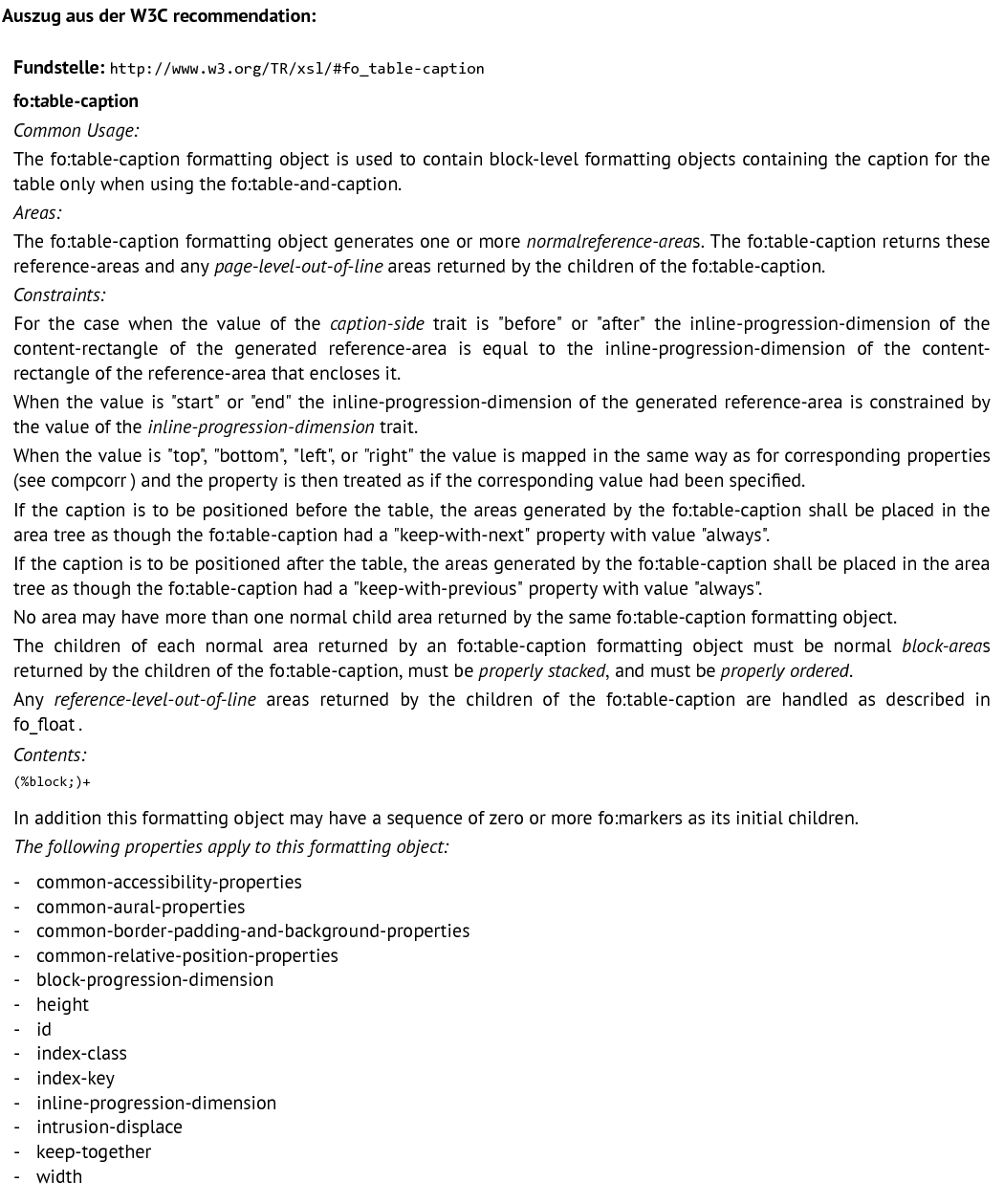
XML technologies / XSL-FO / Reference / Elements in XSL-FO / fo:table-caption
(Excerpt from “XSL-FO ― The Reference” by Manuel Montero Pineda & Steffen Herkert, 2016, dpunkt.verlag)
A | B | C | D | E | F | G | H | I | J | K | L | M | N | O | P | Q | R | S | T | U | V | W | X | Y | Z
Recommendation section: 6.7.5
Category: 6.7 Formatting Objects for Tables
Description
This element specifies a table caption above or below the table.
XSL-FO version: 1.0
Parent elements
This element creates a table with a caption above or below it. |
Child elements
This element creates a rectangular area that allows many kinds of elements, such as tables, lists and graphics. Attributes can be used to configure various aspects of its appearance. Blocks can be nested to any depth. Information from parent blocks is inherited unless different settings are specified for the child block (inheritance). | |
A block container can group any number of blocks. Attributes can be used to specify the container’s desired position in the document. | |
This element marks the start of a "change region", which is ended by its matching fo:change-bar-end. The change region has a change bar running along either the start or end edge of the column. The change bar’s appearance is determined by the values of the corresponding properties. | |
This element marks the end of a "change region" started by its matching fo:change-bar-begin. | |
This element positions content relative to a display block, for example to wrap text around graphics or create marginal notes. | |
This element marks the start of an "indexed range" associated with an index key. The range is closed by a corresponding fo:index-range-end. | |
This element marks the end of an "indexed range" started by its matching fo:index-range-begin. | |
This element creates an area for displaying a list or enumeration. | |
This element allows switching between different sets of properties. | |
This element allows switching between different subtrees of formatting objects. | |
This element retrieves the area marked in <fo:marker>, for example for running headings. | |
Together with <fo:marker>, this element allows areas in tables to be repeated. | |
This element creates a table. | |
This element creates a table with a caption above or below it. | |
Properties for a group of formatting objects can be specified in <fo:multi-properties>. |
Attributes
This attribute sets several background properties at once: color (background-color), a background graphic (background-image), its repetition (background-repeat) when the image does not fill the entire reserved area (tiling), scrolling behavior (background-attachment), and positioning (background-position). Any number and combination of these properties may be specified, separated by spaces. Unspecified properties use their respective individual defaults. | |
This attribute determines whether the background moves when the foreground is scrolled. | |
This attribute specifies a background color. | |
This attribute creates a background image in the element using a path given by uri-specification. | |
This property sets both the horizontal and vertical position of a background image specified by background-image. By default, the image aligns with the top-left corner of the element where it is invoked. Positioning can use percentages percentage, absolute measurements length, or constants. One or two values, separated by spaces, may be specified. With two values, the first always sets horizontal positioning and the second vertical positioning. A single value sets horizontal positioning; vertical positioning then defaults to 50%.<fo:block-container background-image="hintergrund.eps" background-position="75%>One value may even be an absolute measurement while the other is a percentage percentage. <fo:block-container background-image="hintergrund.eps" background-position="75mm 10%> One or two values may also be specified when using constants.<fo:block-container background-image="hintergrund.eps" background-position="top right"> A single value applies to the axis for which it is defined. The other axis is set to center. <fo:block-container background-image="hintergrund.eps" background-position="top"> | |
This property sets the horizontal position of the marked area using a percentage value (percentage), an absolute measurement (length), or a predefined value (left, center, right). | |
This property sets the vertical position of the marked area using a percentage value (percentage) or an absolute measurement (length). | |
This property specifies how a background image (background-image) is repeated, or tiled, within an area. By default, the background image is repeated. | |
This attribute defines the height of a display area toward the bottom of the page. The components .minimum, .maximum and .optimum can optionally specify the height more precisely. | |
This attribute simultaneously sets values for all four borders (top, left, bottom and right): width (border-width), color (border-color) and style (border-style). Values may be given for one, two or all three properties. Separate two or three values with spaces. | |
This attribute sets the color of the bottom border. The after side depends on the prevailing writing direction. In Western writing (top to bottom, left to right), it is at the bottom. With another writing direction, it could also be at the top. | |
This attribute sets the style of the bottom border. The after side depends on the prevailing writing direction. In Western writing (top to bottom, left to right), this is the bottom. With another writing direction, it could be the top. | |
This attribute sets the bottom border’s width. The after region follows the writing direction: it is at the bottom for Western writing (top to bottom, left to right), but may be at the top for another direction. | |
This attribute sets the color of the top border. The before side depends on the prevailing writing direction. In Western writing (top to bottom, left to right), it is at the top. With another writing direction, it could also be at the bottom. | |
This attribute sets the style of the top border. The before side depends on the prevailing writing direction. In Western writing (top to bottom, left to right), this is the top. With another writing direction, it could be the bottom. | |
This attribute sets the top border’s width. The before region follows the writing direction: it is at the top for Western writing (top to bottom, left to right), but may be at the bottom for another direction. | |
This attribute sets the bottom border’s width (border-bottom-width), color (border-bottom-color) and style (border-bottom-style). Values may be given for one, two or all three properties. Separate two or three values with spaces. | |
This attribute sets the bottom border’s color. | |
This attribute sets the style of the bottom border. | |
This attribute sets the width of the bottom border. | |
This attribute sets a uniform color for all four borders of an area (top, left, bottom, and right). | |
This attribute sets the color of the right border. The end side depends on the prevailing writing direction. In Western writing (top to bottom, left to right), it is on the right. With another writing direction, such as Arabic, it can also be on the left. | |
This attribute sets the style of the right border. The end side depends on the prevailing writing direction. In Western writing (top to bottom, left to right), this is the right. With another writing direction, it could be the left. | |
This attribute sets the right border’s width. The end region follows the writing direction: it is on the right for Western writing (top to bottom, left to right), but may be on the left for another direction. | |
This attribute sets the left border’s width (border-left-width), color (border-left-color) and style (border-left-style). Values may be given for one, two or all three properties. Separate two or three values with spaces. | |
This attribute sets the left border’s color. | |
This attribute sets the style of the left border. | |
This attribute sets the width of the left border. | |
This attribute sets the right border’s width (border-right-width), color (border-right-color) and style (border-right-style). Values may be given for one, two or all three properties. Separate two or three values with spaces. | |
This attribute sets the right border’s color. | |
This attribute sets the style of the right border. | |
This attribute sets the width of the right border. | |
This attribute sets the spacing between adjacent cells in a table (fo:table). Property border-collapse must also be set to separate. The value applies to both width and height. Using the corresponding components for height (block-progression-direction) and width (inline-progression-direction) allows them to be specified separately. | |
This attribute sets the color of the left border. The start side depends on the prevailing writing direction. In Western writing (top to bottom, left to right), it is on the left. With another writing direction, such as Arabic, it can also be on the right. | |
This attribute sets the style of the left border. The start side depends on the prevailing writing direction. In Western writing (top to bottom, left to right), this is the left. With another writing direction, it could be the right. | |
This attribute sets the left border’s width. The start region follows the writing direction: it is on the left for Western writing (top to bottom, left to right), but can be on the right for another direction. | |
This attribute sets a uniform style for all four borders of an area (top, left, bottom, and right). | |
This attribute sets the top border’s width (border-top-width), color (border-top-color) and style (border-top-style). Values may be given for one, two or all three properties. Separate two or three values with spaces. | |
This attribute sets the top border’s color. | |
This attribute sets the style of the top border. | |
This attribute sets the width of the top border. | |
This attribute sets a uniform width for all four borders of an area (top, left, bottom, and right). | |
This attribute specifies the distance of a positioned object (fo:block-container) measured from the bottom edge of its immediate parent block area. | |
This attribute sets the height of the marked area. For a variable height with fixed limits, attributes min-height and max-height can be used. With these attributes, height is an optimum value. Height depends on the area’s orientation, specified by attribute reference-orientation. If the area is rotated, height becomes width and width becomes height. | |
This attribute uniquely identifies an object so that other objects can reference it. | |
This attribute defines an index class for individual index entries (index-key) or an entire area. All index entries in that area belong to the class. When referencing index entries (fo:index-key-reference) belonging to different classes, their page numbers are listed separately even if they are consecutive. For example, "1-8" becomes "1-4,5-8" if entries on pages 1-4 belong to one class and pages 5-8 to another. This is useful when pages are grouped into sections with different numbering systems. A range such as "I-14" can thus be avoided and replaced with "I-V,1-14". | |
This attribute defines an index entry. The supplied value is used as the entry’s identifier. An index entry reference (fo:index-key-reference) can reference all entries with this identifier and add their page numbers to a page citation list (fo:index-page-citation-list). | |
This attribute assigns a specified width to an inline area. The area occupies exactly that width, and the following inline area starts at its end. If the content requires more space, it overflows and may overlap the following area. No line break may occur within the area assigned an inline width. | |
This attribute determines how an area is filled with content when element fo:float embeds an object inside it. Content may fill all space not occupied by the object, or leave whitespace above and below it, forming a column. This can create marginal-note columns. | |
This attribute prevents line, column or page breaks within the marked area. It can be refined using the component attributes keep-together.within-line (for line breaks), keep-together.within-column (for column breaks) and keep-together.within-page (for page breaks). Specifying keep-together alone is equivalent to setting all three components to the same value. If keep-together is combined with one component, it applies to the other two. A priority can also be assigned to resolve a conflicting instruction, such as a page-break-after instruction within the area. | |
This attribute prevents column breaks within the marked area and overrides the general keep-together setting. A priority can resolve conflicting instructions, such as page-break-after within the area. | |
This attribute prevents line breaks within the marked area and overrides the general keep-together setting. A priority can resolve conflicting instructions, such as page-break-after within the area. | |
This attribute prevents page breaks within the marked area and overrides the general keep-together setting. A priority can resolve conflicting instructions, such as page-break-after within the area. | |
This attribute shrinks or expands an area at its left edge relative to the parent area. It applies only when position is not static. The other values of position determine the reference area for left. Without a value (0mm), the edge coincides with the parent edge. A positive value shrinks the area at that edge; a negative value expands it. | |
Padding is the inner spacing of an area, between content and border, which need not be visible. An element can use the padding attribute to set top (padding-top), right (padding-right), bottom (padding-bottom) and left (padding-left) spacing together. One value sets all sides equally. Multiple values are separated by spaces. With two values, the first sets top and bottom, the second right and left. With three, the first is top, the second right and left, and the third bottom. Four values follow top, right, bottom, left. All assignments are independent of writing direction. | |
Padding is the inner spacing of an area, between content and border, which need not be visible. An element can use the padding-after attribute to set spacing to the bottom edge, depending on the writing direction selected by attribute writing-mode. With lr-tb (within lines: left to right; lines: top to bottom) and rl-tb (within lines: right to left; lines: top to bottom), padding-after remains spacing to the bottom edge. With tb-rl (within columns: top to bottom; columns: right to left), it concerns the left edge. It always concerns the edge parallel to the line or column that closes the area. | |
Padding is the inner spacing of an area, between content and border, which need not be visible. An element can use the padding-before attribute to set spacing to the top edge depending on the writing-mode attribute. With lr-tb (within lines: left to right; lines: top to bottom) and rl-tb (within lines: right to left; lines: top to bottom), padding-before remains spacing to the top edge. With tb-rl (within columns: top to bottom; columns: right to left), it concerns the left edge. It always concerns the edge parallel to the line or column that opens the area. | |
Padding is the inner spacing between content and border, which need not be visible. Attribute adding-bottom sets spacing to the bottom edge independently of writing-mode. It overrides padding, padding-after and padding-after.length (with lr-tb and rl-tb). | |
Padding is the inner spacing of an area, between content and border, which need not be visible. An element can use the padding-end attribute to set spacing to the right edge depending on writing-mode. With rl-tb (within lines: right to left; lines: top to bottom), padding-end concerns the left edge; with tb-rl (within columns: top to bottom; columns: right to left), the bottom edge; only with lr-tb (within lines: left to right; lines: top to bottom), the right edge. It always concerns the edge at the end of a line or column, creating a line or column break. | |
Padding is the inner spacing between content and border, which need not be visible. Attribute padding-left sets spacing to the left edge independently of writing-mode. It overrides padding, padding-start and padding-start.length (with lr-tb and rl-tb). | |
Padding is the inner spacing between content and border, which need not be visible. Attribute padding-right sets spacing to the right edge independently of writing-mode. It overrides padding, padding-end and padding-end.length (with lr-tb and rl-tb). | |
Padding is the space inside an area: the distance from the content to the border. (The border need not be visible.) An element can use padding-start to specify the space to the left border, depending on the writing direction selected by writing-mode. With rl-tb (within lines: right to left; lines: top to bottom), padding-start refers to the right border. With tb-rl (within columns: top to bottom; columns: right to left), it refers to the top border. Only with lr-tb (within lines: left to right; lines: top to bottom) is it the left border. It always concerns the border at the start of the line or column. | |
Padding is the inner spacing between content and border, which need not be visible. Attribute padding-top sets spacing to the top edge independently of writing-mode. It overrides padding, padding-before and padding-before.length (with lr-tb and rl-tb). | |
This attribute controls a potential page break within the marked area. It can prohibit page breaks there. To avoid a prohibited break, the entire area is moved to the next page. | |
This attribute specifies the positioning mode or reference for the marked area on the page. Together with top, right, bottom, and left, it positions the area relative to its text-flow position, the enclosing area, or the page determined by the text flow. | |
This attribute specifies how the marked area is positioned on the page. Unlike position, it only allows static placement or positioning relative to the text flow. In combination with top, right, bottom, and left, it specifies an offset from the position determined by the text flow. | |
This attribute shrinks or expands an area at its right edge relative to the parent area. It applies only when position is not static. The other values of position determine the reference area for right. Without a value (0mm), the edge coincides with the parent edge. A positive value shrinks the area at that edge; a negative value expands it. | |
This attribute creates content-related identifiers that provide alternative output devices, such as audio output, with information about the XML element’s content. | |
This attribute identifies an XML document as the source document. If the renderer cannot interpret the FO document, for example for a hypothetical speech output, the source document can also be consulted. It has no practical significance. | |
This attribute specifies the distance of a positioned object (fo:block-container) measured from the top edge of its immediate parent block area. | |
This attribute sets the width of the marked area. For a variable width with fixed limits, attributes min-width and max-width can be used. With these attributes, width is an optimum value. Width depends on the area’s orientation, specified by reference-orientation. If the area is rotated, width becomes height and height becomes width. |
Support:
Conformance level | Antenna House | FOP | RenderX XEP | Altsoft XML2PDF | Compart DocBridge |
Extended | J | N | J | J | N |
XSL-FO example:
<fo:root font-size="10pt" font-family="Arial" xmlns:fo="http://www.w3.org/1999/XSL/Format" xmlns:cpfo="http://www.compart.net/xmlns/cpfo" xmlns:svg="http://www.w3.org/2000/svg" xmlns:axf="http://www.antennahouse.com/names/XSL/Extensions">
<fo:layout-master-set>
<fo:simple-page-master master-name="Inhalt-Seiten" margin="0mm 0mm 0mm
                      0mm" page-height="210mm" page-width="210mm">
<fo:region-body margin="10mm 15mm 10mm
                        15mm"/>
</fo:simple-page-master>
</fo:layout-master-set>
<fo:page-sequence master-reference="Inhalt-Seiten">
<fo:flow flow-name="xsl-region-body">
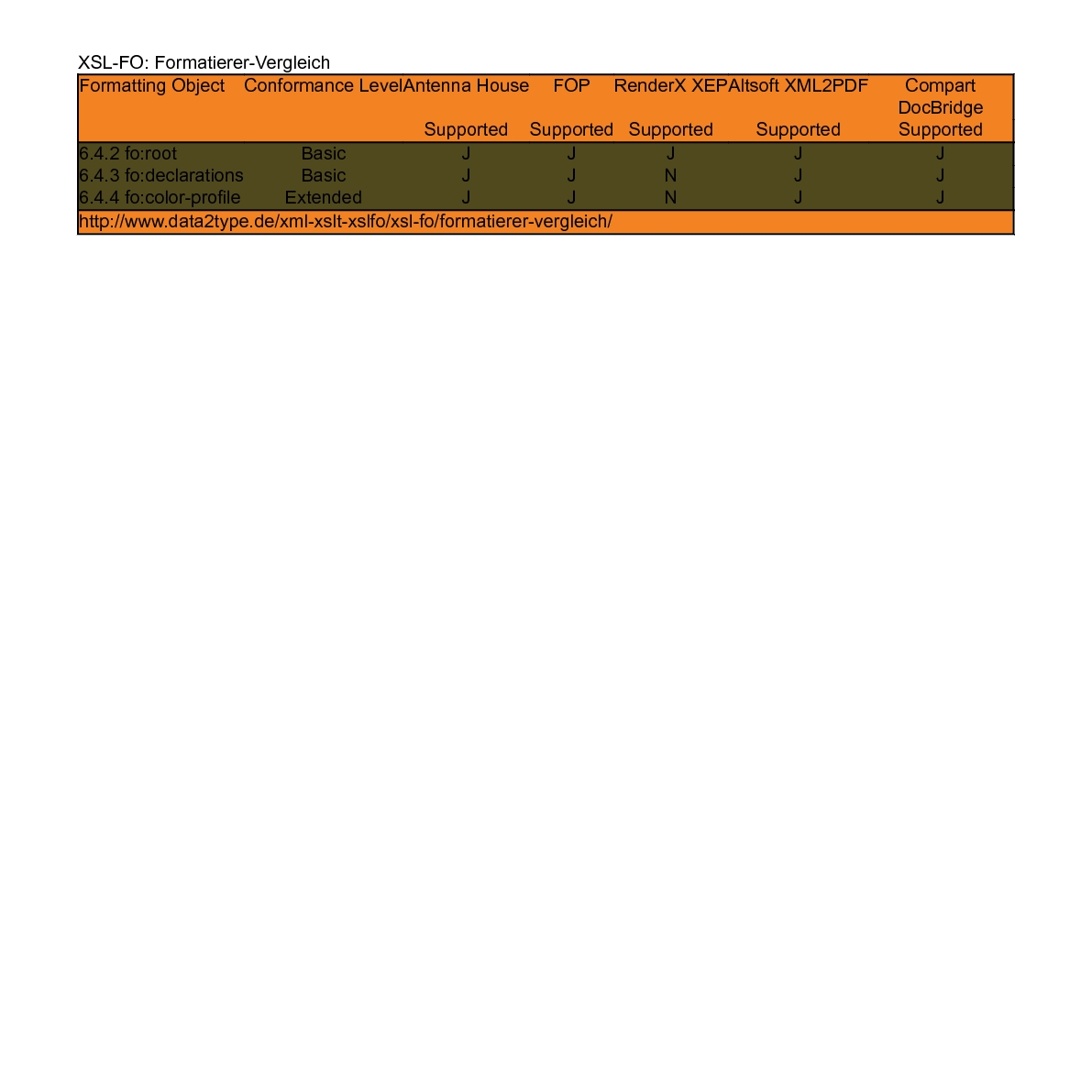
<fo:table-and-caption>
<fo:table-caption>
<fo:block>
XSL-FO:
                Formatierer-Vergleich
</fo:block>
</fo:table-caption>
<fo:table>
<fo:table-header background-color="#F38222" border-width="1pt" border-style="solid">
<fo:table-row>
<fo:table-cell number-rows-spanned="2">
<fo:block>
Formatting
                Object
</fo:block>
</fo:table-cell>
<fo:table-cell number-rows-spanned="2" text-align="center">
<fo:block>
Conformance Level
</fo:block>
</fo:table-cell>
<fo:table-cell text-align="center">
<fo:block>
Antenna House
</fo:block>
</fo:table-cell>
<fo:table-cell text-align="center">
<fo:block>
FOP
</fo:block>
</fo:table-cell>
<fo:table-cell text-align="center">
<fo:block>
RenderX XEP
</fo:block>
</fo:table-cell>
<fo:table-cell text-align="center">
<fo:block>
Altsoft XML2PDF
</fo:block>
</fo:table-cell>
<fo:table-cell text-align="center">
<fo:block>
Compart
                DocBridge
</fo:block>
</fo:table-cell>
</fo:table-row>
<fo:table-row>
<fo:table-cell text-align="center">
<fo:block>
Supported
</fo:block>
</fo:table-cell>
<fo:table-cell text-align="center">
<fo:block>
Supported
</fo:block>
</fo:table-cell>
<fo:table-cell text-align="center">
<fo:block>
Supported
</fo:block>
</fo:table-cell>
<fo:table-cell text-align="center">
<fo:block>
Supported
</fo:block>
</fo:table-cell>
<fo:table-cell text-align="center">
<fo:block>
Supported
</fo:block>
</fo:table-cell>
</fo:table-row>
</fo:table-header>
<fo:table-footer>
<fo:table-row>
<fo:table-cell number-columns-spanned="7" background-color="#F38222" border-width="1pt" border-style="solid">
<fo:block>
http://www.data2type.de/xml-xslt-xslfo/xsl-fo/formatierer-vergleich/
</fo:block>
</fo:table-cell>
</fo:table-row>
</fo:table-footer>
<fo:table-body background-color="#4F491D" border-width="1pt" border-style="solid">
<fo:table-row>
<fo:table-cell>
<fo:block>
6.4.2 fo:root
</fo:block>
</fo:table-cell>
<fo:table-cell text-align="center">
<fo:block>
Basic
</fo:block>
</fo:table-cell>
<fo:table-cell text-align="center">
<fo:block>
J
</fo:block>
</fo:table-cell>
<fo:table-cell text-align="center">
<fo:block>
J
</fo:block>
</fo:table-cell>
<fo:table-cell text-align="center">
<fo:block>
J
</fo:block>
</fo:table-cell>
<fo:table-cell text-align="center">
<fo:block>
J
</fo:block>
</fo:table-cell>
<fo:table-cell text-align="center">
<fo:block>
J
</fo:block>
</fo:table-cell>
</fo:table-row>
<fo:table-row>
<fo:table-cell>
<fo:block>
6.4.3
                fo:declarations
</fo:block>
</fo:table-cell>
<fo:table-cell text-align="center">
<fo:block>
Basic
</fo:block>
</fo:table-cell>
<fo:table-cell text-align="center">
<fo:block>
J
</fo:block>
</fo:table-cell>
<fo:table-cell text-align="center">
<fo:block>
J
</fo:block>
</fo:table-cell>
<fo:table-cell text-align="center">
<fo:block>
N
</fo:block>
</fo:table-cell>
<fo:table-cell text-align="center">
<fo:block>
J
</fo:block>
</fo:table-cell>
<fo:table-cell text-align="center">
<fo:block>
J
</fo:block>
</fo:table-cell>
</fo:table-row>
<fo:table-row>
<fo:table-cell>
<fo:block>
6.4.4 fo:color-profile
</fo:block>
</fo:table-cell>
<fo:table-cell text-align="center">
<fo:block>
Extended
</fo:block>
</fo:table-cell>
<fo:table-cell text-align="center">
<fo:block>
J
</fo:block>
</fo:table-cell>
<fo:table-cell text-align="center">
<fo:block>
J
</fo:block>
</fo:table-cell>
<fo:table-cell text-align="center">
<fo:block>
N
</fo:block>
</fo:table-cell>
<fo:table-cell text-align="center">
<fo:block>
J
</fo:block>
</fo:table-cell>
<fo:table-cell text-align="center">
<fo:block>
J
</fo:block>
</fo:table-cell>
</fo:table-row>
</fo:table-body>
</fo:table>
</fo:table-and-caption>
</fo:flow>
</fo:page-sequence>
</fo:root>More information online about
Practical example: "Table concepts">
Practical example: "Simple tables">
In the output:
Excerpt from the W3C Recommendation: