XML technologies / XSL-FO / Reference / Elements in XSL-FO / fo:region-after
(Excerpt from “XSL-FO ― The Reference” by Manuel Montero Pineda & Steffen Herkert, 2016, dpunkt.verlag)
A | B | C | D | E | F | G | H | I | J | K | L | M | N | O | P | Q | R | S | T | U | V | W | X | Y | Z
Recommendation section: 6.4.16
Category: 6.4 Declarations and Pagination and Layout Formatting Objects
Description
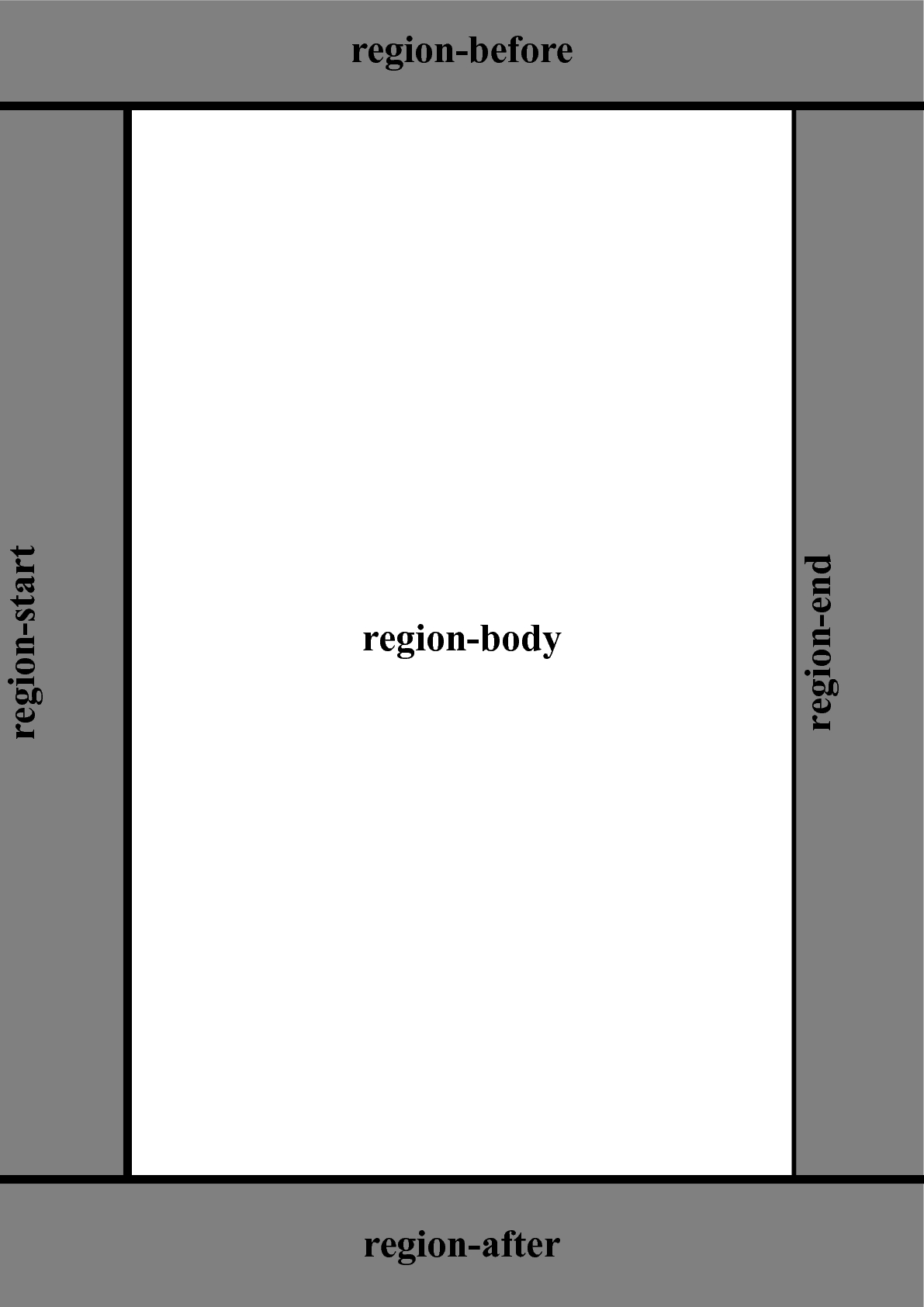
This element configures the area below <fo:region-body>, the page footer.
XSL-FO version: 1.0
Parent elements
This element defines individual pages. Desired values can be assigned to each of a page’s five regions. |
Attributes
This attribute sets several background properties at once: color (background-color), a background graphic (background-image), its repetition (background-repeat) when the image does not fill the entire reserved area (tiling), scrolling behavior (background-attachment), and positioning (background-position). Any number and combination of these properties may be specified, separated by spaces. Unspecified properties use their respective individual defaults. | |
This attribute determines whether the background moves when the foreground is scrolled. | |
This attribute specifies a background color. | |
This attribute creates a background image in the element using a path given by uri-specification. | |
This property sets both the horizontal and vertical position of a background image specified by background-image. By default, the image aligns with the top-left corner of the element where it is invoked. Positioning can use percentages percentage, absolute measurements length, or constants. One or two values, separated by spaces, may be specified. With two values, the first always sets horizontal positioning and the second vertical positioning. A single value sets horizontal positioning; vertical positioning then defaults to 50%.<fo:block-container background-image="hintergrund.eps" background-position="75%>One value may even be an absolute measurement while the other is a percentage percentage. <fo:block-container background-image="hintergrund.eps" background-position="75mm 10%> One or two values may also be specified when using constants.<fo:block-container background-image="hintergrund.eps" background-position="top right"> A single value applies to the axis for which it is defined. The other axis is set to center. <fo:block-container background-image="hintergrund.eps" background-position="top"> | |
This property sets the horizontal position of the marked area using a percentage value (percentage), an absolute measurement (length), or a predefined value (left, center, right). | |
This property sets the vertical position of the marked area using a percentage value (percentage) or an absolute measurement (length). | |
This property specifies how a background image (background-image) is repeated, or tiled, within an area. By default, the background image is repeated. | |
This attribute simultaneously sets values for all four borders (top, left, bottom and right): width (border-width), color (border-color) and style (border-style). Values may be given for one, two or all three properties. Separate two or three values with spaces. | |
This attribute sets the color of the bottom border. The after side depends on the prevailing writing direction. In Western writing (top to bottom, left to right), it is at the bottom. With another writing direction, it could also be at the top. | |
This attribute sets the style of the bottom border. The after side depends on the prevailing writing direction. In Western writing (top to bottom, left to right), this is the bottom. With another writing direction, it could be the top. | |
This attribute sets the bottom border’s width. The after region follows the writing direction: it is at the bottom for Western writing (top to bottom, left to right), but may be at the top for another direction. | |
This attribute sets the color of the top border. The before side depends on the prevailing writing direction. In Western writing (top to bottom, left to right), it is at the top. With another writing direction, it could also be at the bottom. | |
This attribute sets the style of the top border. The before side depends on the prevailing writing direction. In Western writing (top to bottom, left to right), this is the top. With another writing direction, it could be the bottom. | |
This attribute sets the top border’s width. The before region follows the writing direction: it is at the top for Western writing (top to bottom, left to right), but may be at the bottom for another direction. | |
This attribute sets the bottom border’s width (border-bottom-width), color (border-bottom-color) and style (border-bottom-style). Values may be given for one, two or all three properties. Separate two or three values with spaces. | |
This attribute sets the bottom border’s color. | |
This attribute sets the style of the bottom border. | |
This attribute sets the width of the bottom border. | |
This attribute sets a uniform color for all four borders of an area (top, left, bottom, and right). | |
This attribute sets the color of the right border. The end side depends on the prevailing writing direction. In Western writing (top to bottom, left to right), it is on the right. With another writing direction, such as Arabic, it can also be on the left. | |
This attribute sets the style of the right border. The end side depends on the prevailing writing direction. In Western writing (top to bottom, left to right), this is the right. With another writing direction, it could be the left. | |
This attribute sets the right border’s width. The end region follows the writing direction: it is on the right for Western writing (top to bottom, left to right), but may be on the left for another direction. | |
This attribute sets the left border’s width (border-left-width), color (border-left-color) and style (border-left-style). Values may be given for one, two or all three properties. Separate two or three values with spaces. | |
This attribute sets the left border’s color. | |
This attribute sets the style of the left border. | |
This attribute sets the width of the left border. | |
This attribute sets the right border’s width (border-right-width), color (border-right-color) and style (border-right-style). Values may be given for one, two or all three properties. Separate two or three values with spaces. | |
This attribute sets the right border’s color. | |
This attribute sets the style of the right border. | |
This attribute sets the width of the right border. | |
This attribute sets spacing between adjacent cells of a table (fo:table). Property border-collapse must also be set to separate. The value applies to both width and height. Using the corresponding components for height (block-progression-direction) and width (inline-progression-direction) allows them to be specified separately. | |
This attribute sets the color of the left border. The start side depends on the prevailing writing direction. In Western writing (top to bottom, left to right), it is on the left. With another writing direction, such as Arabic, it can also be on the right. | |
This attribute sets the style of the left border. The start side depends on the prevailing writing direction. In Western writing (top to bottom, left to right), this is the left. With another writing direction, it could be the right. | |
This attribute sets the left border’s width. The start region follows the writing direction: it is on the left for Western writing (top to bottom, left to right), but can be on the right for another direction. | |
This attribute sets a uniform style for all four borders of an area (top, left, bottom, and right). | |
This attribute sets the top border’s width (border-top-width), color (border-top-color) and style (border-top-style). Values may be given for one, two or all three properties. Separate two or three values with spaces. | |
This attribute sets the top border’s color. | |
This attribute sets the style of the top border. | |
This attribute sets the width of the top border. | |
This attribute sets a uniform width for all four borders of an area (top, left, bottom, and right). | |
This attribute determines how an area is clipped if its height or width exceeds the allotted space. The specification requires two other properties with particular values: the area must be positioned with position="fixed" or position="absolute", and the W3C Recommendation also requires property overflow with a value other than visible. | |
This attribute sets the vertical alignment of content in the marked area. | |
This attribute sets the width or height of a page master’s secondary regions. For the header (fo:region-start) and footer (fo:region-after), it specifies height; for the right (fo:region-end) or left region (fo:region-before), it specifies width. | |
If an area has size limits, its content may require more space than is available, producing overflow. The overflow attribute controls its treatment: display it despite the limit (visible), hide it (hidden), provide scrolling (scroll), or raise an error (error-if-overflow). The default, auto, uses system-dependent handling; inherit uses the ancestor settings. Scrolling comes from CSS and is available only in browsers. In PDF output, this setting is usually ignored and the overflow is displayed in full. Likewise, not every formatter raises an error for error-if-overflow. | |
Padding is the inner spacing of an area, between content and border, which need not be visible. An element can use the padding attribute to set top (padding-top), right (padding-right), bottom (padding-bottom) and left (padding-left) spacing together. One value sets all sides equally. Multiple values are separated by spaces. With two values, the first sets top and bottom, the second right and left. With three, the first is top, the second right and left, and the third bottom. Four values follow top, right, bottom, left. All assignments are independent of writing direction. | |
Padding is the inner spacing of an area, between content and border, which need not be visible. An element can use the padding-after attribute to set spacing to the bottom edge, depending on the writing direction selected by attribute writing-mode. With lr-tb (within lines: left to right; lines: top to bottom) and rl-tb (within lines: right to left; lines: top to bottom), padding-after remains spacing to the bottom edge. With tb-rl (within columns: top to bottom; columns: right to left), it concerns the left edge. It always concerns the edge parallel to the line or column that closes the area. | |
Padding is the inner spacing of an area, between content and border, which need not be visible. An element can use the padding-before attribute to set spacing to the top edge depending on the writing-mode attribute. With lr-tb (within lines: left to right; lines: top to bottom) and rl-tb (within lines: right to left; lines: top to bottom), padding-before remains spacing to the top edge. With tb-rl (within columns: top to bottom; columns: right to left), it concerns the left edge. It always concerns the edge parallel to the line or column that opens the area. | |
Padding is the inner spacing between content and border, which need not be visible. Attribute adding-bottom sets spacing to the bottom edge independently of writing-mode. It overrides padding, padding-after and padding-after.length (with lr-tb and rl-tb). | |
Padding is the inner spacing of an area, between content and border, which need not be visible. An element can use the padding-end attribute to set spacing to the right edge depending on writing-mode. With rl-tb (within lines: right to left; lines: top to bottom), padding-end concerns the left edge; with tb-rl (within columns: top to bottom; columns: right to left), the bottom edge; only with lr-tb (within lines: left to right; lines: top to bottom), the right edge. It always concerns the edge at the end of a line or column, creating a line or column break. | |
Padding is the inner spacing between content and border, which need not be visible. Attribute padding-left sets spacing to the left edge independently of writing-mode. It overrides padding, padding-start and padding-start.length (with lr-tb and rl-tb). | |
Padding is the inner spacing between content and border, which need not be visible. Attribute padding-right sets spacing to the right edge independently of writing-mode. It overrides padding, padding-end and padding-end.length (with lr-tb and rl-tb). | |
Padding is the space inside an area: the distance from the content to the border. (The border need not be visible.) An element can use padding-start to specify the space to the left border, depending on the writing direction selected by writing-mode. With rl-tb (within lines: right to left; lines: top to bottom), padding-start refers to the right border. With tb-rl (within columns: top to bottom; columns: right to left), it refers to the top border. Only with lr-tb (within lines: left to right; lines: top to bottom) is it the left border. It always concerns the border at the start of the line or column. | |
Padding is the inner spacing between content and border, which need not be visible. Attribute padding-top sets spacing to the top edge independently of writing-mode. It overrides padding, padding-before and padding-before.length (with lr-tb and rl-tb). | |
This attribute controls page corners where two regions, such as before and end, meet. By default, start (left) and end (right) cover before (top) and after (bottom). Attribute precedence on fo:region-after and fo:region-before can give those regions priority. It may also appear on fo:region-end and fo:region-start, but has no effect there. | |
This attribute rotates an object in 90° increments only (0°, 90°, 180°, 270°). | |
This attribute assigns a name to a region. Static or flowing content in elements fo:static-content and fo:flow can be assigned directly to a region by matching their flow-name attribute value to the target region’s region-name value. However, region-name is not an ID value. Two regions can also be referenced simultaneously. | |
This attribute sets writing direction. Applied to page masters (fo:simple-page-master), writing-mode controls placement of fo-region-body, fo-region-before, fo-region-after, fo-region-start and fo-region-end. On tables, writing-mode controls horizontal column or cell alignment and vertical row alignment, allowing tables to be displayed in landscape format. |
Support:
Conformance level | Antenna House | FOP | RenderX XEP | Altsoft XML2PDF | Compart DocBridge |
Extended | J | J | J | J | J |
XSL-FO example:
<fo:root>
<fo:layout-master-set>
<fo:simple-page-master margin="0mm 0mm 0mm
                      0mm" master-name="Inhalt-Seiten" page-height="297mm" page-width="210mm">
<fo:region-body margin="140mm 0mm 0mm
                        0mm"/>
<fo:region-before region-name="Inhalt-rechts-davor" extent="25mm" display-align="center" background-color="grey" border-after-style="solid" border-after-width="2mm" precedence="true"/>
<fo:region-after region-name="Inhalt-rechts-danach" extent="30mm" display-align="center" background-color="grey" border-before-style="solid" border-before-width="2mm" precedence="true"/>
<fo:region-start region-name="Inhalt-rechts-start" extent="30mm" display-align="center" background-color="grey" border-end-style="solid" border-end-width="2mm"/>
<fo:region-end region-name="Inhalt-rechts-end" extent="30mm" background-color="grey" border-start-style="solid" border-start-width="1mm" display-align="center"/>
</fo:simple-page-master>
</fo:layout-master-set>
<fo:page-sequence master-reference="Inhalt-Seiten">
<fo:static-content flow-name="Inhalt-rechts-davor">
<fo:block text-align="center" font-size="25pt" font-weight="bold">
region-before
</fo:block>
</fo:static-content>
<fo:static-content flow-name="Inhalt-rechts-start">
<fo:block-container reference-orientation="90" display-align="center">
<fo:block text-align="center" font-size="25pt" font-weight="bold">
region-start
</fo:block>
</fo:block-container>
</fo:static-content>
<fo:static-content flow-name="Inhalt-rechts-end">
<fo:block-container reference-orientation="90" display-align="center">
<fo:block text-align="center" font-size="25pt" font-weight="bold">
region-end
</fo:block>
</fo:block-container>
</fo:static-content>
<fo:static-content flow-name="Inhalt-rechts-danach">
<fo:block text-align="center" font-size="25pt" font-weight="bold">
region-after
</fo:block>
</fo:static-content>
<fo:flow flow-name="xsl-region-body">
<fo:block text-align="center" font-size="25pt" font-weight="bold">
region-body
</fo:block>
</fo:flow>
</fo:page-sequence>
</fo:root>More information online about
Practical example: "Headers and footers">
Practical example: "Page masters and simple page sequence masters">
Practical example: "Complex page sequence masters">
In the output:
Excerpt from the W3C Recommendation: