XML technologies / XSL-FO / Reference / Elements in XSL-FO / fo:title
(Excerpt from “XSL-FO ― The Reference” by Manuel Montero Pineda & Steffen Herkert, 2016, dpunkt.verlag)
A | B | C | D | E | F | G | H | I | J | K | L | M | N | O | P | Q | R | S | T | U | V | W | X | Y | Z
Recommendation section: 6.4.21
Category: 6.4 Declarations and Pagination and Layout Formatting Objects
Description
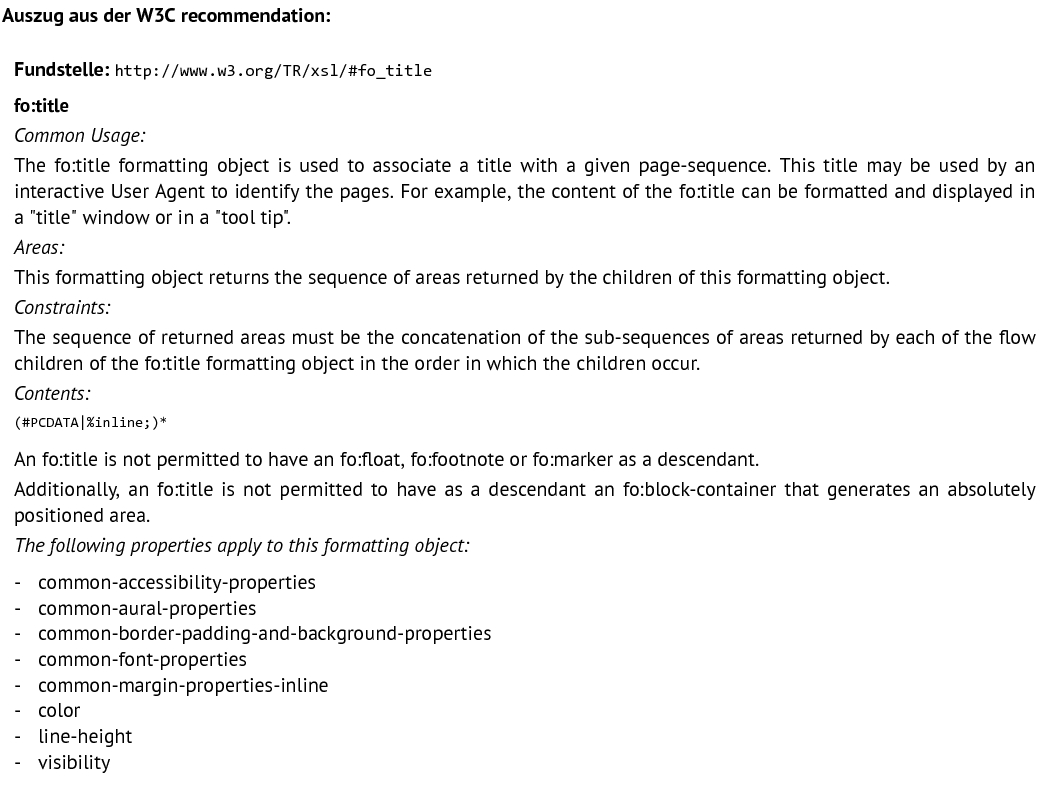
This element specifies a page sequence’s title (<fo:page-sequence>).
XSL-FO version: 1.0
Parent elements
This element defines how page sequences are used within a document. It also embeds the document content in the page sequence. |
Child elements
This element creates a link in the document pointing to an internal or external reference. | |
This element allows the desired writing direction to be set if the default Unicode bidirectional algorithm cannot be applied. | |
This element marks the start of a "change region", which is ended by its matching fo:change-bar-end. The change region has a change bar running along either the start or end edge of the column. The change bar’s appearance is determined by the values of the corresponding properties. | |
This element marks the end of a "change region" started by its matching fo:change-bar-begin. | |
This element provides separate rendering of individual characters. | |
This element inserts external graphics into the document. Attributes provide numerous configuration options. | |
This element positions content relative to a display block, for example to wrap text around graphics or create marginal notes. | |
This element creates a reference to a footnote. | |
This element groups the collections of cited page items generated by its fo:index-key-reference child elements. Ultimately, fo:index-page-citation-list is used to create a formatted list of page numbers and page ranges (a page citation list). | |
This element marks the start of an "indexed range" associated with an index key. The range is closed by a corresponding fo:index-range-end. | |
This element marks the end of an "indexed range" started by its matching fo:index-range-begin. | |
This element creates an inline area that applies separate formatting properties to specific portions of text in a block, for example to emphasize passages with italics. | |
This element creates a container in which shared settings can be applied to several inline areas. | |
This element allows inline graphics or other inline objects to be inserted into the document. | |
This element creates a line of repeated characters to separate two text formatting objects, for example headings and their page numbers in a table of contents. | |
This element allows switching between different sets of properties. | |
This element allows switching between different subtrees of formatting objects. | |
When used inside a <fo:multi-case> element, this element provides access to other <fo:multi-case> elements. | |
This element displays the current page number in the document. | |
This element references the number of the page containing a specific formatting object, for example to display page numbers alongside headings in a table of contents. | |
This element references the number of the last page containing an area that (a) is returned by the referenced formatting object and (b) has an area-class compatible with the specified page citation strategy. | |
This element retrieves the area marked in <fo:marker>, for example for running headings. | |
Together with <fo:marker>, this element allows areas in tables to be repeated. | |
This element retrieves the scaling factor of the referenced fo:external-graphic. | |
Properties for a group of formatting objects can be specified in <fo:multi-properties>. |
Attributes
This attribute sets several background properties at once: color (background-color), a background graphic (background-image), its repetition (background-repeat) when the image does not fill the entire reserved area (tiling), scrolling behavior (background-attachment), and positioning (background-position). Any number and combination of these properties may be specified, separated by spaces. Unspecified properties use their respective individual defaults. | |
This attribute determines whether the background moves when the foreground is scrolled. | |
This attribute specifies a background color. | |
This attribute creates a background image in the element using a path given by uri-specification. | |
This property sets both the horizontal and vertical position of a background image specified by background-image. By default, the image aligns with the top-left corner of the element where it is invoked. Positioning can use percentages percentage, absolute measurements length, or constants. One or two values, separated by spaces, may be specified. With two values, the first always sets horizontal positioning and the second vertical positioning. A single value sets horizontal positioning; vertical positioning then defaults to 50%.<fo:block-container background-image="hintergrund.eps" background-position="75%>One value may even be an absolute measurement while the other is a percentage percentage. <fo:block-container background-image="hintergrund.eps" background-position="75mm 10%> One or two values may also be specified when using constants.<fo:block-container background-image="hintergrund.eps" background-position="top right"> A single value applies to the axis for which it is defined. The other axis is set to center. <fo:block-container background-image="hintergrund.eps" background-position="top"> | |
This property sets the horizontal position of the marked area using a percentage value (percentage), an absolute measurement (length), or a predefined value (left, center, right). | |
This property sets the vertical position of the marked area using a percentage value (percentage) or an absolute measurement (length). | |
This property specifies how a background image (background-image) is repeated, or tiled, within an area. By default, the background image is repeated. | |
This attribute simultaneously sets values for all four borders (top, left, bottom and right): width (border-width), color (border-color) and style (border-style). Values may be given for one, two or all three properties. Separate two or three values with spaces. | |
This attribute sets the color of the bottom border. The after side depends on the prevailing writing direction. In Western writing (top to bottom, left to right), it is at the bottom. With another writing direction, it could also be at the top. | |
This attribute sets the style of the bottom border. The after side depends on the prevailing writing direction. In Western writing (top to bottom, left to right), this is the bottom. With another writing direction, it could be the top. | |
This attribute sets the bottom border’s width. The after region follows the writing direction: it is at the bottom for Western writing (top to bottom, left to right), but may be at the top for another direction. | |
This attribute sets the color of the top border. The before side depends on the prevailing writing direction. In Western writing (top to bottom, left to right), it is at the top. With another writing direction, it could also be at the bottom. | |
This attribute sets the style of the top border. The before side depends on the prevailing writing direction. In Western writing (top to bottom, left to right), this is the top. With another writing direction, it could be the bottom. | |
This attribute sets the top border’s width. The before region follows the writing direction: it is at the top for Western writing (top to bottom, left to right), but may be at the bottom for another direction. | |
This attribute sets the bottom border’s width (border-bottom-width), color (border-bottom-color) and style (border-bottom-style). Values may be given for one, two or all three properties. Separate two or three values with spaces. | |
This attribute sets the bottom border’s color. | |
This attribute sets the style of the bottom border. | |
This attribute sets the width of the bottom border. | |
This attribute sets a uniform color for all four borders of an area (top, left, bottom, and right). | |
This attribute sets the color of the right border. The end side depends on the prevailing writing direction. In Western writing (top to bottom, left to right), it is on the right. With another writing direction, such as Arabic, it can also be on the left. | |
This attribute sets the style of the right border. The end side depends on the prevailing writing direction. In Western writing (top to bottom, left to right), this is the right. With another writing direction, it could be the left. | |
This attribute sets the right border’s width. The end region follows the writing direction: it is on the right for Western writing (top to bottom, left to right), but may be on the left for another direction. | |
This attribute sets the left border’s width (border-left-width), color (border-left-color) and style (border-left-style). Values may be given for one, two or all three properties. Separate two or three values with spaces. | |
This attribute sets the left border’s color. | |
This attribute sets the style of the left border. | |
This attribute sets the width of the left border. | |
This attribute sets the right border’s width (border-right-width), color (border-right-color) and style (border-right-style). Values may be given for one, two or all three properties. Separate two or three values with spaces. | |
This attribute sets the right border’s color. | |
This attribute sets the style of the right border. | |
This attribute sets the width of the right border. | |
This attribute sets spacing between adjacent cells of a table (fo:table). Property border-collapse must also be set to separate. The value applies to both width and height. Using the corresponding components for height (block-progression-direction) and width (inline-progression-direction) allows them to be specified separately. | |
This attribute sets the color of the left border. The start side depends on the prevailing writing direction. In Western writing (top to bottom, left to right), it is on the left. With another writing direction, such as Arabic, it can also be on the right. | |
This attribute sets the style of the left border. The start side depends on the prevailing writing direction. In Western writing (top to bottom, left to right), this is the left. With another writing direction, it could be the right. | |
This attribute sets the left border’s width. The start region follows the writing direction: it is on the left for Western writing (top to bottom, left to right), but can be on the right for another direction. | |
This attribute sets a uniform style for all four borders of an area (top, left, bottom, and right). | |
This attribute sets the top border’s width (border-top-width), color (border-top-color) and style (border-top-style). Values may be given for one, two or all three properties. Separate two or three values with spaces. | |
This attribute sets the top border’s color. | |
This attribute sets the style of the top border. | |
This attribute sets the width of the top border. | |
This attribute sets a uniform width for all four borders of an area (top, left, bottom, and right). | |
This attribute sets the displayed text’s color. The specified color also serves as the default for the region’s borders, if they are generated and their color is not otherwise defined. | |
This attribute is a shorthand font property in which the individual values for the attributes font-style, font-variant, font-weight, font-size, line-height and font-family can be specified together. Values must be specified for font-size and font-family. Values for the remaining properties are optional. Separate individual values with spaces. Only a value for line-height must directly follow the specified font-size value, separated from font-size by a slash (/) rather than a space. Alternatively, instead of assembling the properties individually, you can use system fonts if available. These already have predefined characteristics. The names of these system fonts reflect the contexts in which they are used. | |
This attribute specifies the font to use. Several fonts may be listed and tried in the specified order, allowing characters missing from one font to be taken from another. Names containing spaces, such as Times New Roman, must be enclosed in quotation marks. Multiple font names must be separated by a comma and a space. | |
This attribute defines the criteria for selecting a particular font. | |
This attribute specifies font size relative to the surrounding area, relative to the output medium’s settings, or as an absolute measurement (length). The absolute constants xx-small, x-small, small, medium, large, x-large, and xx-large represent fixed factors scaling the medium’s default font size. The relative constants larger and smaller are predefined factors applied to the surrounding area’s font size. An absolute measurement specifies the font’s maximum extent, defined as the distance between the p-line and k-line (http://de.wikipedia.org/wiki/Schriftgrad). | |
This attribute specifies a font’s x-height relative to its font size. It adjusts and harmonizes text appearance because different fonts may have different x-heights. | |
This attribute selects alternative font faces with a particular character width, allowing narrower or wider faces. Relative and absolute keywords are available. Absolute keywords expand or condense the width of normal by fixed factors (steps of 1.2, 1.2², 1.2³, and so on). Relative keywords expand or condense the width used in the surrounding area by a factor of 1.2. Formatters may also support percentage widths. | |
This attribute specifies a font style. The corresponding face may need to be available for the selected font. | |
This attribute displays small capitals. Intended for the Latin alphabet, it renders lowercase letters as capitals at lowercase height, distinguishing them from actual uppercase letters. | |
This attribute selects the font face by stroke weight (thickness). Relative and absolute keywords and certain numeric values can be specified. Absolute keywords represent fixed numeric values. Relative keywords increase or decrease the surrounding weight by 200 on the numeric scale. The scale runs from 100 to 900 in steps of 100, with 400 as normal. Few fonts provide a separate face for every step. If the required face is unavailable, the nearest available face is used. | |
This attribute sets the height of text lines. For block areas, the value specifies the minimum height; for inline areas, it is used as an exact measurement. In addition, appending the components .minimum, .maximum, .optimum, .conditionality and .precedence to attribute names can establish relative conditions or priorities when conflicting specifications must be resolved. Settings obtained through inheritance can generally be accepted or discarded. | |
This attribute sets the top, right, bottom and left margins of an area relative to its immediate parent block area. With one value, it sets the left (margin-left), right (margin-right), top (margin-top) and bottom (margin-bottom). With two values, the first sets top and bottom (margin-top and margin-bottom), the second left and right (margin-left and margin-right). With three, the first sets top (margin-top), the second left and right (margin-left and margin-right), the third bottom (margin-bottom). Four values follow the usual order: top (margin-top), right (margin-right), bottom (margin-bottom), left (margin-left). | |
This attribute sets the bottom margin of an area relative to its immediate parent area. The other margins are specified by margin-top (top), margin-right (right), margin-left (left). A value set here overrides any corresponding value specified by margin. | |
This attribute sets the left margin of an area relative to its immediate parent area. The other margins are specified by margin-top (top), margin-right (right), margin-bottom (bottom). A value set here overrides any corresponding value specified by margin. | |
This attribute sets the right margin of an area relative to its immediate parent area. The other margins are specified by margin-top (top), margin-left (left), margin-bottom (bottom). A value set here overrides any corresponding value specified by margin. | |
This attribute sets the top margin of an area relative to its immediate parent area. The other margins are specified by margin-right (right), margin-left (left), margin-bottom (bottom). A value set here overrides any corresponding value specified by margin. | |
Padding is the inner spacing of an area, between content and border, which need not be visible. An element can use the padding attribute to set top (padding-top), right (padding-right), bottom (padding-bottom) and left (padding-left) spacing together. One value sets all sides equally. Multiple values are separated by spaces. With two values, the first sets top and bottom, the second right and left. With three, the first is top, the second right and left, and the third bottom. Four values follow top, right, bottom, left. All assignments are independent of writing direction. | |
Padding is the inner spacing of an area, between content and border, which need not be visible. An element can use the padding-after attribute to set spacing to the bottom edge, depending on the writing direction selected by attribute writing-mode. With lr-tb (within lines: left to right; lines: top to bottom) and rl-tb (within lines: right to left; lines: top to bottom), padding-after remains spacing to the bottom edge. With tb-rl (within columns: top to bottom; columns: right to left), it concerns the left edge. It always concerns the edge parallel to the line or column that closes the area. | |
Padding is the inner spacing of an area, between content and border, which need not be visible. An element can use the padding-before attribute to set spacing to the top edge depending on the writing-mode attribute. With lr-tb (within lines: left to right; lines: top to bottom) and rl-tb (within lines: right to left; lines: top to bottom), padding-before remains spacing to the top edge. With tb-rl (within columns: top to bottom; columns: right to left), it concerns the left edge. It always concerns the edge parallel to the line or column that opens the area. | |
Padding is the inner spacing between content and border, which need not be visible. Attribute adding-bottom sets spacing to the bottom edge independently of writing-mode. It overrides padding, padding-after and padding-after.length (with lr-tb and rl-tb). | |
Padding is the inner spacing of an area, between content and border, which need not be visible. An element can use the padding-end attribute to set spacing to the right edge depending on writing-mode. With rl-tb (within lines: right to left; lines: top to bottom), padding-end concerns the left edge; with tb-rl (within columns: top to bottom; columns: right to left), the bottom edge; only with lr-tb (within lines: left to right; lines: top to bottom), the right edge. It always concerns the edge at the end of a line or column, creating a line or column break. | |
Padding is the inner spacing between content and border, which need not be visible. Attribute padding-left sets spacing to the left edge independently of writing-mode. It overrides padding, padding-start and padding-start.length (with lr-tb and rl-tb). | |
Padding is the inner spacing between content and border, which need not be visible. Attribute padding-right sets spacing to the right edge independently of writing-mode. It overrides padding, padding-end and padding-end.length (with lr-tb and rl-tb). | |
Padding is the space inside an area: the distance from the content to the border. (The border need not be visible.) An element can use padding-start to specify the space to the left border, depending on the writing direction selected by writing-mode. With rl-tb (within lines: right to left; lines: top to bottom), padding-start refers to the right border. With tb-rl (within columns: top to bottom; columns: right to left), it refers to the top border. Only with lr-tb (within lines: left to right; lines: top to bottom) is it the left border. It always concerns the border at the start of the line or column. | |
Padding is the inner spacing between content and border, which need not be visible. Attribute padding-top sets spacing to the top edge independently of writing-mode. It overrides padding, padding-before and padding-before.length (with lr-tb and rl-tb). | |
This attribute creates content-related identifiers that provide alternative output devices, such as audio output, with information about the XML element’s content. | |
This attribute identifies an XML document as the source document. If the renderer cannot interpret the FO document, for example for a hypothetical speech output, the source document can also be consulted. It has no practical significance. | |
This attribute sets the space before the immediately following inline area. It is applied only if the area allows an inline object. Block elements that occupy the full line width therefore receive no space. No space is applied if a line break follows either. This attribute can combine several spacing values. | |
This attribute controls how the spacing to the immediately following inline area, specified in space-end, applies when a line break divides the area into two parts. The broken area may still be treated as one area: line breaks are ignored and only its final spacing is shown. Alternatively, each part can be treated as an independent area, inserting the spacing after each break. Normally, no spacing is set if an area ends with a line break. If it is treated as a partial area, however, spacing is also set at the end of a line. | |
This attribute sets the maximum separation from the next inline area. When the processor distributes areas in a line automatically, it uses this as a limit. Unlike the margin attributes, this spacing is not inserted if a line break follows. | |
This attribute sets the minimum separation from the next inline area. When the processor distributes areas in a line automatically, it uses this as a limit. Unlike the margin attributes, this spacing is not inserted if a line break follows. | |
This attribute sets the optimal separation from the next inline area. When the processor distributes areas in a line automatically, it tries to maintain this distance. Unlike the margin attributes, this spacing is not inserted if a line break follows. | |
If an inline area specifies space-end and the immediately following inline area specifies space-start, only one value determines their spacing. Priority is calculated from the corresponding space-end.precedence and space-start.precedence attributes. If both have the same value, space-end always takes precedence. | |
This attribute sets the space after the immediately preceding inline area. It is applied only if the area allows another inline object. Block elements that occupy the full line width therefore receive no space. No space is applied if a line break precedes the area either. This attribute can combine several spacing values. | |
This attribute specifies how the space after the preceding inline area, defined by space-start, applies when a line break divides an area. The split area may be treated as a whole, ignoring breaks and displaying the space only at its start. Alternatively, each part may be treated as independent, inserting such space after each break. Normally, no space is applied if the area starts after a line break. If it is treated as a separate part, the space is also applied at the start of a line. | |
This attribute sets the maximum separation from the preceding inline area. When the processor distributes areas in a line automatically, it uses this as a limit. Unlike the margin attributes, this spacing is not inserted if the area follows a line break. | |
This attribute sets the minimum separation from the preceding inline area. When the processor distributes areas in a line automatically, it uses this as a limit. Unlike the margin attributes, this spacing is not inserted if the area follows a line break. | |
This attribute sets the optimal separation from the preceding inline area. When the processor distributes areas in a line automatically, it tries to maintain this distance. Unlike the margin attributes, this spacing is not inserted if the area follows a line break. | |
If an inline area has space-start and the preceding inline area has space-end, only one value determines their separation. The corresponding space-start.precedence and space-end.precedence attributes determine priority. If the values are equal, space-end takes precedence. | |
This attribute specifies whether the marked area’s display should be suppressed. |
Support:
Conformance level | Antenna House | FOP | RenderX XEP | Altsoft XML2PDF | Compart DocBridge |
Extended | J | J | N | J | N |
XSL-FO example:
<fo:root>
<fo:layout-master-set>
<fo:simple-page-master margin="13mm 35mm 20mm
                        25mm" master-name="Inhalt">
<fo:region-body/>
</fo:simple-page-master>
</fo:layout-master-set>
<fo:page-sequence master-reference="Inhalt">
<fo:title>
Die Verwandlung
</fo:title>
<fo:flow flow-name="xsl-region-body">
<fo:block>
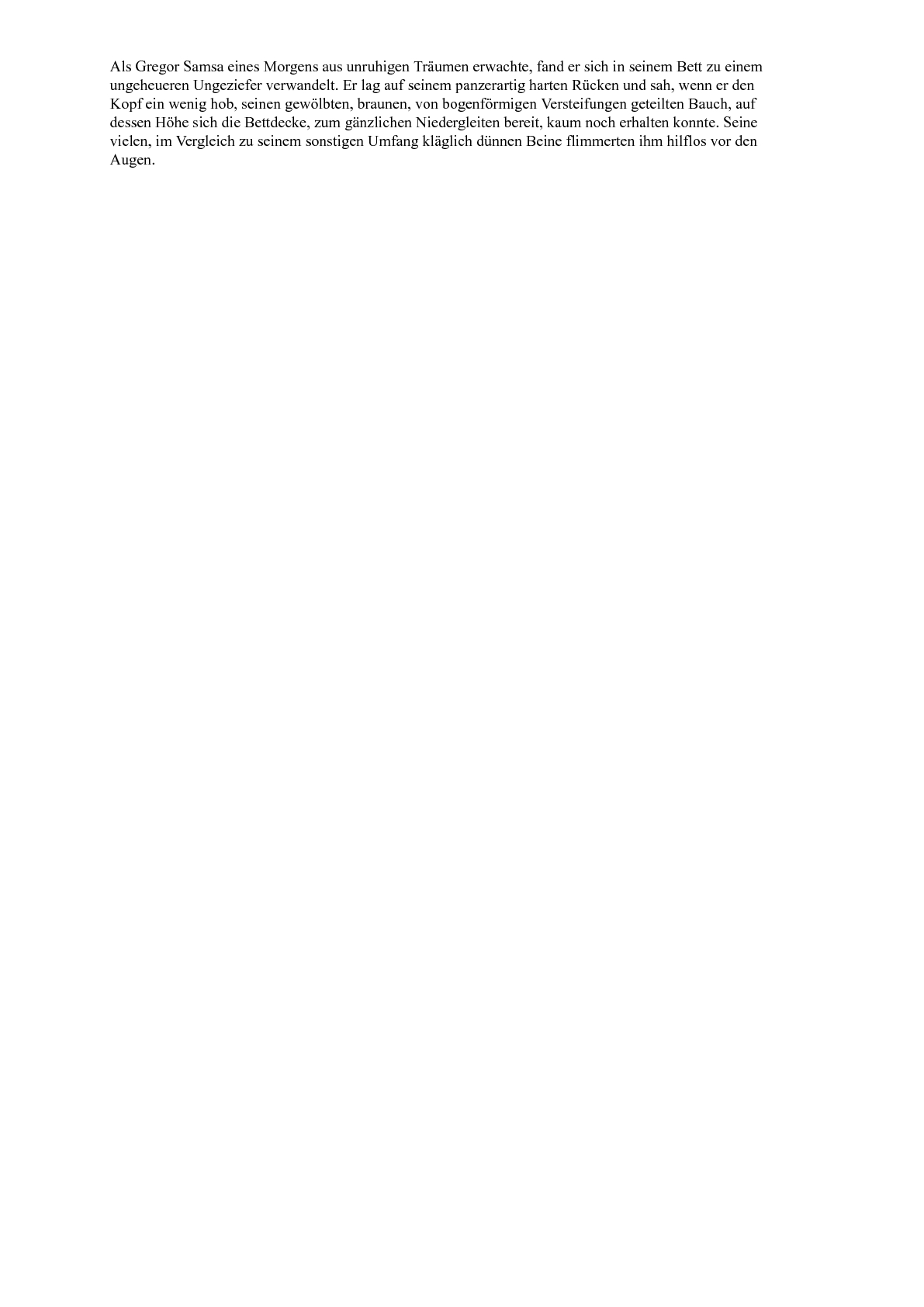
Als Gregor Samsa eines Morgens aus unruhigen Träumen erwachte, fand er sich in
                seinem Bett zu einem ungeheueren Ungeziefer verwandelt. Er lag auf seinem
                panzerartig harten Rücken und sah, wenn er den Kopf ein wenig hob, seinen gewölbten,
                braunen, von bogenförmigen Versteifungen geteilten Bauch, auf dessen Höhe sich die
                Bettdecke, zum gänzlichen Niedergleiten bereit, kaum noch erhalten konnte. Seine
                vielen, im Vergleich zu seinem sonstigen Umfang kläglich dünnen Beine flimmerten ihm
                hilflos vor den Augen.
</fo:block>
</fo:flow>
</fo:page-sequence>
</fo:root>In the output:
Excerpt from the W3C Recommendation: