

XML technologies / ePUB / ePub für (In)Designer / Images / Preparing the cover image
(Excerpt from “ePub für (In)Designer — Mit InDesign Schritt für Schritt zum E-Book” by Sascha Heck & Yves Apel)
Every ePub distributed or sold should have a cover: almost every digital-book storage or management program initially displays an overview of your books’ covers.
Follow certain cover rules, including using a single raster image containing both text and design. InDesign easily creates a cover or includes an existing image. Here we show how using InDesign CS5.5 or CS5, whose cover workflows differ.
Match the cover to page size to avoid a white border in ePub. A cover created specifically for e-books can use 600 × 800 pixels, common among e-readers.
Cover in InDesign CS5.5
Assume an existing InDesign cover layout. Select all cover objects and group with CMD + G (Mac) or CTRL + G (Win).

Figure: Example cover in InDesign CS5.5.
Open the window through Object → Object Export Options. Select the tab EPUB and HTML and enable Custom Rasterization. Under Size choose Relative to Page Width. Leave the format at JPEG. Choose resolution and quality yourself, as they affect file size.
I use 300 ppi here so the cover displays at high resolution on every e-reader.
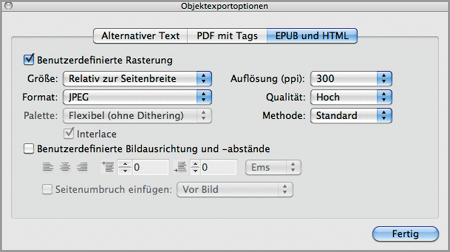
Figure: Cover settings in Object Export Options.
For ePub export, in EPUB Export Options under EPUB Cover choose Rasterize First Page.
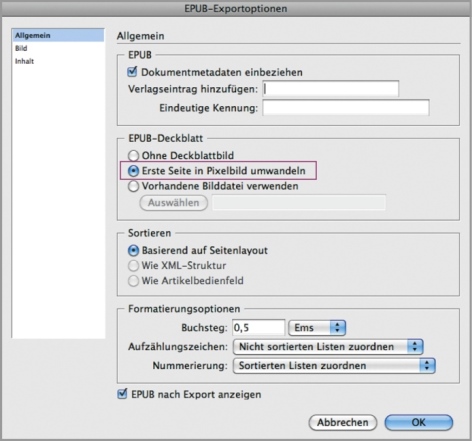
Figure: Cover settings in EPUB Export Options.
If a cover image already exists, skip the preceding steps. During export, under EPUB Cover choose Use Existing Image File and select the existing image file.
Cover in InDesign CS5
InDesign CS5 lacks these CS5.5 export options and requires preparation, which we explain step by step.
Select all title-page objects and choose File → Export in JPEG format.
During export choose Selection. Set quality, resolution and other options as desired.
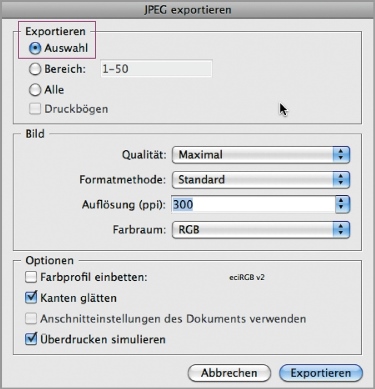
Figure: Cover in InDesign CS5—export JPEG.
As explained earlier under Before you begin, use a separate InDesign document per chapter, including the cover. Match its page size to the image just created, insert the image and put this document first in book reading order. CS5 automatically treats the first page as the cover during ePub export, whereas CS5.5 lets you configure this. The image does not adapt to the screen: design it at the reader’s dimensions. Agree target devices with the client beforehand, or use 600 × 800 pixels, common on popular screens.
InDesign work is complete. For post-processing, see Adding or editing a cover afterward.
Copyright © dpunkt.verlag GmbH 2012
You may print the online version for your private use.
Otherwise, this chapter from “ePub für (In)Designer” is subject to the same terms as the printed edition: the work and all its parts are protected by copyright. All rights reserved, including reproduction, translation, microfilming, and storage and processing in electronic systems.
dpunkt.verlag GmbH, Wieblinger Weg 17, 69123 Heidelberg, fon 06221-14830, fax 06221-148399, hallo(at)dpunkt.de