

XML technologies / ePUB / ePub für (In)Designer / Images / Anchoring images in text flow
(Excerpt from “ePub für (In)Designer — Mit InDesign Schritt für Schritt zum E-Book” by Sascha Heck & Yves Apel)
After preparing images and objects for ePub export, place them in text flow and correct reading order. Otherwise InDesign exports all text first, then images and objects, which is undesirable. Hereafter “images” also includes objects.
Use anchored objects to put images in reading order. Start at the document end and work backward: inserting images adds pages, so starting at the beginning would move text away from its corresponding images on pasteboards.
First insert an empty line at the desired point and assign a new paragraph style. Choose any name, but set the correct alignment, left, center or right, and spacing before and after the image.
| Figure: Empty image-insertion line using paragraph style E-Book Bild. |
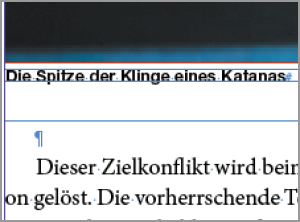
Here we use centered alignment and 12 pixels before and after. For leading, choose Auto. Twelve pixels is an empirical value giving our best results across countless examples.
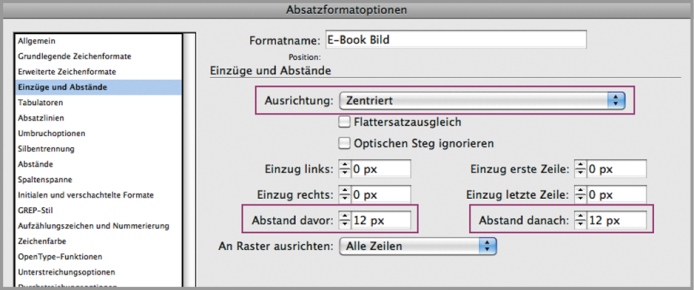
Figure: Dedicated paragraph style for image insertion.
To insert an image in text flow, cut it with Edit → Cut or CMD + X (Mac)/CTRL + X (Win). Put the text cursor in the empty line and paste with Edit → Paste or CMD + V (Mac)/CTRL + V (Win).
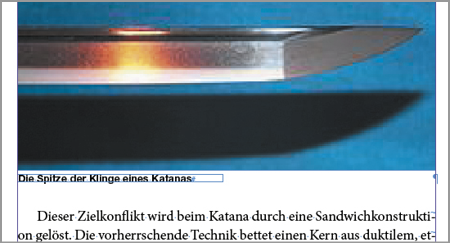
Figure: Pasting at the cursor anchors the image in text.
The image is now anchored; repeat for all others. Full-page images are usually not inserted in text and can be ordered with the Articles panel. This requires the text threading to be interrupted there; otherwise keep the full-page image anchored in text.
CS5.5
InDesign CS5.5 offers an easier method. Select an image to reveal a small blue square at the frame’s top right. Hold the left mouse button on it and drag into text: the image is anchored without changing position.
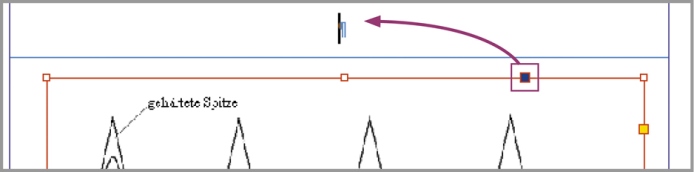
Figure: The blue square makes anchoring easy from CS5.5.
Holding Shift before dragging the blue square into text has the same effect as cutting and pasting.
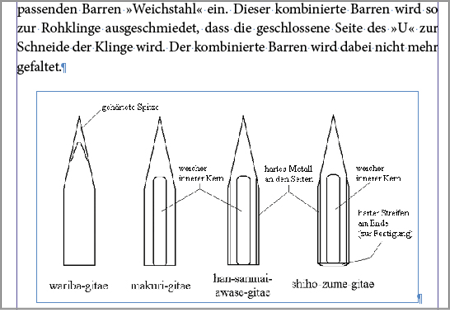
Figure: Cut-and-paste effect by holding Shift.
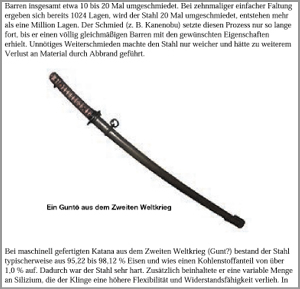
Both CS5.5 methods place images in correct reading order. Although still at its original print position, our e-book image now lies between “... Abbrand geführt.” and “Bei maschinell ...”. This is practical when adapting an existing document for e-books.
| Figure: Image above, anchored in the paragraph after “… durch Abbrand geführt.” |
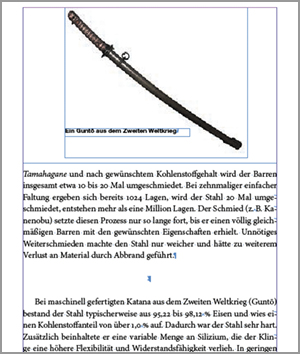
| Figure: ePub places the image correctly between the two paragraphs. |
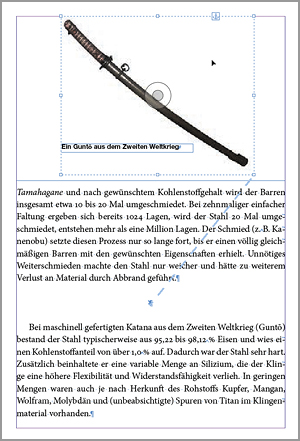
To see the threading, enable Show Text Threads under View → Extras, then select the object.
| Figure: Image grouped with its caption and anchored in a separate paragraph. |
If planning text wrap around images or colored backgrounds for boxes, read Wrapping text around images and boxes before continuing.
Copyright © dpunkt.verlag GmbH 2012
You may print the online version for your private use.
Otherwise, this chapter from “ePub für (In)Designer” is subject to the same terms as the printed edition: the work and all its parts are protected by copyright. All rights reserved, including reproduction, translation, microfilming, and storage and processing in electronic systems.
dpunkt.verlag GmbH, Wieblinger Weg 17, 69123 Heidelberg, fon 06221-14830, fax 06221-148399, hallo(at)dpunkt.de