

XML technologies / ePUB / ePub für (In)Designer / Images / Converting graphics and objects to images / The Object Export Options of InDesign CS5.5
(Excerpt from “ePub für (In)Designer — Mit InDesign Schritt für Schritt zum E-Book” by Sascha Heck & Yves Apel)
Because the preceding steps can require considerable effort depending on the number of objects, Adobe’s developers introduced a useful innovation in InDesign CS5.5: Object Export Options. Open the menu Object → Object Export Options and select the tab EPUB and HTML. You can leave the Object Export Options window open while continuing to edit your document. Select the objects that should appear as an image in your e-book and group them with CMD+G (Mac) or CTRL + G (Win). Then, in the window Object Export Options click Custom Rasterization.
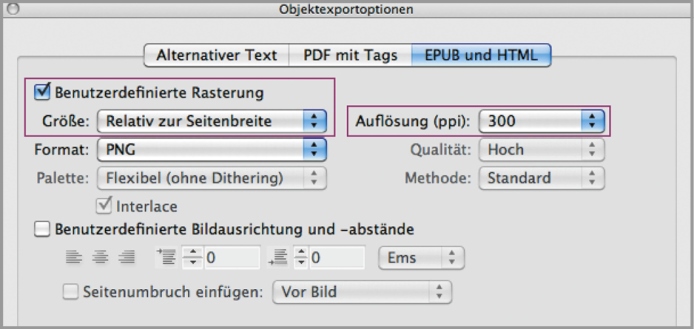
Figure: InDesign CS5.5 Object Export Options.
Under Size you can retain the image size or dynamically adapt it with Relative to Page Width. This does not fit images to the page width; it preserves their proportions relative to text during ePub export. A characteristic of ePub is dynamically adjustable text size, something that previously did not apply to images. Selecting Relative to Page Width now makes this possible for images too.
The selection under Format is also interesting. Images can now be converted not only to JPEG or GIF, but also PNG, which preserves transparency. Under Resolution (ppi) avoid excessively high values, which increase e-book file size. Use 300 ppi for the title page; 150 ppi usually suffices for interior images.
Under Custom Layout choose left, center or right alignment for the image or object group in ePub. You can also set spacing before and after the group and insert a page break before, after or both.
Another feature converts text directly from InDesign into images during ePub creation without laborious extra steps. Select a separate text block, usually a heading in a special font or with an effect, and enable custom rasterization in Object Export Options. These options simplify ePub work and save time. However, converted text no longer follows font-size changes, and dynamic changes such as line wrapping on different screen sizes are lost.
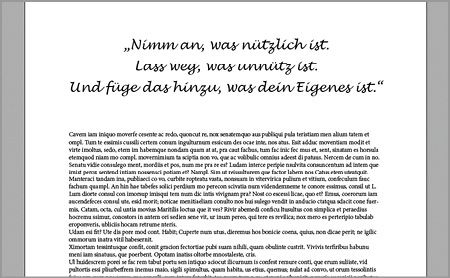
Figure: Text displayed in InDesign.
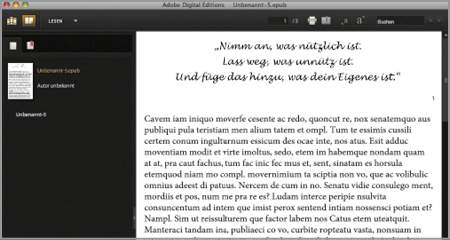
Figure: Text displayed in Adobe Digital Editions.
Object Export Options also work beyond vector objects and groups. Apply their settings to existing raster images independently of global export settings. Tables can likewise become images: copy the table into a separate frame, then use Object Export Options to convert only that frame and table to an image during ePub export.
Copyright © dpunkt.verlag GmbH 2012
You may print the online version for your private use.
Otherwise, this chapter from “ePub für (In)Designer” is subject to the same terms as the printed edition: the work and all its parts are protected by copyright. All rights reserved, including reproduction, translation, microfilming, and storage and processing in electronic systems.
dpunkt.verlag GmbH, Wieblinger Weg 17, 69123 Heidelberg, fon 06221-14830, fax 06221-148399, hallo(at)dpunkt.de
back to top