

XML technologies / CSS / CSS Cookbook / Forms / Macintosh-style search text field
(Excerpt from “CSS Kochbuch” by Christopher Schmitt)
Problem
Display a search field in Safari in the native Macintosh style, as shown in the next figure.
Solution
Use Safari’s own HTML extensions.
Add an input element to an HTML form and set the attribute type to search:
<form method="get" action="/search.php">
  <div>
    <label for="q">Suchen</label>
    <input type="search" placeholder="keywords" autosave="com.domain.search" results="7" name="q" />
  </div>
</form>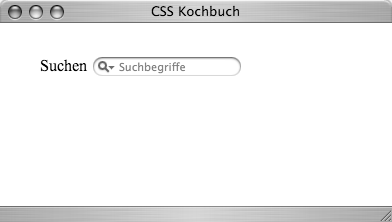
Figure: Safari’s native search field.
Discussion
Apple’s Safari developers created an extension for HTML forms intended to provide a more robust user interface. All browsers except Safari display the input as a normal text field, which can still be used for searches.
Search field attributes
The attribute placeholder lets web developers display placeholder text in the search field. This corresponds to the text of the attribute value in a normal text input field, as shown in the following figure:
<label for="fmwebsite">Website:</label>
<input type="text" name="fmwebsite" value="http://" />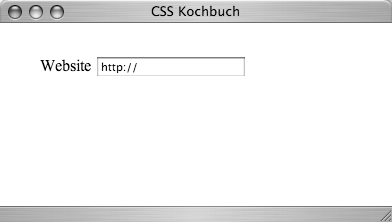
Figure: An input field in Safari.
The difference between placeholder and value is that users must manually remove text placed in the field by value before entering their own value.
Warning:
Avoid using the attributes value and placeholder for the same search field, because the value of value overwrites the placeholder value in Safari. Safari users must then also remove the text manually, losing the additional functionality provided by placeholder.
The attribute autosave controls whether previously entered search terms are saved on the user’s computer. Clicking the magnifying-glass icon displays a list of these terms (see the following figure).
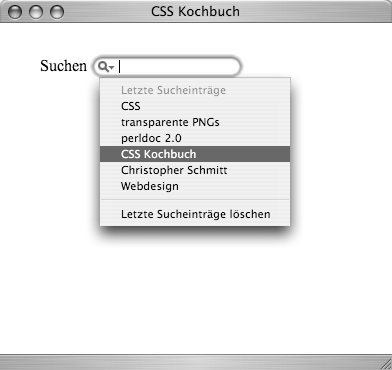
Figure: Saved search terms appear below the search field.
Give the attribute results a numeric value defining how many search terms should be saved on the user’s computer.
Saved terms can be displayed so that one site’s terms are also available to other sites. If two sites use the same value for autosave, the search terms appear in both sites’ search fields. This technique can display the same terms across different domains in a shared network. Users can access both sites’ saved terms, allowing autosave to improve the website’s usability.
Best practices
Safari’s native search field needs no additional submit button. Use it only in forms that need just one input field. In forms containing only one element input, pressing Enter or Return submits the form. With multiple elements input, the browser may need a submit button to send the form.
Copyright of the German edition © 2007 by O’Reilly Verlag GmbH & Co. KG
You may print the online version for your private use.
Otherwise, this chapter from “CSS Kochbuch” is subject to the same conditions as the bound edition: the work, including all its parts, is protected by copyright. All rights reserved, including reproduction, translation, microfilming, and storage and processing in electronic systems.
O’Reilly Verlag GmbH & Co. KG, Balthasarstr. 81, 50670 Köln