

XML technologies / CSS / CSS Cookbook / Forms / Styling drop-down menus and selection lists
(Excerpt from “CSS Kochbuch” by Christopher Schmitt)
Problem
Selection list colors and fonts should be customized to your requirements (see the next figure).
Solution
Use an element selector to assign styles to the element select:
select {
 color: white;
 background-color: blue;
 font-size: 0.9em;
}
option {
 padding: 4px;
}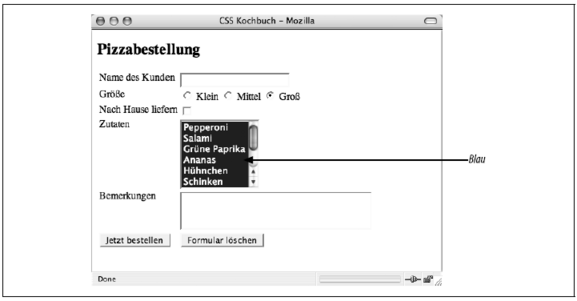
Figure: Selection list with styles applied.
Discussion
Unlike text input fields, both drop-down menus and selection lists are defined using the element select. Assigning styles is therefore relatively straightforward in this case. The same applies to elements option.
To alternate different styles between options in a selection list, give the element option the attribute class:
<select name="Topping_ID" size="6" multiple>
  <option value="1">Pepperoni</option>
  <option value="2" class="even">Salami</option>
  <option value="3">Grüne Paprika</option>
  <option value="4" class="even">Ananas</option>
  <option value="5">Hühnchen</option>
  <option value="6" class="even">Schinken</option>
  <option value="7">Oliven</option>
  <option value="8" class="even">Zwiebeln</option>
  <option value="9">Rote Paprika</option>
</select>
Next, for each of the two groups of elements option create a CSS rule. Options with odd values will then look different from those with even values. Thus, elements with the attribute class set to even (even) receive a red background, while “normal” elements receive a blue background (see the next figure):
select {
 font-size: 0.9em;
}
option {
 color: white;
 background-color: blue;
}
option.even {
 color: blue;
 background-color: red;
}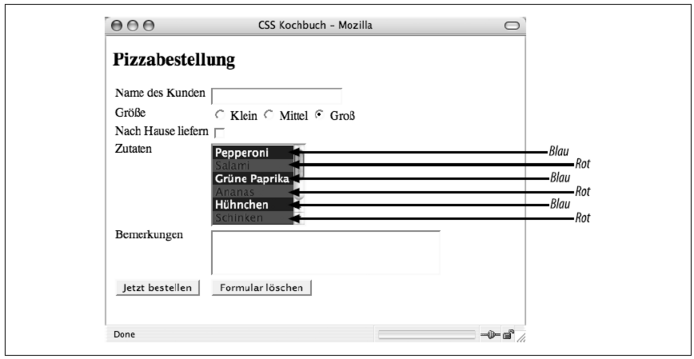
Figure: Alternating styles for selection list options.
See also
The recipe Styling input elements for information on changing text color and size in elements input.
Copyright of the German edition © 2007 by O’Reilly Verlag GmbH & Co. KG
You may print the online version for your private use.
Otherwise, this chapter from “CSS Kochbuch” is subject to the same conditions as the bound edition: the work, including all its parts, is protected by copyright. All rights reserved, including reproduction, translation, microfilming, and storage and processing in electronic systems.
O’Reilly Verlag GmbH & Co. KG, Balthasarstr. 81, 50670 Köln