

XML technologies / ePUB / ePub für (In)Designer / Creating and editing hyperlinks / Changing hyperlink appearance
(Excerpt from “ePub für (In)Designer — Mit InDesign Schritt für Schritt zum E-Book” by Sascha Heck & Yves Apel)
Under Cross-references and links you saw ways to create InDesign hyperlinks. Hyperlinks, cross-references, footnotes and endnotes all become hyperlinks in ePub. The InDesign dialog Edit Hyperlink, shown in the second screenshot under Hyperlinks, offers appearance options. However, these do not affect ePub export.
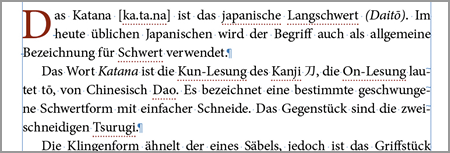
Figure: Hyperlinks defined by a character style in InDesign.
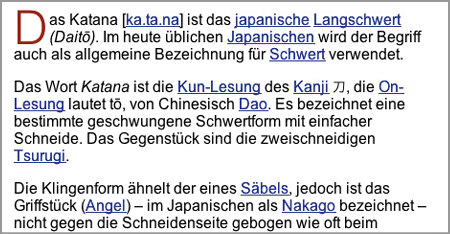
Figure: Default hyperlink appearance in Sigil.
Web designers know this browser behavior: InDesign hyperlinks exported to ePub usually receive default reader styling, generally unattractive blue underlining. Adjusting color and removing or changing underlining looks better. Edit the CSS file, template.css.
Links have several states:
link= normal appearancehover= when hovered with the mouse, irrelevant on iPad, Kindle and similar devicesactive= while being clickedvisited= after having been clicked
Define appearance for each state. For syntax and possibilities, the SelfHTML website is useful, for example.
Adding CSS
InDesign does not predefine these CSS classes; create them yourself. Open template.css in an editor, scroll to its end and create an initially empty class for each state:
a:link{
}

a:visited{
}

a:hover{
}

a:active{
}
Adjusting underlining
Removing underlining
First remove link underlining with the command text-decoration: none;
a:link{
  text-decoration: none;
}
A character style used for links in the layout also appears in CSS. To avoid conflicting definitions, locate its CSS rule and check for a contradictory rule:
span.hyperlink {
  text-decoration: underline;
}
The example defines two different values for text-decoration. For the CSS rule to work, remove the span entry, everything between braces, leaving an empty class, or remove the rule entirely for cleaner code.
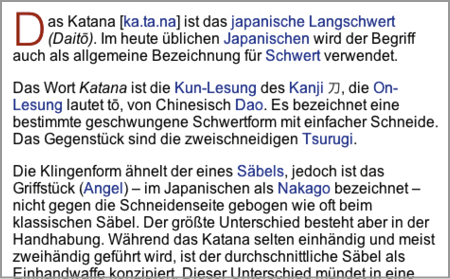
Figure: Sigil view—underlining removed.
Dashed or dotted line
A dashed line instead of a solid one looks less heavy. The CSS command is border-bottom. Possible line styles include dotted or dashed.
a:link{
  text-decoration: none;
  border-bottom: #CC3300 1px dashed;
}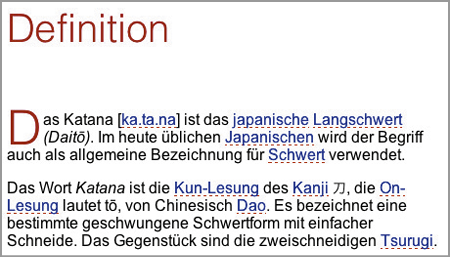
Figure: A dotted or dashed line makes the hyperlink
more discreet and less prominent.
Changing text color
Next change the hyperlink text color. This matters only on color readers: fine on iPad, potentially different on Sony. Many professional e-readers use E-Ink for strong text contrast but often lack color. Newer models already have color E-Ink displays.
The text-color command is simply color: #000000. HTML and CSS represent color in hexadecimal. To find a color’s hexadecimal value, see Defining hexadecimal colors. Here we use the sample book’s main red, value ad0600. The CSS code is:
a:link{
  text-decoration: none;
  color: #ad0600;
}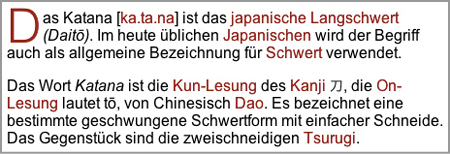
Figure: Editing CSS assigns red to every ePub link.
Highlighter effect
Another option gives links a colored background, like highlighting. It is considerably more intrusive. Use the command background-color. For example:
a:link{
  text-decoration: none;
  color: #ad0600;
  background-color: #fdff31;
}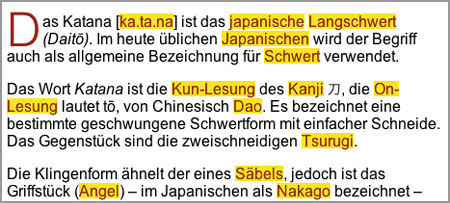
Figure: Highlighter effect—links with a colored background.
Copyright © dpunkt.verlag GmbH 2012
You may print the online version for your private use.
Otherwise, this chapter from “ePub für (In)Designer” is subject to the same terms as the printed edition: the work and all its parts are protected by copyright. All rights reserved, including reproduction, translation, microfilming, and storage and processing in electronic systems.
dpunkt.verlag GmbH, Wieblinger Weg 17, 69123 Heidelberg, fon 06221-14830, fax 06221-148399, hallo(at)dpunkt.de