

XML technologies / CSS / CSS Cookbook / Links and navigation / Horizontal navigation menus
(Excerpt from “CSS Kochbuch” by Christopher Schmitt)
Problem
Turn an unordered list of links into a horizontal tabbed navigation menu. The next figure shows the default presentation and the following figure the completed menu.
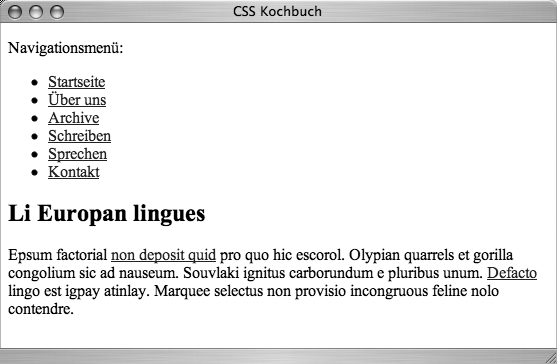
Figure: Default presentation of the links.
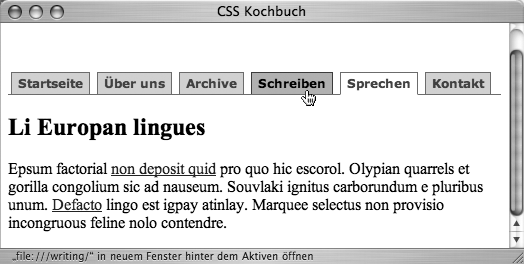
Figure: A horizontal tabbed menu.
Solution
Start with a correctly marked-up unordered list of links:
<div id="navsite">
  <h5>Navigationsmenü:</h5>
  <ul>
    <li><a href="/">Startseite</a></li>
    <li><a href="/about/">Über uns</a></li>
    <li><a href="/archives/">Archive</a></li>
    <li><a href="/writing/">Schreiben</a></li>
    <li><a href="/speaking/" id="current">Sprechen</a></li>
    <li><a href="/contact/">Kontakt</a></li>
  </ul>
</div>
Then define the CSS rules for the menu, setting display to inline for all list items:
#navsite h5 {
 display: none;
}
#navsite ul {
 padding: 3px 0;
 margin-left: 0;
 border-bottom: 1px solid #778;
 font: bold 12px Verdana, sans-serif;
}
#navsite ul li {
 list-style: none;
 margin: 0;
 display: inline;
}
#navsite ul li a {
 padding: 3px 0.5em;
 margin-left: 3px;
 border: 1px solid #778;
 border-bottom: none;
 background: #dde;
 text-decoration: none;
}
#navsite ul li a:link {
 color: #448;
}
#navsite ul li a:visited {
 color: #667;
}
#navsite ul li a:link:hover, #navsite ul li a:visited:hover {
 color: #000;
 background: #aae;
 border-color: #227;
}
#navsite ul li a#current {
 background: white;
 border-bottom: 1px solid white;
}
Discussion
The first part of the solution hides the heading in CSS-capable browsers, since the visual presentation already makes it clear that these are navigation links:
#navsite h5 {
 display: none;
}
The next rule defines padding and margins for the element ul. The line below the menu is defined with the property border-bottom (see the next figure):
#navsite ul {
 padding: 3px 0;
 margin-left: 0;
 border-bottom: 1px solid #669;
 font: bold 12px Verdana, Helvetica, Arial, sans-serif;
}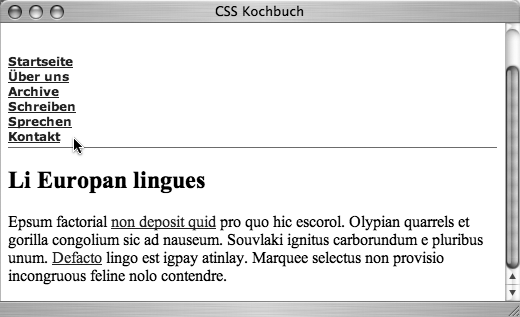
Figure: The line below the navigation menu.
To make horizontal navigation work, apply the rule display: inline to the list items:
#navsite ul li {
 list-style: none;
 margin: 0;
 display: inline;
}
Instead of stacking list items vertically as usual, they now appear like text, images and other inline elements (see the following figure).
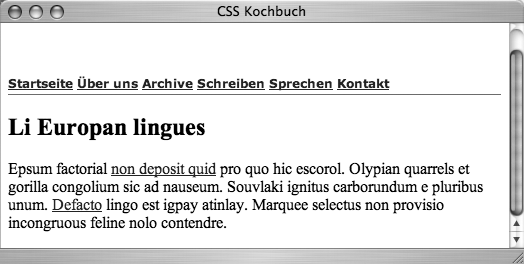
Figure: The horizontally arranged list.
The property border in the following CSS rule makes the links look like tabs (see the next figure):
#navsite ul li a {
 padding: 3px 0.5em;
 margin-left: 3px;
 border: 1px solid #669;
 border-bottom: none;
 background: #ccf;
 text-decoration: none;
}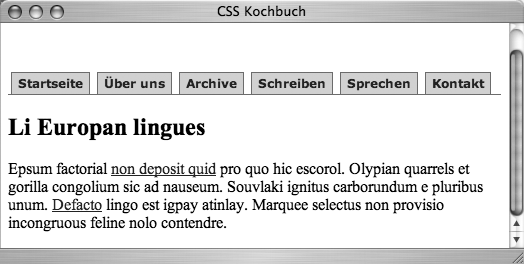
Figure: The completed tabs.
The property border is a shorthand property surrounding each link with a solid, one-pixel border. Here, however, border is immediately followed by the property border-bottom, which hides the bottom border. (Because of the rule order, the value of border-bottom overrides the value previously set with border.)
With the border defined, we can now address the link colors and rollover effect:
#navsite ul li a:link {
 color: #339;
}
#navsite ul li a:visited {
 color: #666;
}
#navsite ul li a:link:hover, #navsite ul li a:visited:hover {
 color: #000;
 background: #aae;
 border-color: #336;
}
Finally, define the appearance of the link to the currently selected page (current). These styles apply to the link pointing to the page the user is viewing (see the next figure):
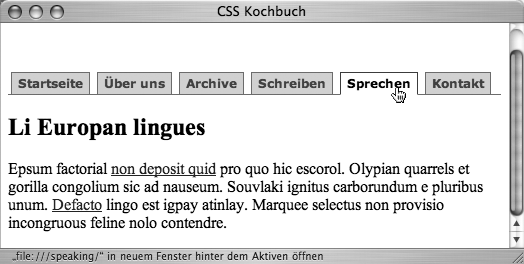
Figure: The link to the currently selected page.
#navsite ul li a#current {
 background: white;
 border-bottom: 1px solid white;
}
See also
The original tabbed menu (and other navigation styles).
Copyright of the German edition © 2007 by O’Reilly Verlag GmbH & Co. KG
You may print the online version for your private use.
Otherwise, this chapter from “CSS Kochbuch” is subject to the same conditions as the bound edition: the work, including all its parts, is protected by copyright. All rights reserved, including reproduction, translation, microfilming, and storage and processing in electronic systems.
O’Reilly Verlag GmbH & Co. KG, Balthasarstr. 81, 50670 Köln