

XML technologies / ePUB / ePub für (In)Designer / Book features / Creating a book file and chapters / Creating chapters with a book file
(Excerpt from “ePub für (In)Designer — Mit InDesign Schritt für Schritt zum E-Book” by Sascha Heck & Yves Apel)
Paragraph styles, in CS5.5, or TOC styles in CS5 split chapters easily, but allow only one paragraph style. What if cover, imprint and contents each need a separate page, although the imprint lacks the main-heading style? Use another method: one appeared in the professional tip, another uses a book file, also suitable before CS5. Its disadvantage is laborious manual work.
Creating the book file
A book file collects InDesign documents sharing styles, swatches, master pages and other elements. Pages can number continuously, and selected documents print or export to PDF or ePub. If the work is one document, first complete all preparation for ePub export there, then create the book and split documents just before export. If already split, synchronize later changes across documents.
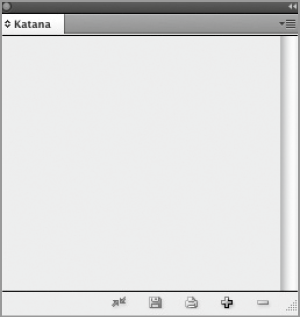
To create the book, choose File → New → Book. Name the book file (extension .indb) and save beside the InDesign document. A floating panel appears; add a document using its lower-right plus icon.
| Figure: Add a document to the empty book using plus. |
Splitting documents for the book
Manual method
First create the needed documents. Make as many copies as desired chapters or page breaks, open each and delete unrelated pages: chapter 1 retains only chapter 1, chapter 2 only chapter 2, and so on. Numbering filenames is useful.
Figure: Copy and number the document for each desired page/chapter break. |
Figure: Completed book with imported InDesign documents. |
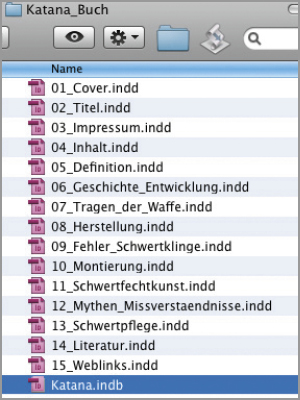
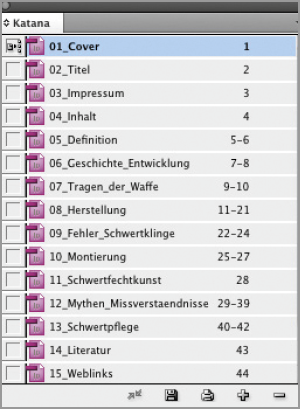
Add all documents to the book. Displayed page numbers and left/right pages do not affect ePub. Single pages are even useful; see Before you begin.
Preparation is complete: export automatically creates one XHTML file per document. Export from the Book panel, however, not File → Export!
Automated method
Splitting is lengthy, but scripts automate tedious InDesign tasks. The community has excellent, often free resources covering many tasks. A particularly good source, with helpful enthusiasts, is the HilfDirSelbst forum.
Hans Haesler provides an excellent collection of advanced scripts at fachhefte.ch. DokumentAufsplitten splits our whole document. In downloads choose JavaScripts, platform and InDesign version, then find DokumentAufsplitten and download and unzip its script and explanation. For installation, see Installing scripts.
Use splitting by page number: double-click the script, select Startseiten and enter all starting page numbers. Confirm with OK and let InDesign work while you get coffee. A new folder contains the documents. Continue building the book as above.
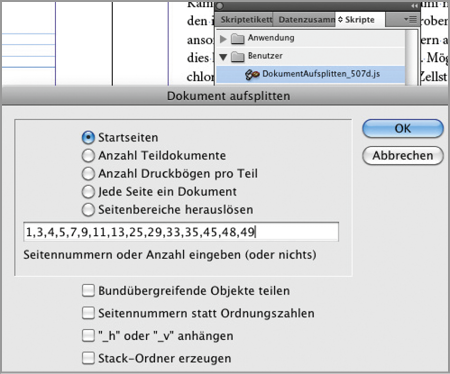
Figure: Hans Haesler’s DokumentAufsplitten script in action.
Warning!
Beware of numerous hyperlinks or cross-references: final links must target correct documents, possibly now elsewhere. InDesign usually handles this, but CS5 has a bug discussed under Cross-references.
Book synchronization
Later paragraph-style or export-tag changes must affect every document. Book synchronization handles many options, using the reference file marked by an icon left of its name. From the Book panel menu choose Synchronize Options and check desired options. Start synchronization from the same menu with Synchronize Selected Documents, selecting at least two documents.
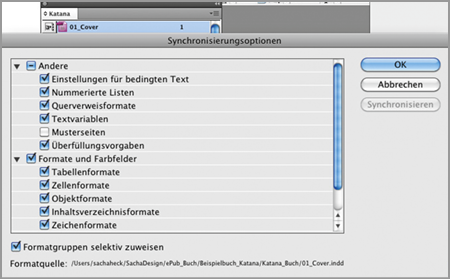
Figure: Book synchronization options.
Copyright © dpunkt.verlag GmbH 2012
You may print the online version for your private use.
Otherwise, this chapter from “ePub für (In)Designer” is subject to the same terms as the printed edition: the work and all its parts are protected by copyright. All rights reserved, including reproduction, translation, microfilming, and storage and processing in electronic systems.
dpunkt.verlag GmbH, Wieblinger Weg 17, 69123 Heidelberg, fon 06221-14830, fax 06221-148399, hallo(at)dpunkt.de