

XML technologies / ePUB / ePub für (In)Designer / Book features / Working with the Articles panel
(Excerpt from “ePub für (In)Designer — Mit InDesign Schritt für Schritt zum E-Book” by Sascha Heck & Yves Apel)
CS5.5 introduces Articles to select and order content exported to ePub, HTML or accessible PDF. Articles contain text, images, objects or groups; afterward add, remove or rearrange their objects.
The Articles panel cannot create chapters or ePub navigation; see Creating a book file and chapters. It only orders and selects content within an InDesign file. This helps when a chapter already has its own file but the client requires a different digital reading order, avoiding manual restructuring.
Creating articles and adding content
Choose Window → Articles to open the panel.
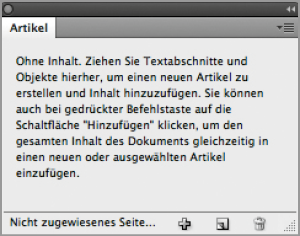
Figure: Opening the Articles panel.
Select page elements to include.
Do one of the following:
From the panel menu choose New Article.
Click the bottom icon Create New Article.
Drag the element onto the panel.
In the dialog New Article enter its name.
Enable Include When Exporting to include it in ePub or HTML export.
Note: Objects can appear in several articles.
Adding all document page elements
Choose Window → Articles to open the panel.
Select a target article; otherwise a new one is created automatically.
Hold CMD (Mac)/CTRL (Windows) and click plus (+). All elements are added from upper left downward, then column by column top to bottom.
If the dialog New Article appears, name the article. With an article already selected, choose Add Document Content to Selected Articles in the panel menu.
Enable Include When Exporting for ePub or HTML inclusion.
Arranging articles
Drag articles above or below one another to reorder them, or move individual elements between articles. During ePub export, if settings use Same as Articles Panel, unchecked articles are omitted, as are text, objects and images not assigned to the panel.
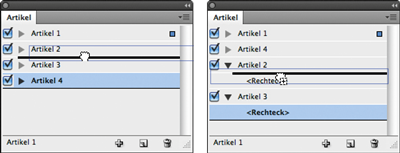
Figure: Arranging articles.
Copyright © dpunkt.verlag GmbH 2012
You may print the online version for your private use.
Otherwise, this chapter from “ePub für (In)Designer” is subject to the same terms as the printed edition: the work and all its parts are protected by copyright. All rights reserved, including reproduction, translation, microfilming, and storage and processing in electronic systems.
dpunkt.verlag GmbH, Wieblinger Weg 17, 69123 Heidelberg, fon 06221-14830, fax 06221-148399, hallo(at)dpunkt.de