

XML technologies / CSS / CSS Cookbook / Page elements / Centering elements on a web page
(Excerpt from “CSS Kochbuch” by Christopher Schmitt)
Problem
You want parts of the web page to appear centered, as shown in the next figure.
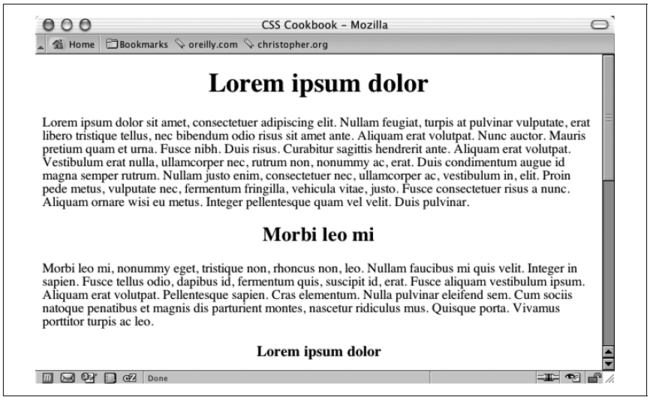
Figure: Centered headings.
Solution
Use the property text-align to center the text in a block-level element:
h1, h2, h3 {
 text-align: center;
}
Discussion
The property text-align lets you center text in block-level elements. In our example, the heading extends across the full width of the element body. However, this effect is barely visible unless you give the element a background color or border. The following figure makes the actual width of the centered elements clearer.
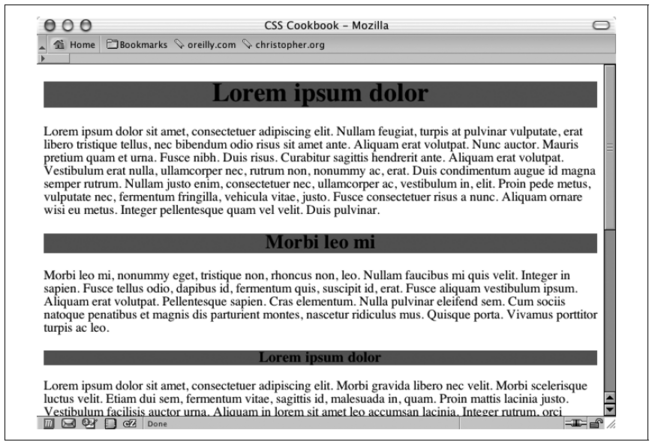
Figure: The gray background reveals the element’s actual width.
Alternatively, you can center the text in its parent element by using margins:
h1, h2, h3 {
 margin-left: auto;
 margin-right: auto;
}
As you can see, the properties margin-left and margin-right are set to auto to center it in the parent element. Unfortunately, older browsers do not implement this method correctly, so particular situations may require special solutions.
Tables
To center a table, make it a child of an element div:
<div class="center">
  <table width="50%" border="1" cellpadding="30">
    <tr>
      <td>Dies ist die erste Zelle</td>
      <td>Dies ist die zweite Zelle</td>
    </tr>
    <tr>
      <td>Dies ist die dritte Zelle. Sie befindet sich unter der ersten Zelle.</td>
      <td>Dies ist die vierte Zelle. Sie befindet sich unter der zweiten Zelle.</td>
    </tr>
  </table>
</div>
Next, write the following CSS rule:
.center {
  text-align: center;
}
.center table {
 width: 50%;
 margin-left: auto;
 margin-right: auto;
 text-align: left;
}
Setting the margins to auto works in newer browsers, but not in Internet Explorer 5 for Windows. To make this browser behave correctly too, the class selector center in our example uses the method text-align. However, this also centers the table cell contents. To counteract that effect, use the descendant selector, .center table, which lets you give the cell contents their own alignment.
Also note that elements th in an HTML table are centered by default. You can prevent this by setting the property text-align to left in the descendant selector. To left-align the contents of a table heading (th), use the following CSS rule:
th {
 text-align: left;
}
You can save a few lines of CSS by using the shorthand version of the property margin instead, as shown below (this method works in most browsers except Internet Explorer 5 for Macintosh):
.center table {
 margin: 0 auto;
 text-align: left;
}
Images
To center an image on the page, first wrap it in an element div. This technique is necessary because elements img, like em and strong, are inline elements. Inline elements are arranged in the page’s text flow. Block elements such as p or blockquote occupy their own space instead. The markup looks something like this:
<div class="flagicon"><img src="flag.gif" alt="Flag" width="160" height="60" /></div>Here is the corresponding CSS rule:
.flagicon {
 text-align: center;
}
To center elements of fixed width, first set the parent element’s property padding-left to 50%. Then determine half the width of the element you want to center. Use this number as a negative value for the property margin-left. This prevents the element’s left edge from appearing on the 50% line defined by the margin and moves the image to the center of the page. The markup for an image on a web page using this technique looks something like this:
<img src="wolf.jpg" width="256" height="192" alt="Bild von einem Wolf">Here is the corresponding CSS rule (see the next figure):
body {
 padding-left: 50%;
}
img {
 /* entspricht der Hälfte der negativen Bildbreite */
 margin-left: -138px;
}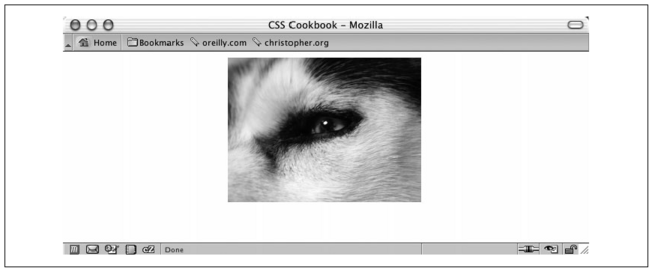
Figure: Centering an image on the page without the obsolete center element.
Another way to center an image is to adjust the values of the properties display and margin. However, this method is not backward compatible with Internet Explorer 5 for Windows.
First, give the image an attribute class:
<img src="flag.gif" alt="Flag" width="160" height="60" class="blockimg" />Then create the corresponding CSS rules to center the image:
.blockimg {
 display: block;
 margin: 0 auto;
}
Vertical centering
With the element already centered horizontally, you can take this technique further and center the image (or another element) vertically too. The difference from the previous example is the additional use of the property position. The markup is the same as for the image in the previous example, while the CSS rule applies to just one selector (see the next figure):
img {
 position: absolute;
 top: 50%;
 left: 50%;
 margin-top: -96px;
 margin-left: -138px;
 height: 192px;
 width: 256px;
}
Absolute positioning removes the element from the normal text flow and allows it to be placed anywhere.
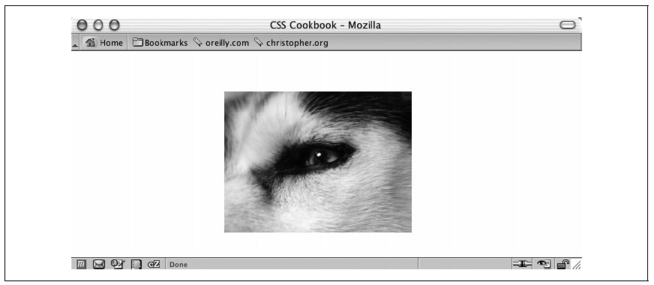
Figure: The image centered horizontally and vertically on the web page.
To center both text and an image, or several images, wrap the content concerned in an element div:
<div id="centerFrame">
  <p>Epsum factorial non deposit quid pro quo hic escorol. Olypian quarrels et gorilla congolium sic ad nauseum. Souvlaki ignitus carborundum e pluribus unum. Defacto lingo est igpay atinlay.</p>
  <img src="wolf.jpg" width="256" height="192" alt="Bild von einem Wolf" />
</div>
In the CSS rule, remove the property height and adjust the negative top margin value to account for the additional elements on the page:
#centerFrame {
 position: absolute;
 top: 50%;
 left: 50%;
 /* negativen Wert so weit anpassen, bis Inhalt zentriert ist */
 margin-top: -150px;
 margin-left: -138px;
 width: 256px;
}
Keep the amount of centered content as small as possible. This solution only centers text and images approximately because the rendered text height can vary between computers. With many images and large amounts of HTML text, users with low screen resolutions would otherwise have to scroll to see the centered content.
See also
The section Page layouts for information about multicolumn layouts, which also deal with positioning elements on a web page, and the CSS 2.1 specification for the property text-align.
Copyright of the German edition © 2007 by O’Reilly Verlag GmbH & Co. KG
You may print the online version for your private use.
Otherwise, this chapter from “CSS Kochbuch” is subject to the same conditions as the bound edition: the work, including all its parts, is protected by copyright. All rights reserved, including reproduction, translation, microfilming, and storage and processing in electronic systems.
O’Reilly Verlag GmbH & Co. KG, Balthasarstr. 81, 50670 Köln