

XML technologies / ePUB / ePub für (In)Designer / Book features / E-Book navigation setup
(Excerpt from “ePub für (In)Designer — Mit InDesign Schritt für Schritt zum E-Book” by Sascha Heck & Yves Apel)
Navigation versus table of contents
We distinguish two kinds of ePub contents:
For the so-called navigation map, each e-reader offers a show/hide function. Most readers also call navigation a table of contents; to distinguish the two kinds, we call this navigation.
Under Adding a table of contents we describe the second possibility: inserting a separate ePub page containing a linked table of contents, equivalent to the contents in a traditional book.
Navigation
In a paper book, we navigate by page numbers: the only way to locate a passage or tell someone where it is. Most books therefore begin with a table of contents.
E-books lack traditional fixed page numbers. Most readers show a number, but it can change with settings. An expandable navigation bar links directly to chapters. Its clear advantage is availability anywhere in the book.
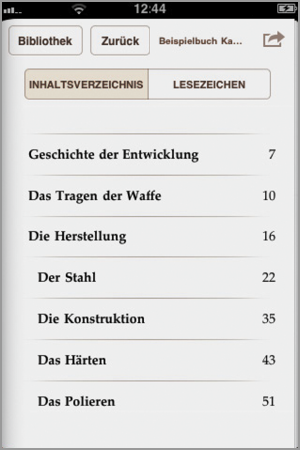
Figure: Navigation in iBooks.
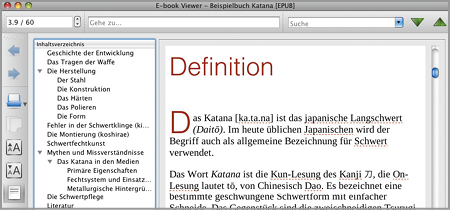
Figure: Navigation in Calibre.
Creating e-book navigation is straightforward, as we will see. Once again, all content should already use paragraph styles, which are needed now.
First choose Layout → Table of Contents Styles. Click New to open a settings window. Give the table-of-contents style any name. Then, from the right-hand scrolling list Other Styles select the paragraph styles for e-book navigation and click Add.
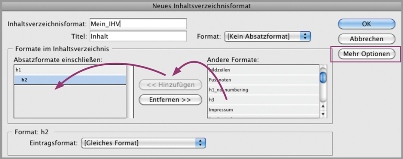
Figure: Defining table-of-contents styles using paragraph styles.
Multi-level entries are possible, depending on what you include. Readers display them with expandable arrows or indentation.
To edit entry hierarchies, click More Options. If you want the paragraph style h2 to have no indentation and remain at the same level, reset the value to 1.
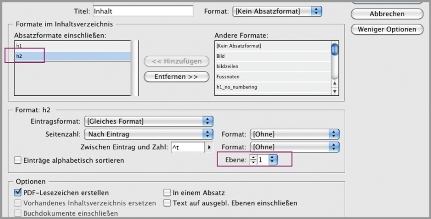
Figure: Editing table-of-contents hierarchy.
That is all the setup required here. If you use the Book panel to split chapters, see Creating a book file and chapters, also enable the bottom option Include Book Documents. Then ensure that the final ePub export includes the table-of-contents style (CS5: Contents → Table of Contents → Include InDesign Entries and Table of Contents; CS5.5: Contents → Use InDesign TOC Style).
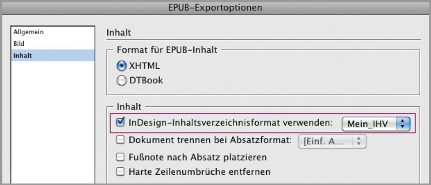
Figure: CS5.5 ePub export—include the TOC style.
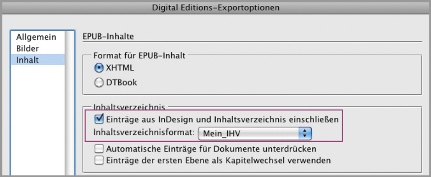
Figure: CS5 ePub export—include the TOC style.
Open the exported ePub in Adobe Digital Editions, for example, to see navigation immediately.
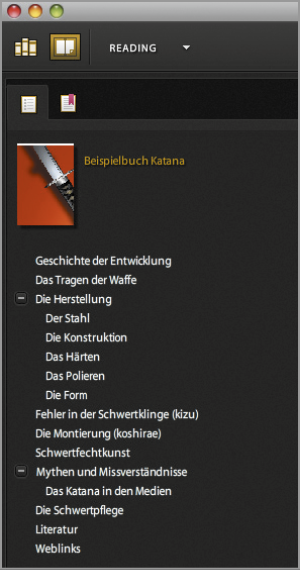
Figure: E-book navigation in Adobe Digital Editions.
Copyright © dpunkt.verlag GmbH 2012
You may print the online version for your private use.
Otherwise, this chapter from “ePub für (In)Designer” is subject to the same terms as the printed edition: the work and all its parts are protected by copyright. All rights reserved, including reproduction, translation, microfilming, and storage and processing in electronic systems.
dpunkt.verlag GmbH, Wieblinger Weg 17, 69123 Heidelberg, fon 06221-14830, fax 06221-148399, hallo(at)dpunkt.de