

XML technologies / CSS / CSS Cookbook / Typography for the web / Bordered headings
(Excerpt from “CSS Kochbuch” by Christopher Schmitt)
Problem
You want to style a heading with top and bottom borders, as shown in the following figure.
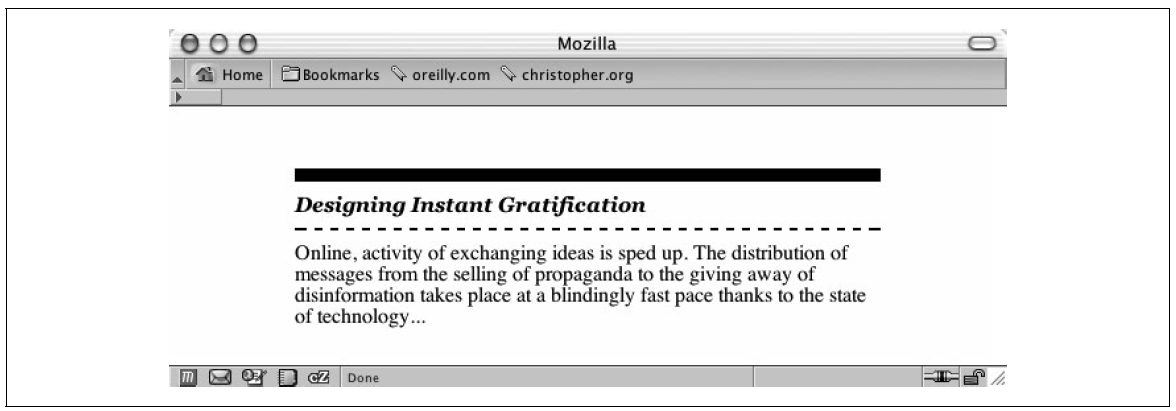
Figure: A heading with border styles.
Solution
Use the properties border-top and border-bottom when styling the heading:
h2 {
 font: bold italic 2em Georgia, Times, "Times New Roman", serif;
 border-bottom: 2px dashed black;
 border-top: 10px solid black;
 margin: 0;
 padding: 0.5em 0 0.5em 0;
 font-size: 1em;
}
p {
 margin: 0;
 padding: 10px 0 0 0;
}
Discussion
In addition to top and bottom borders, block-level elements can also receive left and right borders using the properties border-left and border-right. The properties border-top, border-bottom, border-left and border-right are themselves shorthand properties that jointly define width, style and color for the corresponding border side.
Without the two shorthand properties, the example above would require four additional declarations:
h2 {
 font: bold italic 2em Georgia, Times, "Times New Roman", serif;
 border-bottom-width: 2px;
 border-bottom-style: dashed;
 border-bottom-color: black;
 border-top-width: 10px;
 border-top-style: solid;
 border-top-color: black;
 margin: 0;
 padding: 0.5em 0 0.5em 0;
 font-size: 1em;
}
The four shorthand properties for individual border sides can themselves be expressed using the common shorthand property border. Use it when all border sides should have the same width, appearance and color. (Note, however, that the property border is poorly supported by Internet Explorer 5.)
h2 {
 border: 3px dotted #33333;
}
When setting up borders, ensure that padding leaves enough space between text and border to improve readability. Without that space, the heading text would look cramped.
See also
The recipe Page borders for more information on available border styles and the shorthand property border.
Copyright of the German edition © 2007 by O’Reilly Verlag GmbH & Co. KG
You may print the online version for your private use.
Otherwise, this chapter from “CSS Kochbuch” is subject to the same conditions as the bound edition: the work, including all its parts, is protected by copyright. All rights reserved, including reproduction, translation, microfilming, and storage and processing in electronic systems.
O’Reilly Verlag GmbH & Co. KG, Balthasarstr. 81, 50670 Köln