

XML technologies / CSS / CSS Cookbook / General topics / Wrapping text around images
(Excerpt from “CSS Kochbuch” by Christopher Schmitt)
Problem
You want an image on the left or right with text flowing around it rather than appearing above or below (see the following figure).
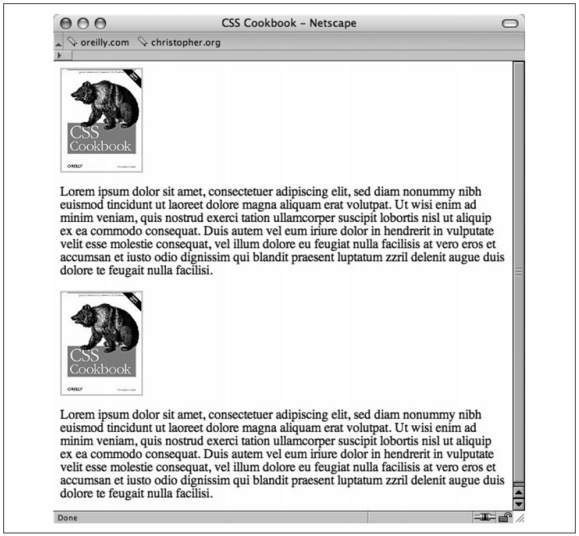
Figure: Text does not wrap around images by default.
Solution
Define the images as floats. Since the rules will be reused, define them as class selectors:
.leftFloat {
  float: left
}
.rightFloat {
  float: right
}
Next assign the corresponding classes to the images in HTML (see the next figure):
<img src="csscookbook.gif" class="leftFloat" alt="titelseite" />
<p>Lorem ipsum dolor sit amet, consectetuer adipiscing elit, sed diam nonummy nibh euismod tincidunt ut laoreet dolore magna. Ut wisi enim ad minim veniam, quis nostrud exerci tation ullamcorper suscipit lobortis nisl ut aliquip ex ea commodo consequat. ...</p>
<img src="csscookbook.gif" class="rightFloat" alt="titelseite" />
<p>Lorem ipsum dolor sit amet, consectetuer adipiscing elit, sed diam nonummy nibh euismod tincidunt ut laoreet dolore magna. Ut wisi enim ad minim veniam, quis nostrud exerci tation ullamcorper suscipit lobortis nisl ut aliquip ex ea commodo consequat. ...</p>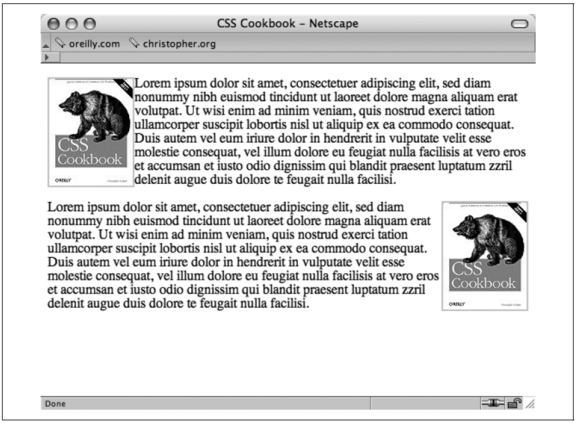
Figure: Defining the image as a float makes text wrap around it.
Discussion
Before browsers followed CSS standards, designers often gave the tag img the attribute align to move images left or right and wrap text around them. The W3C has since declared align obsolete (deprecated), recommending the CSS property float instead. Floats work with more than images: any element can be removed from normal flow and moved left or right. In the previous figure, the second image overlaps the paragraph relating to the first image. To avoid this, use the property clear:
p {
  clear: left;
}
With clear, specify which side of the element may not contain a float. Instead of appearing at the same height as the second element p, the second image in our example moves down far enough to prevent overlaps.
See also
the recipes under Page layouts on using
floatfor multicolumn layouts, andEric Meyer’s CSS/edge article on floats.
Copyright of the German edition © 2007 by O’Reilly Verlag GmbH & Co. KG
You may print the online version for your private use.
Otherwise, this chapter from “CSS Kochbuch” is subject to the same conditions as the bound edition: the work, including all its parts, is protected by copyright. All rights reserved, including reproduction, translation, microfilming, and storage and processing in electronic systems.
O’Reilly Verlag GmbH & Co. KG, Balthasarstr. 81, 50670 Köln