

XML technologies / CSS / CSS Cookbook / General information / The box model
(Excerpt from “CSS Kochbuch” by Christopher Schmitt)
Problem
Understand the CSS box model and how padding (margins), margins (paddings) and borders (borders) surround content.
Solution
Every block element, such as p or div, has top, right, bottom and left boundaries consisting of three layers around content. A block has four areas:
Inhaltsbereich (content)The content—text, images, Java applets and other objects—sits at the center.
Innenabstand (padding)Surrounds content.
Rahmen (border)The next layer surrounds padding and defines the border.
Außenabstand (margin)Transparent area outside any border, surrounding the other layers.
Default margin width (margin) is 0, placing it flush with the border’s outer edge. A border (border) set to 0 is flush with the padding’s outer edge (padding).
If padding (padding) is also 0, it is flush with content. The next figure illustrates the model.
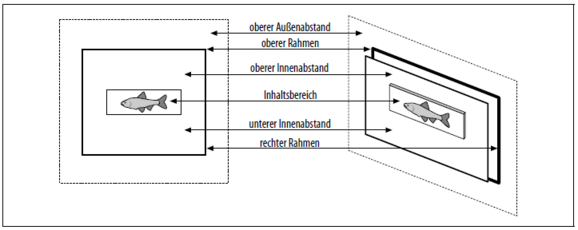
Figure: Front and side views of the CSS box model.
Discussion
Imagine a cardboard box on the floor. Look inside to see top, right, bottom and left sides. Its size depends on height (height) and width (width).
div {
  height: 150px;
  width: 150px;
}
Put books inside, as below:
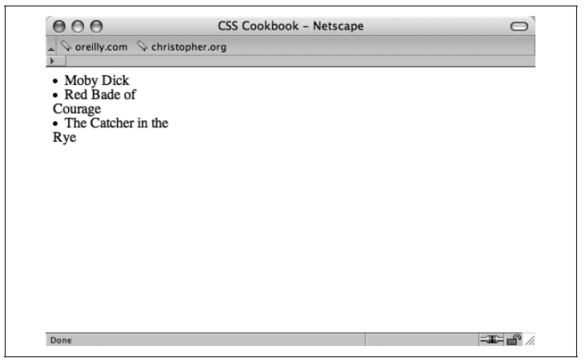
Figure: A block with content.
<div>
  <li>Moby Dick</li>
  <li>The Red Badge of Courage</li>
  <li>The Catcher in the Rye</li>
</div>
Add a thin border to see the box edges:
div {
  border: thin solid #000000;
  height: 150px;
  width: 150px;
}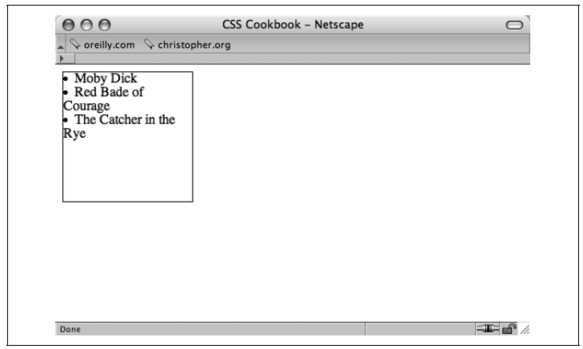
Figure: Bordered content.
In this illustration the books overlap or crowd together, which is bad for them, especially as they are collectibles. Solve this by using the property padding to create padding. More padding reserves more room per book, so fewer fit inside. The next figure shows its effect.
div {
  border: thin solid #000000;
  height: 150px;
  width: 150px;
  padding: 10px;
}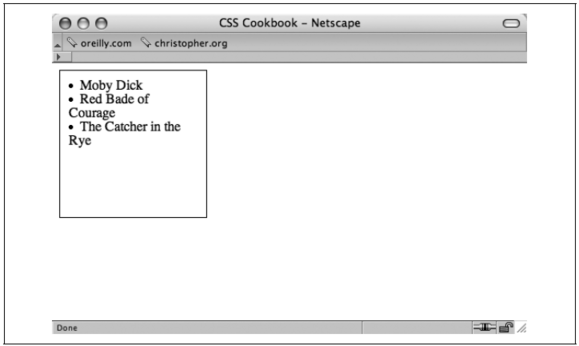
Figure: Books with padding.
Note:
Despite 150px width and height, ten pixels of padding on every side makes the box 170 pixels in each dimension.
Add a second box immediately below for more books:
<div>
  <li>Moby Dick</li>
  <li>The Red Badge of Courage<li>
  <li>The Catcher in the Rye</li>
</div>
<div>
  <li>The Red Queen</li>
  <li>The Awakening</li>
  <li>The Scarlet Letter</li>
</div>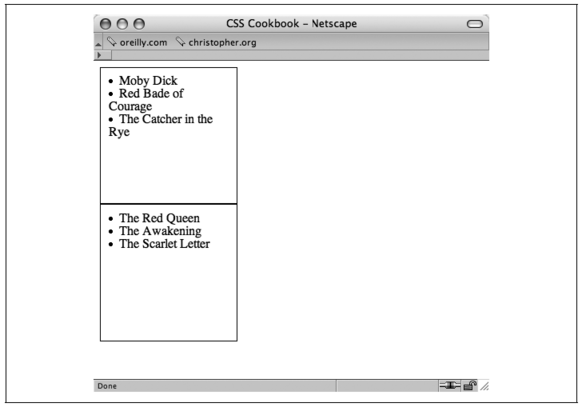
Figure: Another book list.
Separate the boxes with the property margin (see the figure):
div {
  border: thin solid #000000;
  height: 150px;
  width: 150px;
  padding: 10px;
  margin: 25px;
}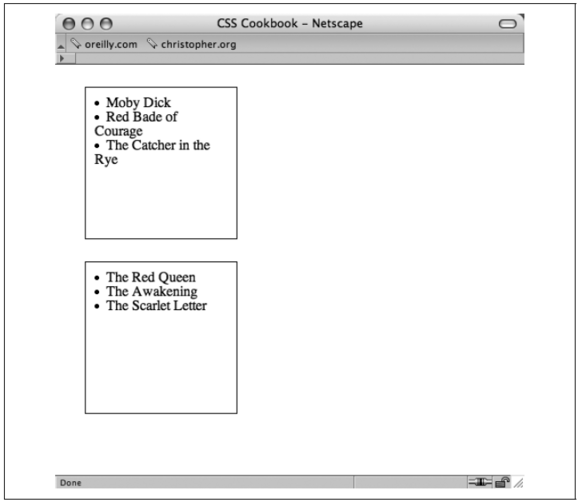
Figure: Blocks with margins.
Distinguish the boxes further by changing border. Like padding and margins, it accepts any width. Also change style to a double line:
div {
  border: 5px double #000000;
  height: 150px;
  width: 150px;
  padding: 10px;
  margin: 25px;
}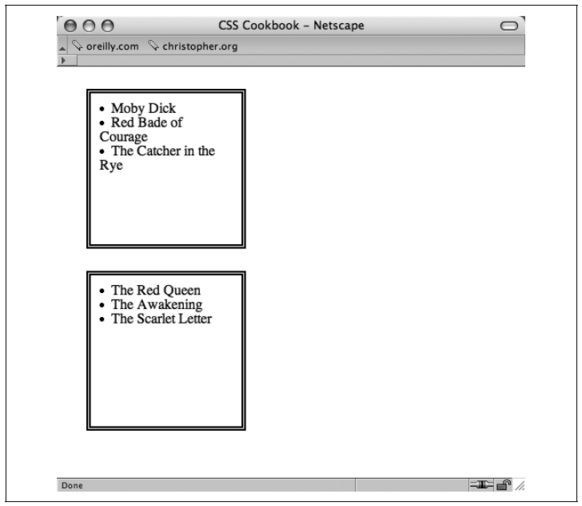
Figure: Five-pixel double border.
So far, padding, margins and borders changed equally on all sides. They can also change independently.
To change only the right border of the element div, use:
div {
  border: 5px solid #000000;
  height: 150px;
  width: 150px;
  padding: 10px;
  margin: 0px;
  border-right: 1px solid #000000;
  padding-right: 1px;
  margin-right: 1px;
}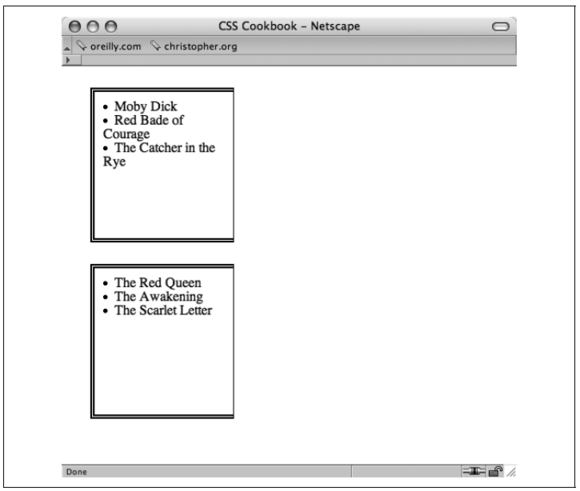
Figure: Adjusting the right border.
Other sides also adjust separately. Set the property margin for each side like this:
div {
  margin-top: 1px;
  margin-right: 1px;
  margin-bottom: 1px;
  margin-left: 1px;
}
Individual sides and properties give precise control over presentation.
Warning:
Internet Explorer for Windows through 5.5 uses Microsoft’s own box model. See the recipe Special values for Internet Explorer 5.x for Windows.
See also
The CSS 2.1 box model and the BrainJar box model.
Copyright of the German edition © 2007 by O’Reilly Verlag GmbH & Co. KG
You may print the online version for your private use.
Otherwise, this chapter from “CSS Kochbuch” is subject to the same conditions as the bound edition: the work, including all its parts, is protected by copyright. All rights reserved, including reproduction, translation, microfilming, and storage and processing in electronic systems.
O’Reilly Verlag GmbH & Co. KG, Balthasarstr. 81, 50670 Köln