

XML technologies / CSS / CSS Cookbook / Printing / Preparing a web form for printing
(Excerpt from “CSS Kochbuch” by Christopher Schmitt)
Problem
Prepare an online form so it can also be printed and completed by hand, as in the following figure.
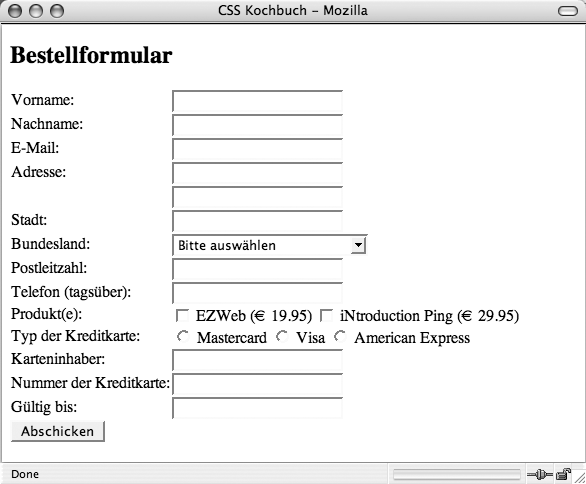
Figure: An online form.
Solution
Create a separate print stylesheet with a class selector for elements form. Print the form in black text and give fields a one-pixel bottom border marking where users should write. For this HTML element input,
<label for="vorname">Vorname</label>
<input class="fillout" name="vorname" type="text" id="vorname" />
use the following CSS rule:
<style type="text/css" media="print ">
 .fillout {
  color: black;
  border-width: 0;
  border-bottom: 1px solid #000;
  width: 300pt;
 }
</style>
For drop-down menus, hide the element select completely. Extra markup then allows a bottom border:
<label for="bundesland">Bundesland:<label>
<select name="bundesland" size="1">
  <option selected="selected">Bitte auswählen</option>
  <option value="Ba-Wü.">Baden Württemberg</option>
  <option value="Bayern">Bayern</option>
  <option value="Berlin">Berlin</option>
  ...
  <option value="Thüringen">Thüringen</option>
</select>
<span class="postselect"> </span>
The stylesheet displays the inline element span as a block-level element, allowing the element span a width and bottom border like those of elements input in the previous rule:
<style type="text/css" media="print">
 select {
  display: none;
 }
 .postselect {
  display: block;
  width: 300pt;
  height: 1em;
  border: none;
  border-bottom: 1px solid #000;
 }
</style>
For elements useless in print, such as submit buttons, set the property display to none. The next figure shows the print-ready form.
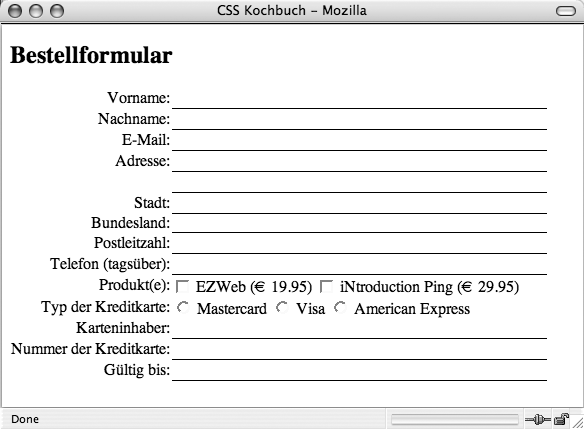
Figure: The same form in print.
Discussion
Lines on an order form show where to write. The property border creates them easily in a browser, making forms useful online and offline.
For elements select, the process is less direct and slightly departs from ideal semantic markup. It works and remains valid HTML. Follow the element select with an element span:
<select name="bundesland" size="1">
  <option selected="selected">Bitte auswählen</option>
  <option value="Ba-Wü.">Baden Württemberg</option>
  <option value="Bayern">Bayern</option>
  <option value="Berlin">Berlin</option>
  ...
  <option value="Thüringen">Thüringen</option>
</select>
<span class="postselect"> </span>
Hide the element select with CSS:
select {
 display: none;
}
Finally, define the element span as a block element, enabling height and width. Then set the bottom border to match the other fields:
.postselect {
 display: block;
 width: 300pt;
 height: 1em;
 border: none;
 border-bottom: 1px solid #000;
}
Distinguishing form elements with attribute selectors
Forms will be easier to style when more browsers support attribute selectors. Currently only Mozilla, Firefox, Netscape Navigator 6+ and Opera 5+ do; Internet Explorer does not yet. They distinguish form elements more easily than class attributes and values in markup.
The first rule below applies only to text elements input. The second hides the submit button and drop-down menu:
input[type="text"] {
 color: black;
 border-width: 0;
 border: 1px solid #000;
}
input[type="submit"], select {
 display: none;
}
Improving usability
Without a submit button in print, users need instructions for returning the completed form. Add a postal address with this code:
<div id="print">
  <p>Bitte schicken Sie dieses Formular per Post an die folgende Adresse:</p>
  <address class="adr">
    <span class="org">
      <span class="organization-name">The White House</span>
    </span>
    <br />
    <span class="street-address work postal">1600 Pennsylvania Avenue NW</span>
    <br />
    <span class="locality">Washington, DC</span>
    <span class="postal-code">20500</span
    <br />
    <span class="country-name">USA</span>
  </address>
</div>
Note that the extra instructions are wrapped in an element div. Its attribute class receives the value print. To hide them on screen, set the property display for media type screen to none.
<style type="text/css" media="screen">
 .print {
  display: none;
 }
</style>
In the print stylesheet, change the display role of elements of class print to display: block:
<style type="text/css" media="print">
 .print {
  display: block;
 }
</style>
See also
Documentation on attribute selectors in the CSS 2.1 specification and the HTML 4.01 specification for the tag label.
Copyright of the German edition © 2007 by O’Reilly Verlag GmbH & Co. KG
You may print the online version for your private use.
Otherwise, this chapter from “CSS Kochbuch” is subject to the same conditions as the bound edition: the work, including all its parts, is protected by copyright. All rights reserved, including reproduction, translation, microfilming, and storage and processing in electronic systems.
O’Reilly Verlag GmbH & Co. KG, Balthasarstr. 81, 50670 Köln