

Software / Octopus / Supported output formats / Educational formats / Interactive PDF
Interactive PDF with Acrobat form functionality combines design, functionality and interactivity. Developed specifically for educational formats, it allows content to be individually adapted through OFX to a desired corporate design. Whether for self-assessment or as an assignment submission, interactive PDF is versatile and ideal for learners and teachers alike.
The following form variants are available:
formsReadOnly
Read-only output
Questions with or without the correct answers displayed
selfCheckChapter
Interactive question output
A new chapter containing the tasks and their correct answers is displayed at the end of the document for self-assessment.
Tasks in the content and the answer chapter are linked in both directions.
In addition to the correct answers, the score achieved by the user is displayed.
selfCheckTable
Interactive question output
Link to the results table at the end of the document, listing the user’s answers, the correct answers and the user’s score.
Tasks in the content and the assessment chapter are linked in both directions.
sendForCheck
Interactive question output
A field for a digital signature and a submit button are displayed in a separate chapter at the end of the document.

Fig.: Example interactive PDF output with the selfCheckTable setting – true/false task with links on the right to the results table at the end of the document.
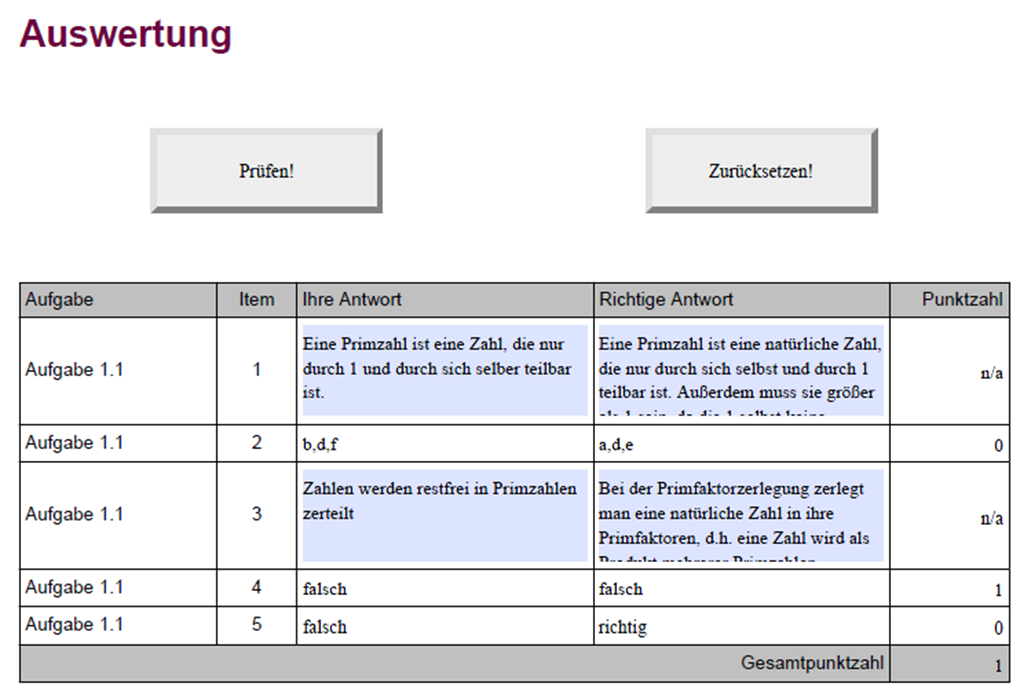
Fig.: Interactive results table at the end of the interactive PDF document with Prüfen! and Zurücksetzen! buttons.
Useful applications include independent learning and checking answers at home, or taking online tests and examinations that are submitted for grading.
Question types in interactive PDF:
Interactive PDF output offers 9 exercise or question types to make learning content varied and effective:
1) Multiple choice (single select): A selection question with one correct answer.
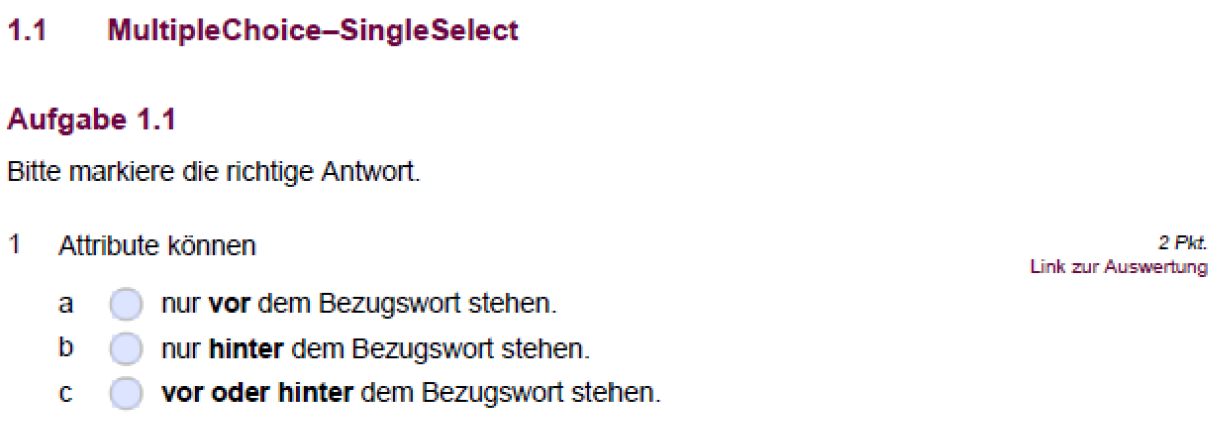
Fig.: Multiple Choice–SingleSelect question type in interactive PDF.
2) Multiple choice (multiple select): A selection question with two or more correct answers.
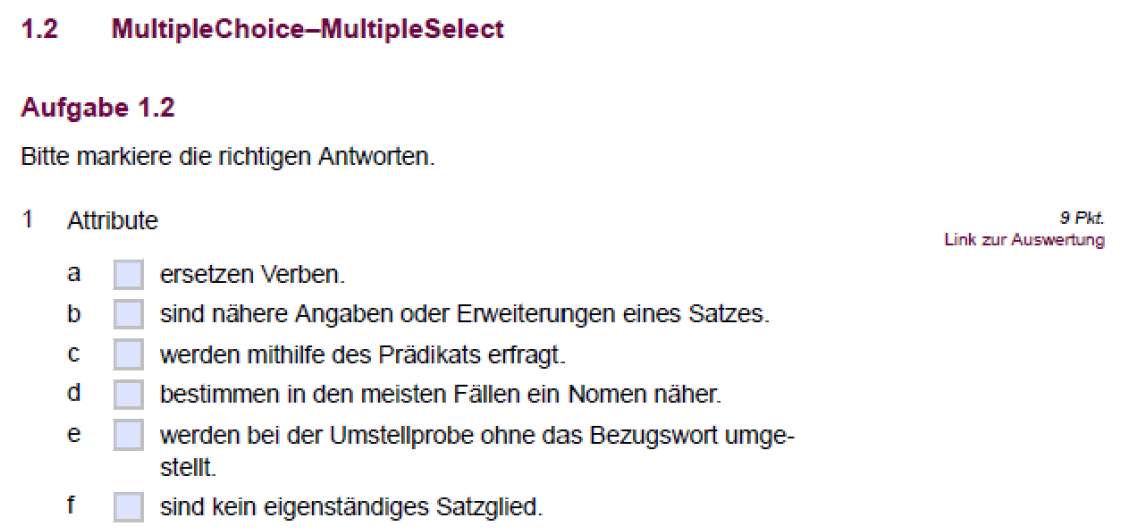
Fig.: MultipleChoice–MultipleSelect question type in interactive PDF.
3) True/false questions: Decide whether a statement is true or false.
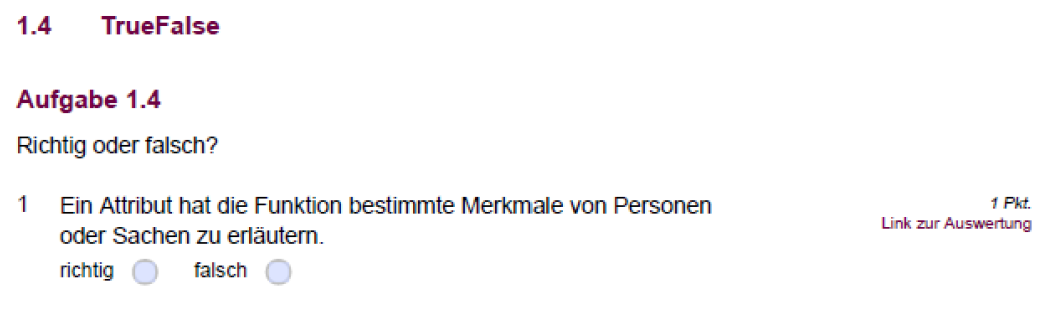
Fig.: TrueFalse question type in interactive PDF.
4) Inline choice: Fill-in-the-blank text; each gap offers different answer options in a drop-down menu.
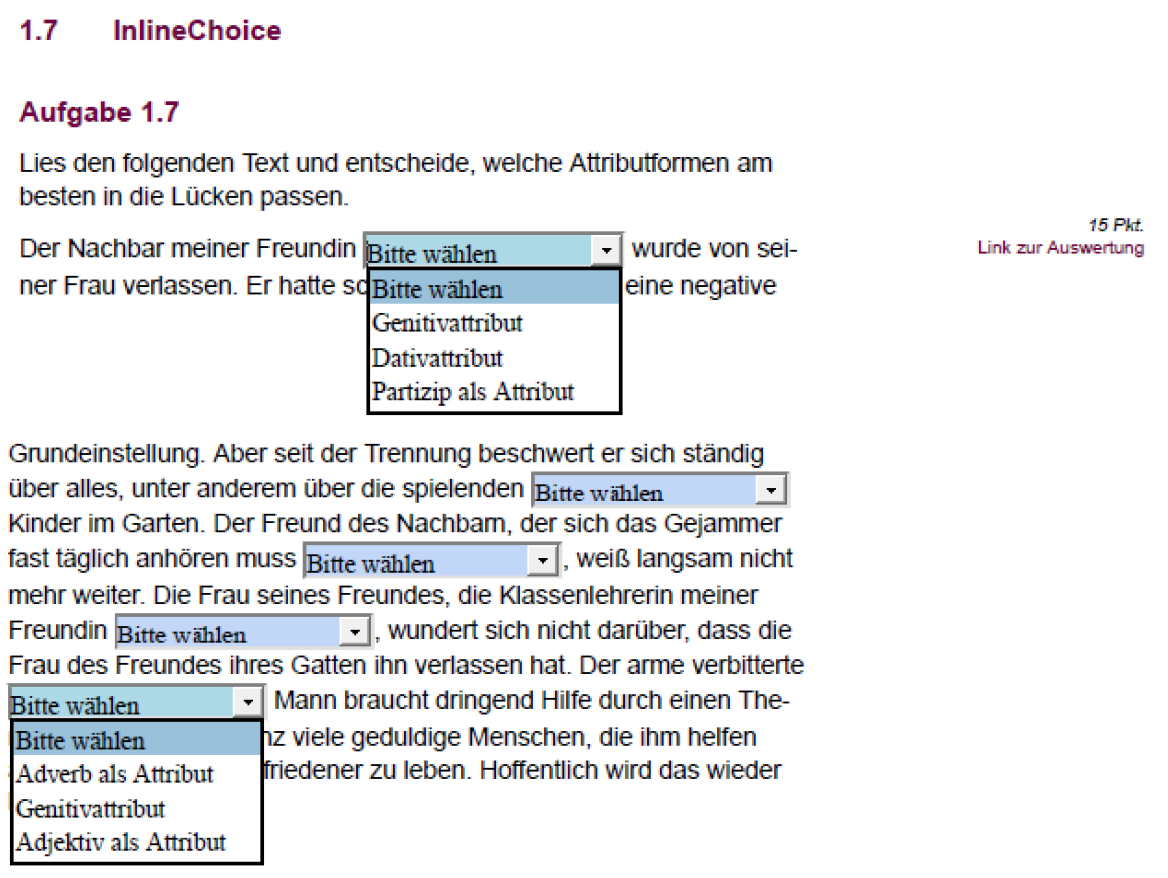
Fig.: InlineChoice question type in interactive PDF.
5) Inline text entry: A text field for answering a question; any number of questions is possible; intended for short answers.
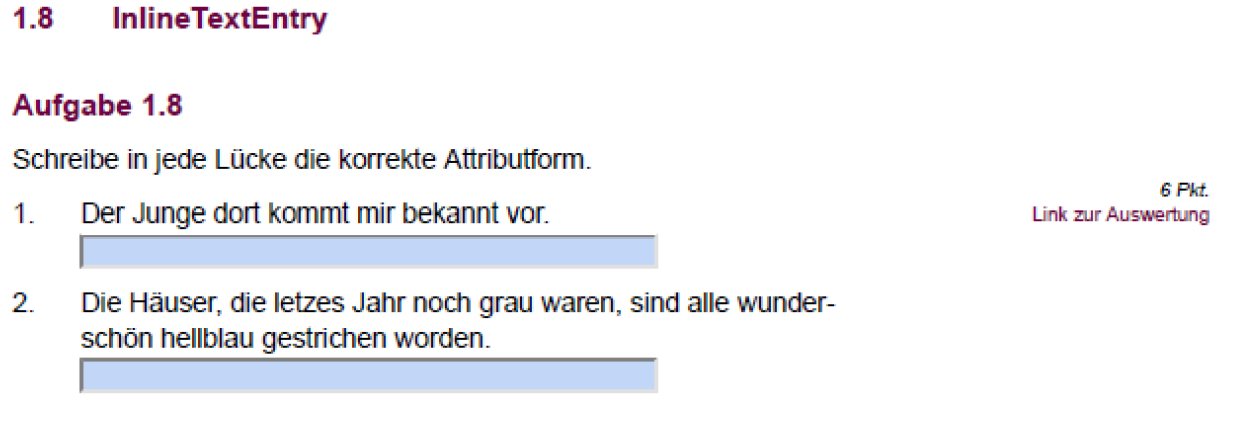
Fig.: InlineTextEntry question type in interactive PDF.
6) Open questions: Space for creative, individual answers. A text field for answering a question; the answer is assessed by a person.
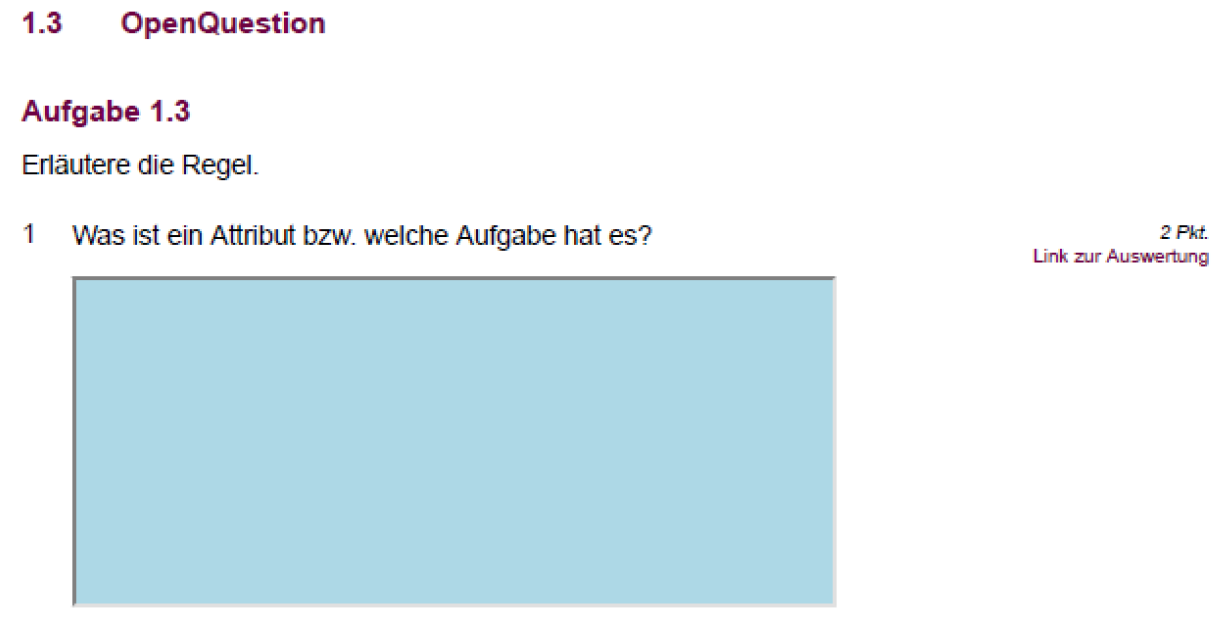
Fig.: OpenQuestion question type in interactive PDF.
7) Matching tasks: Use a drop-down menu to assign the correct answer to a question.
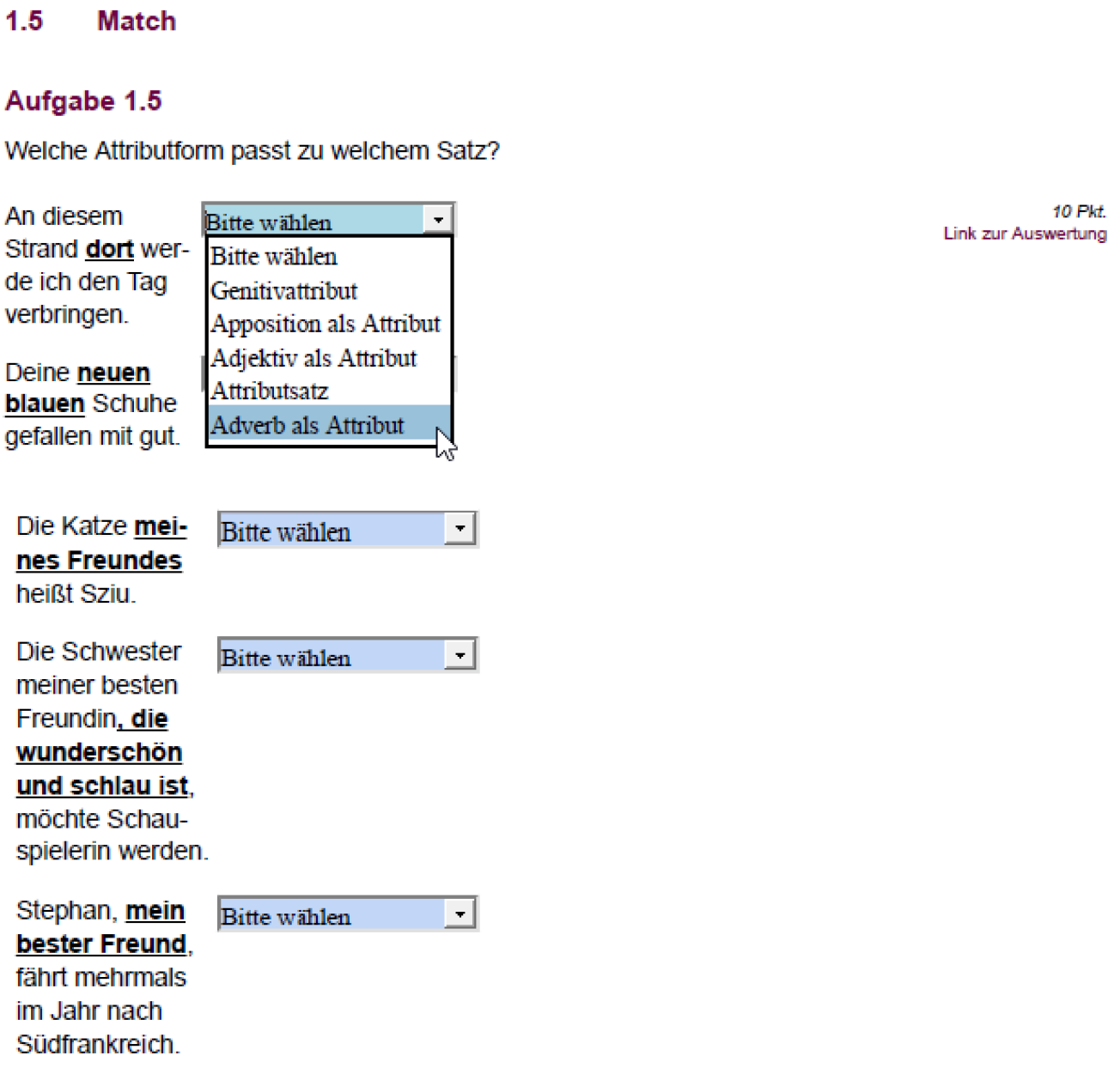
Fig.: Match question type in interactive PDF.
8) Gap-filling tasks: The same answer options are offered for every gap in the text.
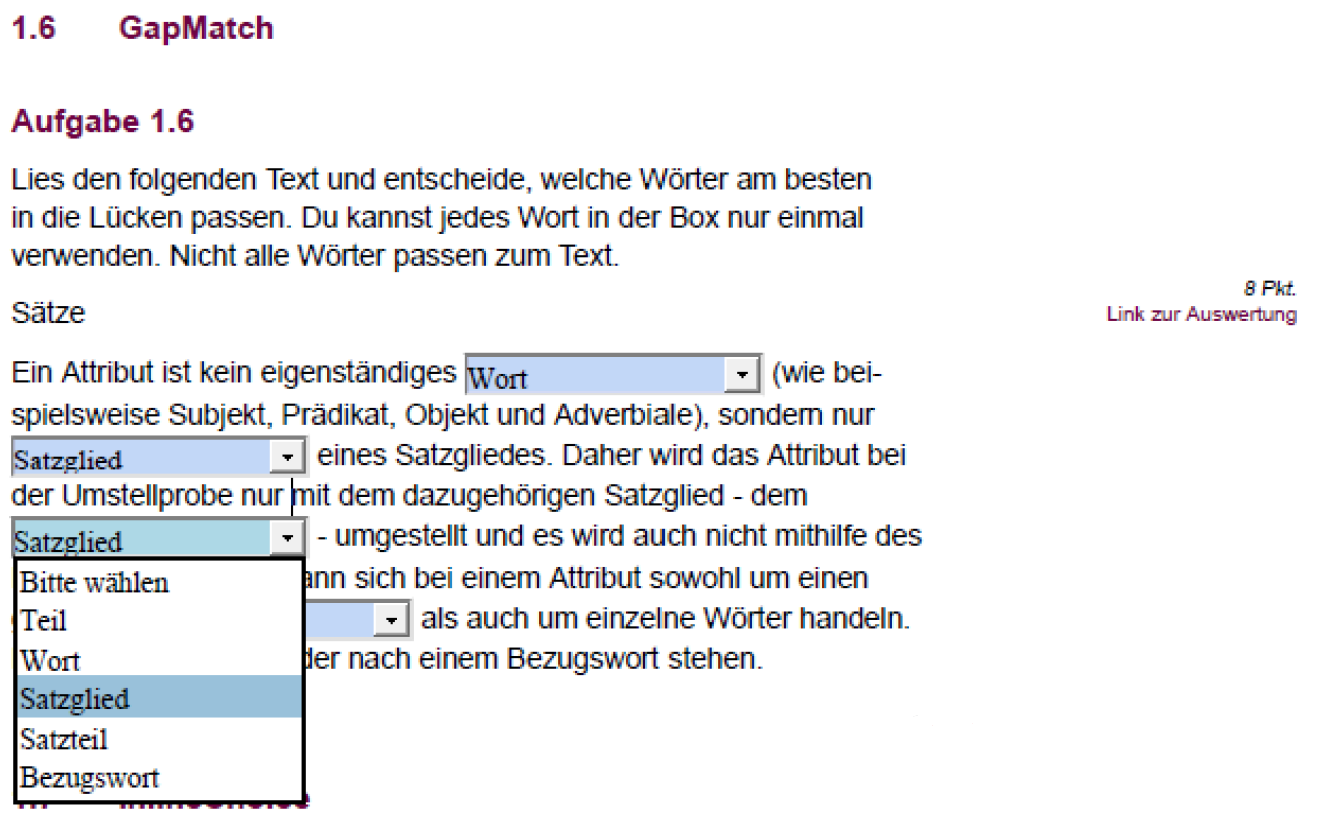
Fig.: GapMatch question type in interactive PDF.
9) Complex tasks: A multipart task consisting of several subtasks of different types.
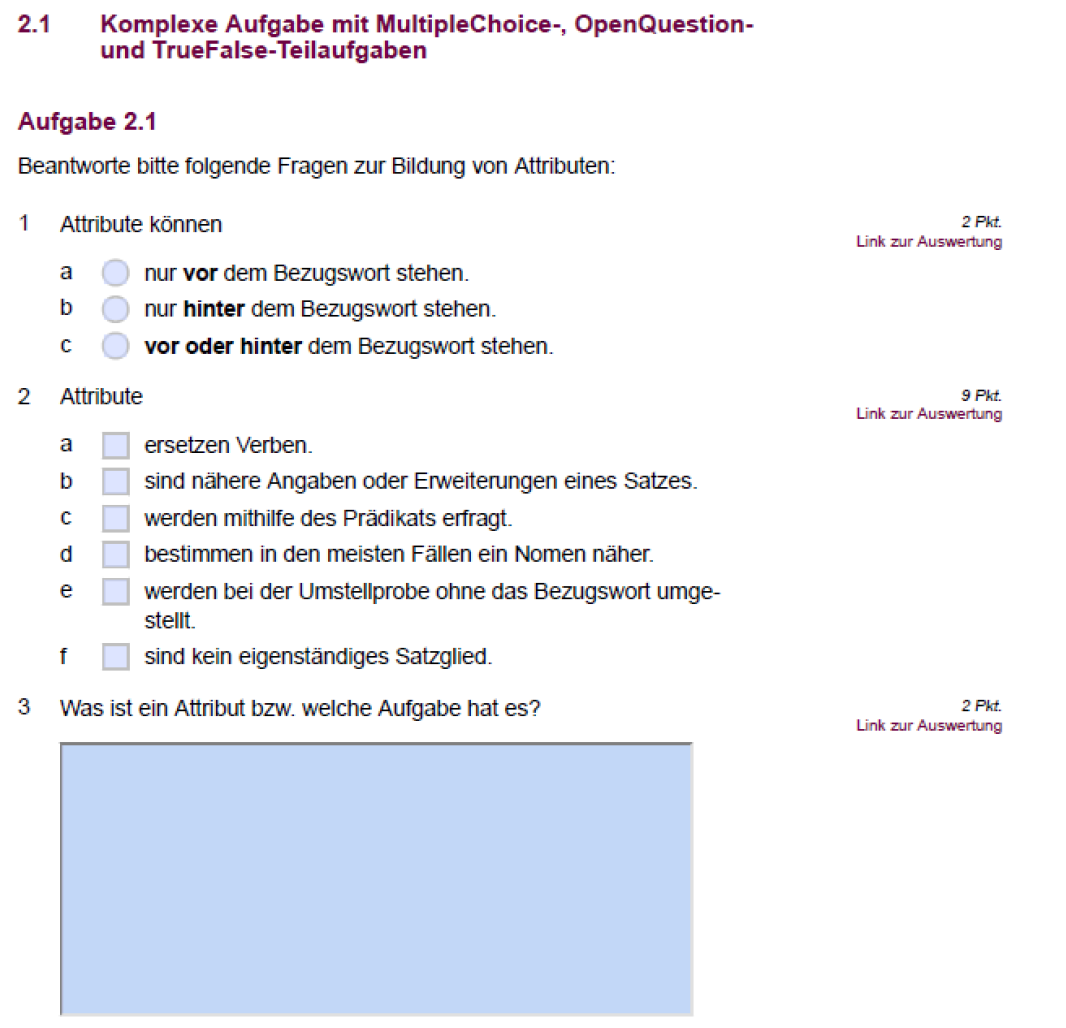
Fig.: Complex question type in interactive PDF.
Answer key in Excel
If the data contains tasks with solutions, Octopus can optionally output the solutions in a separate Excel spreadsheet. This answer key takes any existing individualisation, randomisation and localisation into account.
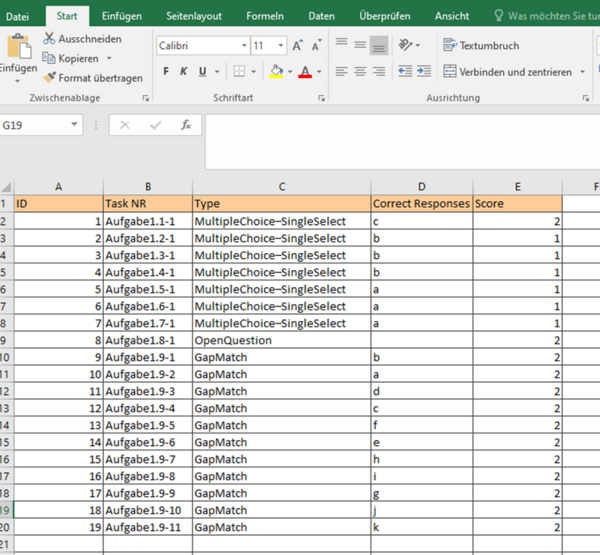
Fig.: Example answer key for tasks in Excel.
Conclusion
Interactive PDF offers both customisable visuals and unique functionality. It enables learners to check their progress independently and also provides the option to submit assignments with a digital signature for assessment.