

XML technologies / ePUB / ePub für (In)Designer / Book features / Adding a table of contents / Linking the table of contents
(Excerpt from “ePub für (In)Designer — Mit InDesign Schritt für Schritt zum E-Book” by Sascha Heck & Yves Apel)
Detaching the automatic table of contents also removes its hyperlinks, which must now be set manually. First define a text anchor to link to. Go to chapter 1, click its title and choose in the Hyperlinks panel New Hyperlink Destination. Assign a name and choose the type Text Anchor.
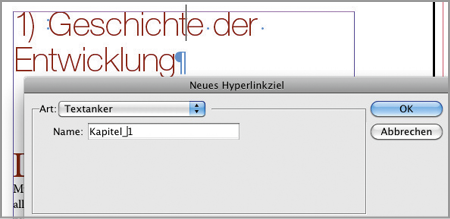
Figure: Defining text anchors for the table of contents.
Then select the contents line that needs a hyperlink. In the Hyperlinks panel, choose New Hyperlink and link to the new anchor. (Warning: A bug is described under Cross-references.)
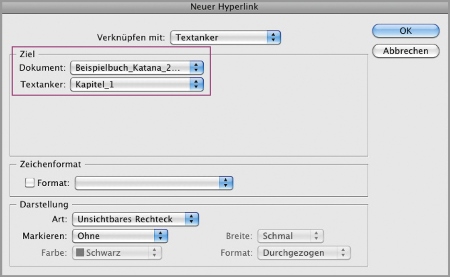
Figure: Linking to the text anchor.
Repeat for all remaining contents hyperlinks. Once the contents is complete, edit the links in the final ePub as described under Changing hyperlink appearance. Otherwise they appear in an unattractive default blue with underlining.
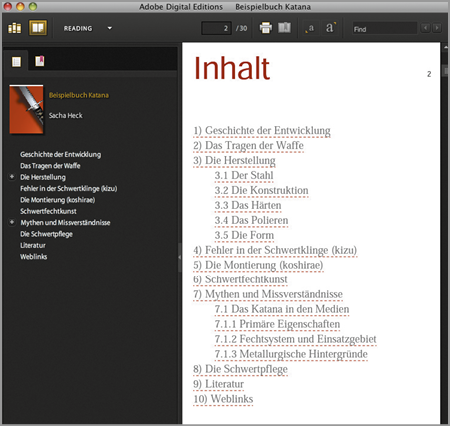
Figure: A possible finished table of contents.
Further information on hyperlinks and cross-references appears under Cross-references and links.
Copyright © dpunkt.verlag GmbH 2012
You may print the online version for your private use.
Otherwise, this chapter from “ePub für (In)Designer” is subject to the same terms as the printed edition: the work and all its parts are protected by copyright. All rights reserved, including reproduction, translation, microfilming, and storage and processing in electronic systems.
dpunkt.verlag GmbH, Wieblinger Weg 17, 69123 Heidelberg, fon 06221-14830, fax 06221-148399, hallo(at)dpunkt.de
back to top