

XML technologies / ePUB / ePub für (In)Designer / Images, boxes and other design elements / Image sizes in ePub
(Excerpt from “ePub für (In)Designer — Mit InDesign Schritt für Schritt zum E-Book” by Sascha Heck & Yves Apel)
Testing often reveals unexpected image display and inconsistent sizes.
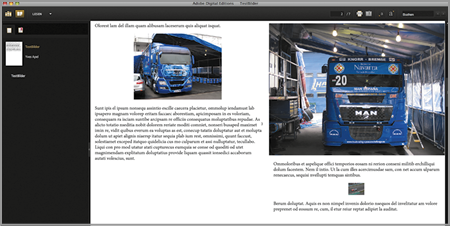
Figure: Inconsistent image sizes reduce reading enjoyment.
You need not recreate the ePub and repeat all edits. Adjust image sizes in source code, which looks like this: <img src="images/Dateiname.jpeg" alt="Dateiname.JPG"/> or, with fixed InDesign values, even <img width="55" height="41" src="images/Dateiname.jpeg" alt="Dateiname.JPG"/>. Note the attributes “width” and “height”, which control image dimensions. A unitless number means pixels and specifies book image height or width. Fixed sizes suit fixed values, but e-books generally adapt images to screen width. Replace height or width with a percentage: usually width for landscape, height for portrait. Keep only that dimension and delete the other, yielding code like: <img width="100%" src="images/Dateiname.jpeg" alt="Dateiname.JPG"/>. Otherwise the image becomes distorted. 100% fills the entire screen width or height. Any value is possible, such as 50% for half. Adjust each image individually for uniform sizes.
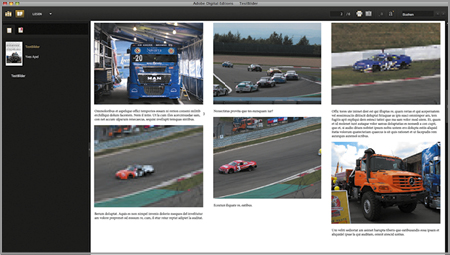
Figure: Adjusted ePub image sizes.
Source editing has a drawback: originally stamp-sized images become so enlarged that their pixel count is insufficient for screen display.
Copyright © dpunkt.verlag GmbH 2012
You may print the online version for your private use.
Otherwise, this chapter from “ePub für (In)Designer” is subject to the same terms as the printed edition: the work and all its parts are protected by copyright. All rights reserved, including reproduction, translation, microfilming, and storage and processing in electronic systems.
dpunkt.verlag GmbH, Wieblinger Weg 17, 69123 Heidelberg, fon 06221-14830, fax 06221-148399, hallo(at)dpunkt.de
back to top