

XML technologies / ePUB / ePub für (In)Designer / Repeated tasks / ePub: unpacking the file
(Excerpt from “ePub für (In)Designer — Mit InDesign Schritt für Schritt zum E-Book” by Sascha Heck & Yves Apel)
After exporting an ePub from InDesign, you cannot immediately edit it further: ePub itself is a reading format. The following sections show how to take it apart easily and edit every detail. An ePub is compressed, essentially a ZIP archive containing many files. Unpacking grants access to them. The following applications help.
Springy
A special Mac tool is Springy (data2type editorial note: unfortunately, the tool is no longer developed). It displays and edits individual ePub files without unpacking the whole archive. For major work, such as Find/Replace across HTML files, proper unpacking is recommended. It is practical for quick changes and tests.
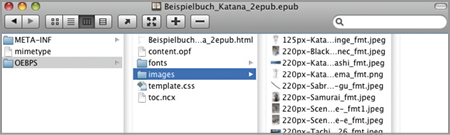
Figure: Springy looks inside ePub without unpacking.
An important Springy preference is Preserve Macintosh content. Disable it to prevent your ePub becoming unreadable.
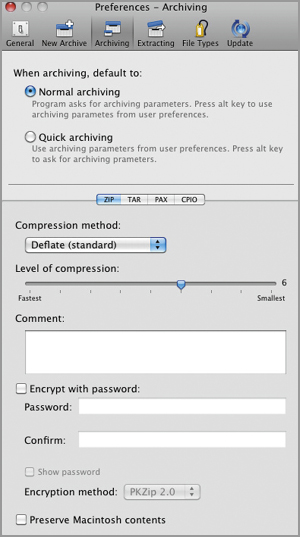
Figure: Disable Preserve Macintosh contents.
Unpacking on OS X with ZIP tools
Since ePub is essentially ZIP, replace the filename extension .epub with .zip, confirm the change dialog and unpack with a program such as StuffIt Expander Mac or BetterZip 2. The built-in Mac unzip tool, Archive Utility.app under Applications → Utilities, unfortunately usually fails for this purpose.
Unpacking creates a folder containing every ePub file. Each chapter has its own XHTML file. template.css controls appearance; Images contains pictures. toc.ncx stores table-of-contents information, the navigation map. We edit content.opf later.
Unpacking on OS X with Terminal
No ZIP tool is necessary either: start Terminal, found on your Mac under Applications → Utilities → Terminal.app. Terminal is part of the operating system, allowing command-line interaction through a Bash shell. First move ePub into its own folder, or its files will scatter elsewhere.
In the simple window, first navigate to the folder containing ePub. Type cd (change directory), then theoretically the full path. Easier: drag the folder from Finder into Terminal to insert its path automatically.
cd /Users/sachaheck/Desktop/unzip_beispielThen type unzip followed by your ePub filename.
unzip unzip_beispiel.epubThe extracted files now appear in your folder.
Unpacking on Windows
Windows has many tools, but none extra is required: its operating system already includes compression. Unlike OS X, its system tool handles ePub unpacking well. Change the extension to .zip, right-click and choose Extract. A window first displays ePub content; click Extract All to open another window, choose a destination and unpack everything.
Alternatively use a small additional tool such as 7-Zip to unpack ePub without renaming.
Copyright © dpunkt.verlag GmbH 2012
You may print the online version for your private use.
Otherwise, this chapter from “ePub für (In)Designer” is subject to the same terms as the printed edition: the work and all its parts are protected by copyright. All rights reserved, including reproduction, translation, microfilming, and storage and processing in electronic systems.
dpunkt.verlag GmbH, Wieblinger Weg 17, 69123 Heidelberg, fon 06221-14830, fax 06221-148399, hallo(at)dpunkt.de