

XML technologies / ePUB / ePub für (In)Designer / Repeated tasks / ePub file packaging
(Excerpt from “ePub für (In)Designer — Mit InDesign Schritt für Schritt zum E-Book” by Sascha Heck & Yves Apel)
After unpacking, edit (X)HTML in an editor. To restore a readable ePub, ZIP the folder and change the extension to epub. This is not straightforward, at least on OS X: compression order matters. The mimetype file must be first and, for full compliance, start at byte 30 inside ZIP. Otherwise the book may be unreadable or fail validation.
OS X: script
On Mac, an AppleScript is easiest. Paul Durrant’s well-known script was extended by Dan Rodney, who also developed an Unzip AppleScript. Find them in the recommended MobileRead Forum, AppleScript download. Simply drag your folder onto the script icon to start conversion.
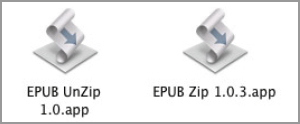
Figure: The fastest way—AppleScripts.
Simply drag and drop to ZIP or unzip.
OS X: Terminal
The script’s automatic work can also be done manually in Terminal. First switch to the correct folder:
cd [then drag the unpacked folder here, or type its path correctly. Enter]
Enter these two lines, pressing Enter after each:
zip -0Xq MeineDatei.epub mimetype [Enter]
zip -Xr9Dq MeineDatei.epub * [Enter]
The folder now contains an ePub named MeineDatei.epub. Rename MeineDatei, or choose the correct name directly in the command line.
Windows
Windows users have an advantage: system tools can ZIP and unzip without damaging ePub. Select all relevant files, right-click and choose Send to → Compressed (zipped) Folder. Then change the suffix from .zip back to .epub.
Editing ePub in an editor
Some tools open ePubs natively, saving effort especially during testing: Sigil, TextWrangler, BBEdit and oXygen Author. See E-book editors for brief introductions.
Copyright © dpunkt.verlag GmbH 2012
You may print the online version for your private use.
Otherwise, this chapter from “ePub für (In)Designer” is subject to the same terms as the printed edition: the work and all its parts are protected by copyright. All rights reserved, including reproduction, translation, microfilming, and storage and processing in electronic systems.
dpunkt.verlag GmbH, Wieblinger Weg 17, 69123 Heidelberg, fon 06221-14830, fax 06221-148399, hallo(at)dpunkt.de