

XML technologies / DITA / DITA authoring environments / FrameMaker
(Excerpt from “DITA – Der neue Standard für Technische Dokumentation” by Johannes Hentrich)
Adobe FrameMaker is widespread in technical documentation, so technical writers naturally watch its DITA capabilities closely.
Adobe was initially rather reserved about DITA support in its flagship publishing product for technical documentation. Version 8.0 then added several functions for working with DITA.
Overall, however, FrameMaker’s built-in DITA functions are limited at best. A standard installation neither integrates the DITA Open Toolkit nor supports DITA 1.1 features such as glossary entries or bookmaps.
For structured documents, FrameMaker does not use the underlying DTD directly but its own structure definitions, EDDs (Element Definition Document), modeled on a DTD. Glossary entries and bookmaps can therefore be created and edited only after the corresponding EDDs have been developed. So far, FrameMaker can create only maps and task, concept and reference topics.
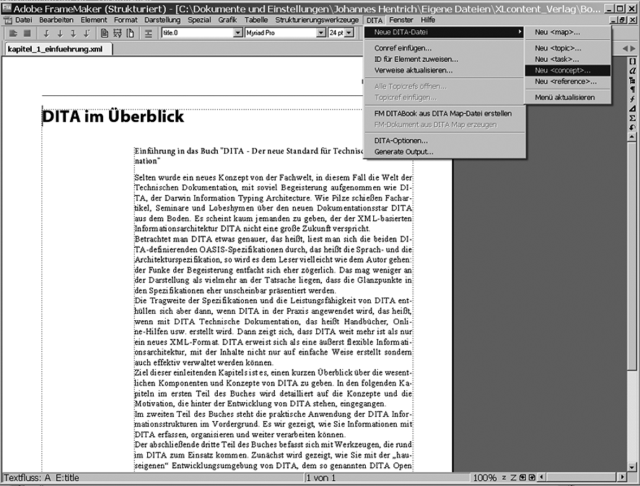
Figure: The DITA menu in FrameMaker.
When editing DITA XML files, FrameMaker confusingly offers menu items that should not be available. Fonts can still be changed, for example, but those changes are not saved. Writers notice this only after closing and reopening the file.
Plugins can extend FrameMaker’s DITA editing capabilities.
One example is the DITA FMx plugin from Leximation Inc., which extends both editing and output capabilities. Besides creating ditaval files and supporting link creation through the element <xref>, it also integrates the DITA Open Toolkit.
Adobe’s toolkit integration plugin also enables integration. The DITA Open Toolkit must already be installed to use it with FrameMaker. DITA Open Toolkit explains installation. Install the Adobe plugin as follows:
Download the Adobe FrameMaker 8 Plugin for the DITA Open Toolkit from the internet.
Extract the ZIP file into the Adobe FrameMaker 8 installation directory, for example
C:/Programme/Adobe/FrameMaker8. A directoryOpen Toolkitis created.Copy the file
openToolkit.dllfrom the directoryOpen Toolkitinto the directoryfminit.Copy the file
PROJECT.xmland the fileditafm-ant.xmlfrom the directoryOpen Toolkitinto the directoryfminit/ditafmand into the toolkit installation directory, for exampleC:/ditaot14.Open the file
maker.iniin a text editor such as Notepad. The filemaker.iniis in the Adobe FrameMaker installation directory, for exampleC:/Programme/Adobe/FrameMaker8.In the section
APIClients, add the following entry:
ditaOpenToolkit=Standard, DITA Open Toolkit, fminit\open-Toolkit.dll, structuredSave the file
maker.ini.Start FrameMaker 8.
In the menu DITA , select Generate Output...
If the error message “The DITA-OT directory is not set in Options, unable to generate output.” appears, also adapt the fileditafm.iniin the directoryfminit/ditafm.Open the file
ditafm.iniin the directoryfminit/ditafmin a text editor such as Notepad.Enter the following lines:
[BuildFile]
AntCommand=ant
AntScript=ditafm-ant.xml
Count=3
DitaDir=C:\ditaot14
1=chm
2=html
3=pdf

[AntBuild]
AntCommand=ant
Count=2
1=Test - CHM
2=Test - HTML

[ANT:Test - CHM]
BuildFile=C:\ditaot14\logs\test_ant.xml
Target=chm
OutputDir=C:\ditaot14\out\chm
Logfile=C:\ditaot14\logs\ant-buildlog-chm.txt

[ANT:Test - HTML]
BuildFile=C:\ditaot14\test_html.xml
Target=html
OutputDir=C:\ditaot14\out\html
Logfile=C:\ditaot14\logs\ant-buildlog-html.txt
In the parameter
DitaDir, change the path to the DITA Open Toolkit installation directory.Save the file
ditafm.ini.Start FrameMaker 8 and, in the menu DITA , select Generate Output...
The DITA Open Toolkit dialog appears.
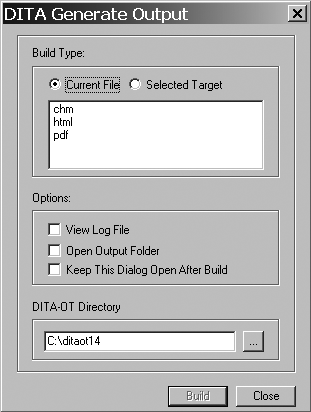
Figure: DITA Open Toolkit dialog.
The toolkit is often used only for HTML production. FrameMaker’s own functions, especially its extensive book facilities, are used for books and PDFs. The procedure is:
Create a map file. In FrameMaker, the menu DITA has the option New DITA File with the entry New <map>...
Then create a FrameMaker book. In the DITA menu, use Create FM DITABook from DITA Map File.
Copy the generated book and continue processing the copy. Retain the original file as one of the book files in the new FrameMaker book.
Add typical book elements such as front matter, table of contents, index and page numbering. One book file is the original generated from the map, so updating the FrameMaker book always provides current map data.
Unlike other XML editors, FrameMaker cannot immediately use specialized DTDs. First create an EDD representing the specialized DTD’s structure, then integrate it into existing FrameMaker template files.
This process has not yet proved especially reliable in practice, often leading to the belief that FrameMaker cannot support specialization.
Using specialization requires precise knowledge of creating and integrating EDDs in FrameMaker. This knowledge beyond DITA is unnecessary in native XML editors, where specialized DTDs immediately allow new documents. This may discourage many from using FrameMaker as an XML editor for DITA XML files.
Copyright © 2008 XLcontent Verlag
You may print the online version for your private use.
Otherwise, this chapter from “DITA - Der neue Standard für Technische Dokumentation” is subject to the same conditions as the bound edition. The work, including all its parts, is protected by copyright. All rights reserved, including reproduction, translation, microfilming, and storage and processing in electronic systems.
XLcontent Verlag, Pflegerstraße 40, 81247 München
back to top