

XML technologies / ePUB / ePub für (In)Designer / Audio in ePub / Converting audio to MP3
(Excerpt from “ePub für (In)Designer — Mit InDesign Schritt für Schritt zum E-Book” by Sascha Heck & Yves Apel)
If the audio is only available as Wave (.wav) or AAC (.mp4), first convert it to MP3. Here we use iTunes.
Open iTunes and the folder containing the file.
Drag the audio into the iTunes library.
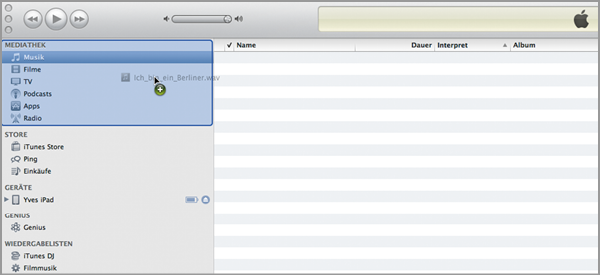
Figure: Dragging audio into the iTunes library.
Open iTunes preferences through the menu iTunes → Preferences (Mac) or Edit → Preferences (Windows).
Click Import Settings.
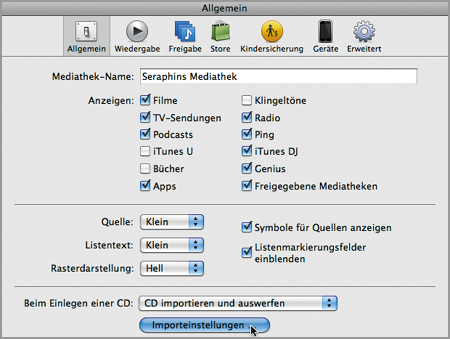
Figure: Clicking Import Settings.
Under Import Using choose MP3 Encoder; under Setting you can select Higher Quality (192 kbit/s).
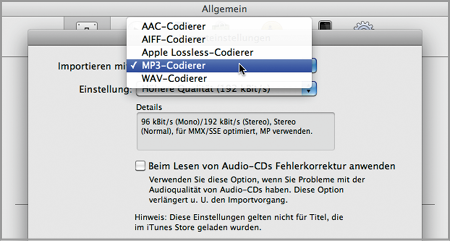
Figure: Import Using → MP3 Encoder.
Confirm the settings, then right-click the audio in the library and choose Create MP3 Version.
A second file with the same name appears in the library. Depending on duration, conversion may take some time.
Click the newer file again and choose Show in Finder (Mac) or Show in Windows Explorer (Windows) to access it. Alternatively, drag it straight from iTunes into the destination folder.
Now copy the file to the desired folder for inclusion in the e-book.
Copyright © dpunkt.verlag GmbH 2012
You may print the online version for your private use.
Otherwise, this chapter from “ePub für (In)Designer” is subject to the same terms as the printed edition: the work and all its parts are protected by copyright. All rights reserved, including reproduction, translation, microfilming, and storage and processing in electronic systems.
dpunkt.verlag GmbH, Wieblinger Weg 17, 69123 Heidelberg, fon 06221-14830, fax 06221-148399, hallo(at)dpunkt.de
back to top