

XML technologies / CSS / CSS Cookbook / Links and navigation / Alternative cursor symbols
(Excerpt from “CSS Kochbuch” by Christopher Schmitt)
Problem
Show a clock instead of the usual cursor when the mouse hovers over a link, as in the following figure.
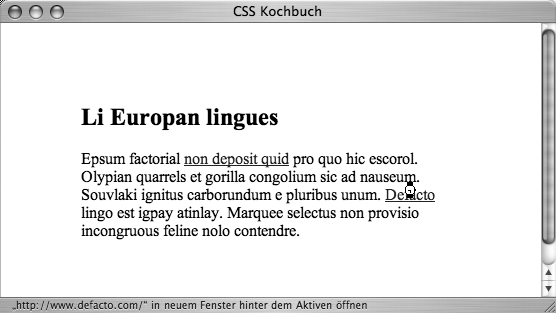
Figure: A clock appears as the cursor.
Solution
Use the property cursor to customize the cursor:
a:link, a:visited {
 cursor: wait;
}
Discussion
The property cursor accepts several values, listed in the next table. Support depends heavily on the browser. Opera 7 and Internet Explorer 5.5+ for Windows support the property cursor, while Netscape Navigator 6+ understands most values except uri. In Netscape, values for cursor are not inherited by child elements.
Table: Values of the cursor property.
Value | Description | Example |
|---|---|---|
| The browser determines the cursor’s appearance. |
|
| Two lines intersecting at their centers: a crosshair like a large plus sign. |
|
| A platform-dependent cursor, usually an arrow in most browsers, which may vary with the user agent and operating system. |
|
| Indicates that the pointer is over a link. Sometimes a hand with an extended index finger, but it can differ with the operating system and user agent. |
|
| Indicates that an element can be moved. Sometimes a crosshair with arrowheads at its ends or an open hand. |
|
| An arrow showing the direction in which a side can be moved. |
|
| Indicates that text can be selected. Similar to the cursor in word processors, resembling a capital I. |
|
| Indicates that the computer is busy. Sometimes an hourglass. |
|
| Indicates that the computer is busy but the user can still interact with the browser. |
|
| Indicates that information or help is available, often on the target page. Sometimes a question mark or an arrow with a question mark. |
|
| The default cursor can be replaced by an externally defined cursor, such as an image, a Windows cursor file, a cursor in SVG, or something else. | N/A |


Adding a custom cursor uses code similar to defining an element’s background image:
a.help:link, a.help:visited{
 cursor: url(bewildered.gif);
}
When changing default cursors, remember that most users find this somewhere between mildly distracting and extremely annoying, depending on the extent of the changes. Change the familiar cursor at your own risk.
See also
The CSS 2.1 specification for the property cursor.
Copyright of the German edition © 2007 by O’Reilly Verlag GmbH & Co. KG
You may print the online version for your private use.
Otherwise, this chapter from “CSS Kochbuch” is subject to the same conditions as the bound edition: the work, including all its parts, is protected by copyright. All rights reserved, including reproduction, translation, microfilming, and storage and processing in electronic systems.
O’Reilly Verlag GmbH & Co. KG, Balthasarstr. 81, 50670 Köln