

XML technologies / ePUB / ePub für (In)Designer / Video in ePub / Converting with Wondershare Video Converter
(Excerpt from “ePub für (In)Designer — Mit InDesign Schritt für Schritt zum E-Book” by Sascha Heck & Yves Apel)
Even without Adobe Media Encoder, first read its instructions: they contain information also applicable here, which we will not repeat.
Start the program and drag your video into the field Drag video files here.
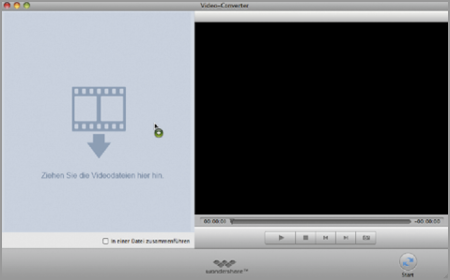
Figure: Start Wondershare Video Converter and drag the file into the empty field.
Click the small icon beside the filename to edit its name, location and conversion settings. Choose the format MP4.
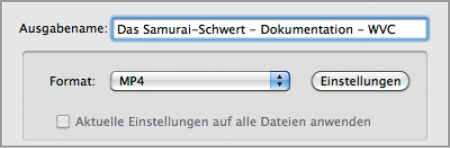
Figure: Selecting MP4 format.
Select Settings. Set Encoder to H.264 Normal(MC). As with Adobe Media Encoder, optimize for iBooks using dimensions, called resolution here, of 480 × 270 pixels and a bitrate of 1,000 kbit/s.
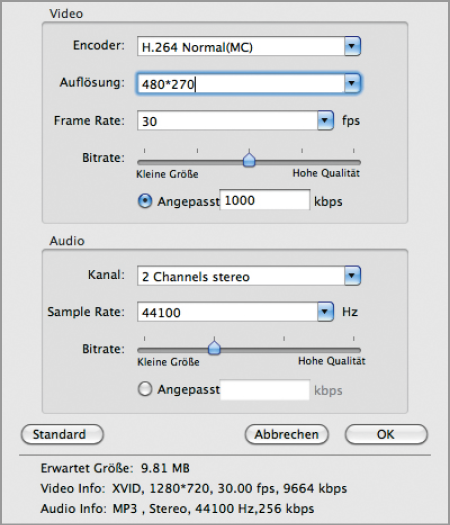
Figure: Editing Wondershare Video Converter settings.
Tip:
If your video is neither 4:3 nor 16:9 and 480-pixel width does not yield 270-pixel height, find the height with this trick: create an empty InDesign frame at the original video size, then scale proportionally to the desired width. Its height adjusts automatically.
Keep the audio defaults. Confirm twice with OK, then click the lower-right Start button to start conversion.

Figure: Starting conversion in Wondershare Video Converter.
Copyright © dpunkt.verlag GmbH 2012
You may print the online version for your private use.
Otherwise, this chapter from “ePub für (In)Designer” is subject to the same terms as the printed edition: the work and all its parts are protected by copyright. All rights reserved, including reproduction, translation, microfilming, and storage and processing in electronic systems.
dpunkt.verlag GmbH, Wieblinger Weg 17, 69123 Heidelberg, fon 06221-14830, fax 06221-148399, hallo(at)dpunkt.de
back to top