

XML technologies / ePUB / ePub für (In)Designer / Images, boxes and other design elements / Wrapping text around images and boxes / Wrapping images
(Excerpt from “ePub für (In)Designer — Mit InDesign Schritt für Schritt zum E-Book” by Sascha Heck & Yves Apel)
Under Wrapping text around images and boxes we prepared images and boxes for wrapping. Here we explain the remaining code changes.
In the chapter’s HTML file, find the image. Its code should resemble:
<div class="UMFLIESSEN leftFloat">
   <div class="UMFLIESSEN">
      <p class="para-style-override-2"><img width="109" height="204" src="images/125px-Katana-_Klinge_fmt.jpeg" alt="125px-Katana-_Klinge.jpg"/></p>
   </div>
   <div class="UMFLIESSEN">
      <p class="impressum para-style-override-3"><span>Querschnitt durch die Klinge eines Katana.</span></p>
   </div>
</div>
The line <div class="UMFLIESSEN leftFloat"> matters most: it positions the image left or right of the text. InDesign defaults to left. Change it to <div class="UMFLIESSEN rightFloat"> to place it right. Unlike InDesign, only left and right are available. The ePub3 standard and HTML5 introduce freely chosen positioning.
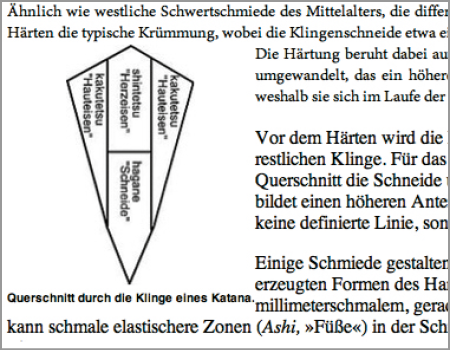
Figure: <div class="UMFLIESSEN leftFloat"> positions the image left.
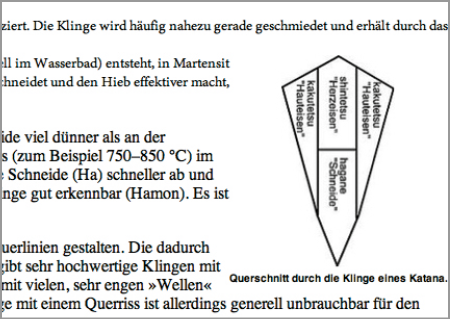
Figure: <div class="UMFLIESSEN rightFloat"> positions the image right.
The result shows the caption too close to the text. To fix it, open the CSS file (template.css). Its end contains the object-style name assigned to the InDesign group and its caption frame, here UMFLIESSEN.
div.UMFLIESSEN {
}
In the CSS rule, set the width of an invisible area containing image and caption using width: [Maße]. Add wrapping to that area with margin: [Wert Oben] [Wert Rechts] [Wert Unten] [Wert Links]. These settings affect every object with that object style. The CSS file then resembles:
div.UMFLIESSEN {
  width: 150px;
  margin: 3px 12px 12px 0;
}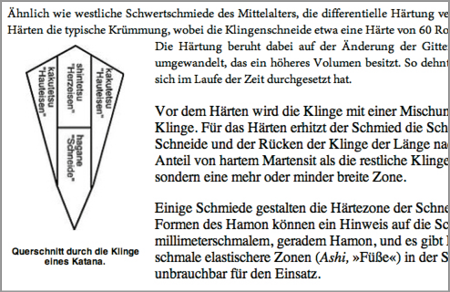
Figure: Finished result—image wrapping.
Copyright © dpunkt.verlag GmbH 2012
You may print the online version for your private use.
Otherwise, this chapter from “ePub für (In)Designer” is subject to the same terms as the printed edition: the work and all its parts are protected by copyright. All rights reserved, including reproduction, translation, microfilming, and storage and processing in electronic systems.
dpunkt.verlag GmbH, Wieblinger Weg 17, 69123 Heidelberg, fon 06221-14830, fax 06221-148399, hallo(at)dpunkt.de
back to top