

XML technologies / ePUB / ePub für (In)Designer / E-books for Kindle / Creating a mobi file
(Excerpt from “ePub für (In)Designer — Mit InDesign Schritt für Schritt zum E-Book” by Sascha Heck & Yves Apel)
Kindle Format 8
In January 2012 Amazon released Kindle Format 8, extension mobi. Hopes of Amazon adopting standard ePub are thus gone. HTML5, CSS3, fixed layout, embedded fonts, drop caps, numbered lists and text over background images offer new possibilities, not far from ePub3. Kindle Format 8 replaces the old Mobipocket format, first on Kindle Fire and then updated apps. Consequences for e-book creators remain to be seen.
Here is a list of HTML and CSS elements supported in KF8.
KindleGen and Kindle Previewer
Find KindleGen and Kindle Previewer under Kindle Publishing Programs. KindleGen, like EpubCheck, is command-line based and difficult for beginners. We use Kindle Previewer instead: it includes KindleGen for conversion but offers a graphical interface and easier steps.
Converting with Kindle Previewer
Conversion is as simple as it sounds: launch Kindle Previewer, choose File → Open Book and select ePub. Kindle Previewer displays progress.
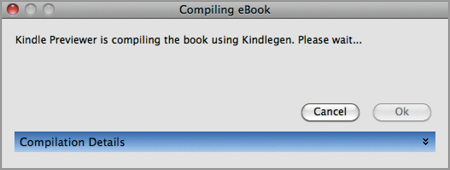
Figure: Converting ePub with Kindle Previewer.
Completion brings a message linking to the Mobipocket file, usually beside the ePub, and reporting conversion errors. Click the small double arrow on blue to inspect them. Actual errors are labeled Warning; Info(prcgen) lines can usually be ignored.
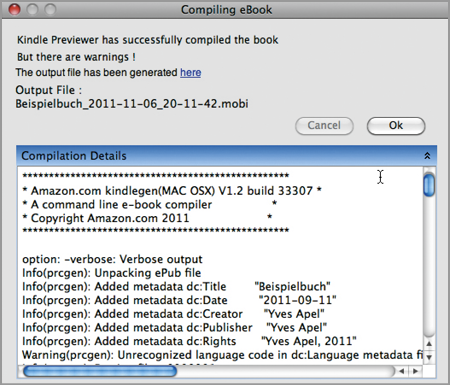
Figure: Kindle Previewer displays conversion errors.
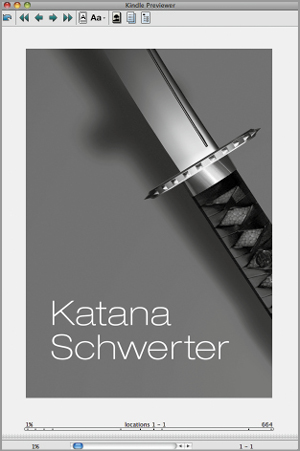
| Figure: Display after conversion is a good sign. |
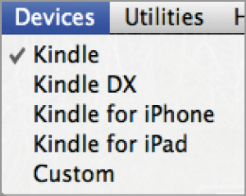
The menu Devices simulates different Kindle devices.
| Figure: Testing different Kindle device views. |
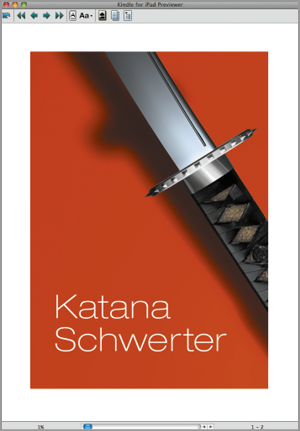
Under Kindle for iPad view the document in color.
| Figure: Kindle for iPad simulation. |
Kindle Plugin for Adobe InDesign®
Amazon’s Kindle Plugin for Adobe InDesign® is welcome, but offers few settings: the navigation map exports through a TOC style; choose a cover and book name, and that is all. If sufficient, it exports an Amazon-optimized e-book from InDesign, but high-quality production needs post-processing. We tested version 0.95.
Calibre
Calibre also converts ePub to mobi. Unlike Kindle Previewer, conversion settings let you edit metadata, cover and other information.
First drag ePub into the large middle window.
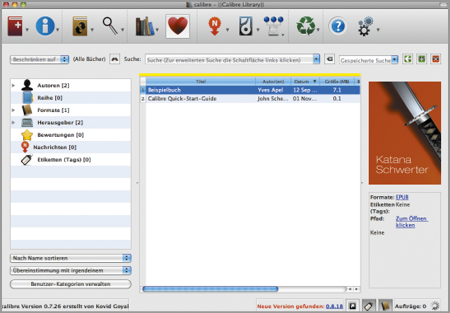
Figure: Drag ePub into Calibre’s main window.
Select the book, right-click and choose Convert Books → Convert Individually.
In the new dialog, at the top right under Output Format choose MOBI. Leave defaults under Output Profile and confirm with OK.
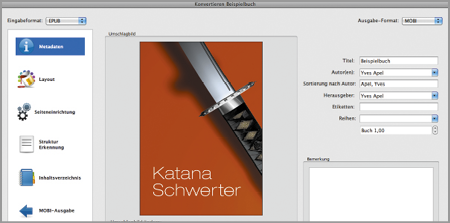
Figure: In Calibre select MOBI under Output Format.
Calibre needs time to convert, longer than Kindle Previewer.

Figure: Calibre during conversion.
After conversion, select and right-click the book again. Choose Save to Disk → Save to Disk and a destination.
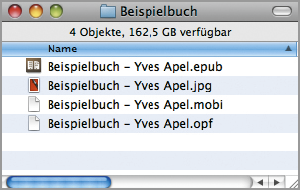
The folder Beispielbuch contains converted Mobipocket, a cover preview, separate opf metadata file and ePub.
| Figure: Converted files in one folder. |
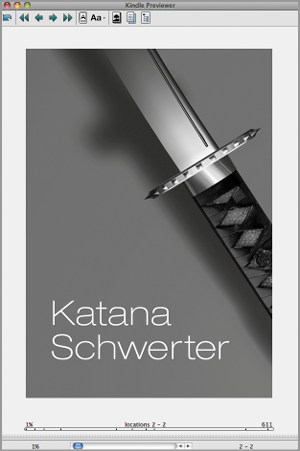
| Figure: Check the result in Kindle Previewer. |
Copyright © dpunkt.verlag GmbH 2012
You may print the online version for your private use.
Otherwise, this chapter from “ePub für (In)Designer” is subject to the same terms as the printed edition: the work and all its parts are protected by copyright. All rights reserved, including reproduction, translation, microfilming, and storage and processing in electronic systems.
dpunkt.verlag GmbH, Wieblinger Weg 17, 69123 Heidelberg, fon 06221-14830, fax 06221-148399, hallo(at)dpunkt.de