

XML technologies / ePUB / ePub für (In)Designer / Images, boxes and other design elements / Creating an image grid / Preparation in InDesign
(Excerpt from “ePub für (In)Designer — Mit InDesign Schritt für Schritt zum E-Book” by Sascha Heck & Yves Apel)
Arrange the image grid in a free area in InDesign. Images may lie in the document’s slug area and need not yet be in the layout. Choose an overall size of 600 × 860 pixels to fill one page in iBooks.
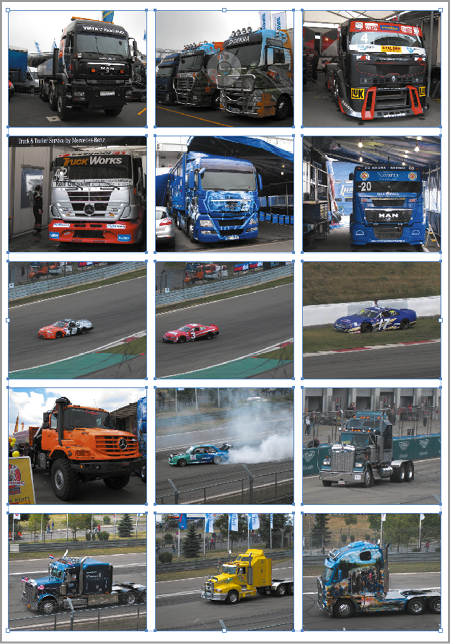
Figure: Creating an image grid in InDesign.
Select all images and open Object Export Options (menu: Object → Object Export Options). Under EPUB and HTML, first enable Custom Rasterization and set Size to Relative to Page Width. Choose a high resolution, here 300 ppi.
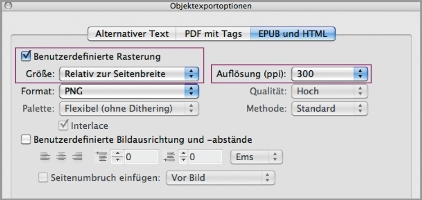
Figure: Selecting custom rasterization in Object Export Options.
After setting export options, create one blank line in the text for each image. No special formatting is required. Then anchor each image to its own blank line.
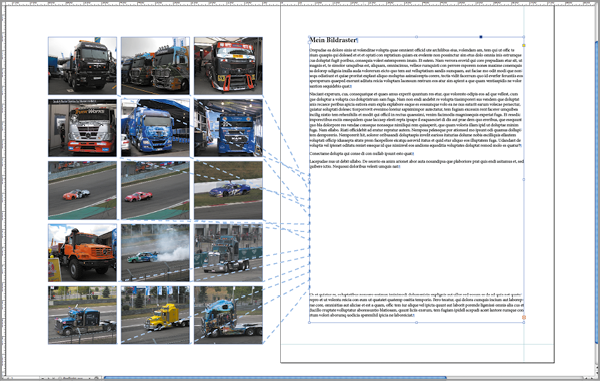
Figure: Anchor each image to a blank line in the text.
You can now export the ePub document. No special export settings are needed.
Copyright © dpunkt.verlag GmbH 2012
You may print the online version for your private use.
Otherwise, this chapter from “ePub für (In)Designer” is subject to the same terms as the printed edition: the work and all its parts are protected by copyright. All rights reserved, including reproduction, translation, microfilming, and storage and processing in electronic systems.
dpunkt.verlag GmbH, Wieblinger Weg 17, 69123 Heidelberg, fon 06221-14830, fax 06221-148399, hallo(at)dpunkt.de
back to top