

XML technologies / SVG / Filters, transformations and gradients / Using and combining filters and lighting effectively / Lighting effects / Defining the light source’s color
(Excerpt from “Das Einsteigerseminar SVG — Webgrafiken mit XML” by Helma Spona)
You can also control the light source’s color. Simply add the style attribute inside the filter elements <feDiffuseLighting> or <feSpecularLighting>. Define the color there with the property lighting-color. The following example demonstrates this. It creates three filters: the first produces a yellow light source and the second a green one. The third combines both lighting effects.
<filter id="FLicht01">
  <feSpecularLighting in="SourceGraphic" specularConstant="1" surfaceScale="1" specularExponent="5" style="lighting-color:yellow">
    <feDistantLight azimuth="10" elevation="30" />
  </feSpecularLighting>
  <feComposite in2="SourceGraphic" operator="atop" />
</filter>
<filter id="FLicht02">
  <feDiffuseLighting in="SourceGraphic" diffuseConstant="1" surfaceScale="1" style="lighting-color:lime">
    <feDistantLight azimuth="10" elevation="30" />
  </feDiffuseLighting>
</filter>
<filter id="FLicht03">
  <feDiffuseLighting in="SourceGraphic" diffuseConstant="1" surfaceScale="1" style="lighting-color:lime" result="Diffuse">
    <feDistantLight azimuth="10" elevation="30"/>
  </feDiffuseLighting>
  <feSpecularLighting in="SourceGraphic" specularConstant="1" surfaceScale="1" specularExponent="5" style="lighting-color:yellow">
    <feDistantLight azimuth="10" elevation="30" />
  </feSpecularLighting>
  <feComposite in2="Diffuse" operator="atop" />
</filter>
The result looks as follows:
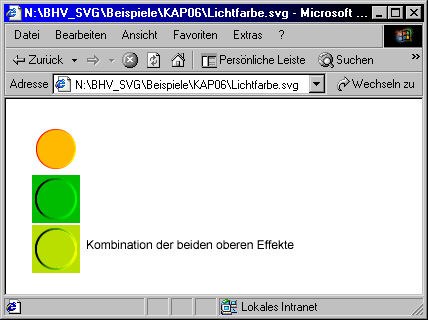
Figure: Filter results for the light source’s color.
Copyright © verlag moderne industrie GmbH 2001
You may print the online version for your private use.
Otherwise, this chapter from “Das Einsteigerseminar SVG — Webgrafiken mit XML” is subject to the same conditions as the bound edition. The work, including all its parts, is protected by copyright. All rights reserved, including reproduction, translation, microfilming, and storage and processing in electronic systems.
verlag moderne industrie GmbH, Justus-von-Liebig-Straße 1, D-86899 Landsberg/Lech, fon ++49 (0) 81 91 / 125 – 0, leserservice(at)mi-verlag.de
back to top