

XML technologies / CSS / CSS Cookbook / Tables / Design example: an elegant calendar
(Excerpt from “CSS Kochbuch” by Christopher Schmitt)
Calendars are excellent organizing tools: they help us arrange lunches, remember birthdays and plan honeymoons. As designers, we can consider all those months, dates and appointments as tabular data.
A calendar presented as a plain HTML table probably looks rather utilitarian. With many events, it can quickly become cluttered. In this design example, CSS makes the calendar more readable than plain HTML allows.
The following figure shows the calendar in plain HTML, with no style definitions.
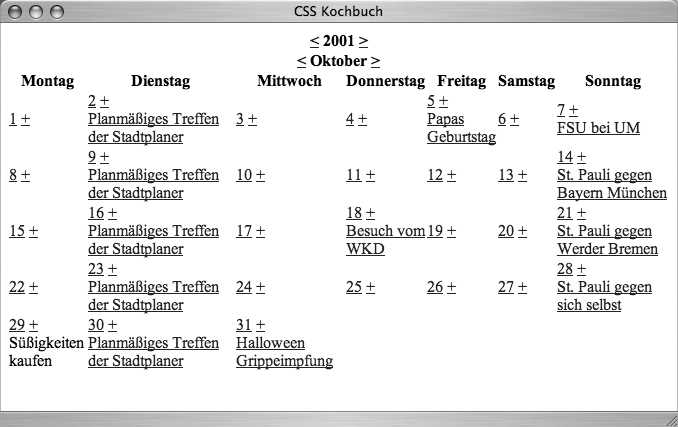
Figure: The calendar without styles.
Next, examine the markup structure. As you learned in the recipe Setting cell spacing, the value of the attribute cellspacing must be set on the element table itself:
<table cellspacing="0">The table heading cells (th) for the year, month and day follow, each on a separate row:
<tr>
<th colspan="7" id="jahr"><a href="jahr.html?davor"><</a> 2001 <a href="jahr.html?danach">></a></th>
</tr>
<tr>
<th colspan="7" id="monat"><a href="monat.html?davor"><</a> Oktober <a href="month.html?danach">></a></th>
</tr>
<tr id="tage">
<th>Montag</th>
<th>Dienstag</th>
<th>Mittwoch</th>
<th>Donnerstag</th>
<th>Freitag</th>
<th>Samstag </th>
<th>Sonntag</th>
</tr>Each date contains a link to that day’s detailed list and a link for adding appointments. Wrap both links in an element div to separate the two parts of the cell clearly.
The first date in our calendar is Monday, October 1:
<tr>
  <td>
    <div><a href="1.html" class="datum">1</a> <a href="neu.html" class="neuerTermin">+</a></div>
  </td>
An appointment already exists for October 2. In the document structure, it is marked as a link below the element div containing the date and the link to the function neuerTermin:
<td>
  <div><a href="2.html" class="datum">2</a> <a href="neu.html" class="neuerTermin">+</a></div>
  <a href="16.html?id=1" class="termin">Planmäßiges Treffen der Stadtplaner</a>
</td>
The remaining markup has a similar structure. To highlight Saturday and Sunday as weekend days, assign their cells a separate class (class).
<td>
<div><a href="3.html" class="datum">3</a> <a href="neu.html" class="neuerTermin">+</a></div>
</td>
<td>
<div><a href="4.html" class="datum">4</a> <a href="neu.html" class="neuerTermin">+</a></div>
</td>
<td>
<div><a href="5.html" class="datum">5</a> <a href="neu.html" class="neuerTermin">+</a></div>
<a href="5.html?id=1" class="termin">Papas Geburtstag</a>
</td>
<td class="wochenende">
<div><a href="6.html" class="datum">6</a> <a href="neu.html" class="neuerTermin">+</a></div>
</td>
<td class="wochenende">
<div><a href="7.html" class="datum">7</a> <a href="neu.html" class="neuerTermin">+</a></div>
<a href="7.html?id=1" class="termin">FSU bei UM</a>
</td>
</tr>
[...]
<tr>
<td class="weekend">
<div><a href="29.html" class="datum">29</a> <a href="neu.html" class="neuerTermin">+</a></div>
<div class="termin">Süßigkeiten kaufen</div>
</td>
<td>
<div><a href="30.html" class="datum">30</a> <a href="neu.html" class="neuerTermin">+</a></div>
<a href="16.html?id=1" class="termin">Planmäßiges Treffen der Stadtplaner</a>
</td>
<td>
<div><a href="31.html" class="datum">31</a> <a href="neu.html" class="neuerTermin">+</a></div>
<a href="31.html?id=1" class="termin">Halloween</a>
<a href="31.html?id=2" class="termin">Grippeimpfung</a>
</td>
<td>
<div class="leer"> </div>
</td>
<td>
<div class="leer"> </div>
</td>
<td class="wochenende">
<div class="leer"> </div>
</td>
<td class="wochenende">
<div class="leer"> </div>
</td>
</tr>
</table>With the structure complete, we can define styles. First style the table and its links. Give the table 100% of the visible area’s width and use the collapsed-border model (border-collapse: collapse; see the recipe Setting cell borders and padding). Most web designers use this model, correctly interpreted by most CSS-capable browsers. Also remove link underlining, as in the following figure:
table {
 width: 100%;
 border-collapse: collapse;
}
td a:link, td a:visited {
 text-decoration: none;
}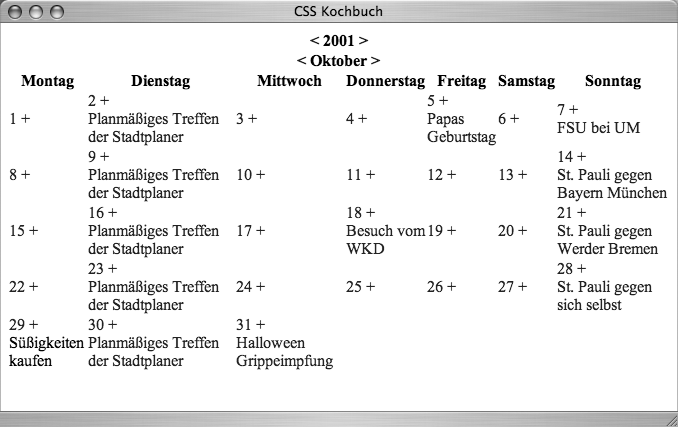
Figure: Link underlining removed.
Next, style the first three rows. Each is targeted by an ID selector because its styles should occur only once in the document. All three heading rows use a monospace font. The month has the largest text, followed by the year and days in descending size (see the next figure):
#jahr {
 font-family: monospace;
 font-size: 1.5em;
 padding: 0;
 margin: 0;
}
#monat {
 font-family: monospace;
 font-size: 2em;
 padding: 0;
 margin: 0;
}
#tage {
 background-color: black;
 color: white;
 font-family: monospace;
 width: 75px;
}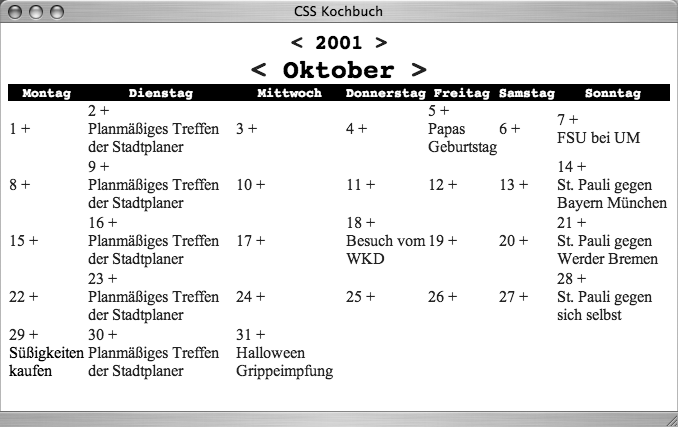
Figure: Styles for the first three rows.
Now style the date and “new appointment” links. To imitate the date boxes in most calendars, emphasize the right and bottom borders and define the content as a float that moves to the left.
Place the new-appointment links as close to the date as possible. Floating them right would put them beside the following day’s date. Floating left tells users that the plus sign (+) adds an appointment for the current day (see the next figure):
.datum {
 border-right: 1px solid black;
 border-bottom: 1px solid black;
 font-family: monospace;
 text-decoration: none;
 float: left;
 width: 1.5em;
 height: 1.5em;
 background-color: white;
 text-align: center;
}
.neuerTermin {
 display: block;
 float: left;
 width: 1em;
 height: 1em;
 text-align: center;
 background-color: #666;
 color: white;
 font-weight: bold;
 text-decoration: none
}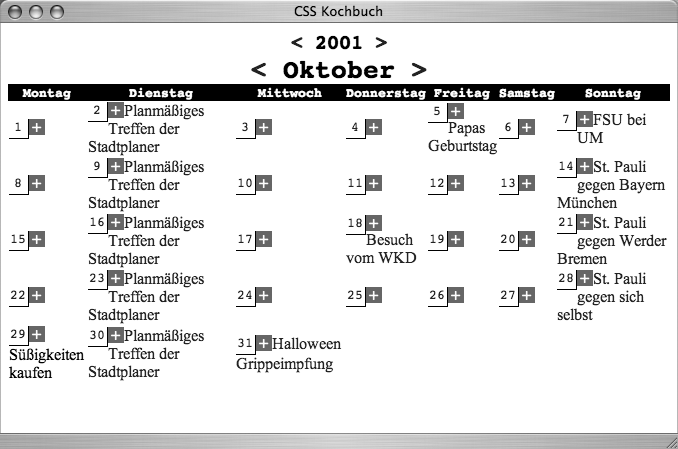
Figure: Styles for date and new-appointment links.
Next, style the appointment lists. The preceding links float, so we need a visible separation and want the appointments below the date.
The property clear provides that separation by specifying which sides of an element must not sit beside a float. Here, the appointment’s left side must not sit beside the date and new-appointment links. To allow for future design changes, use both rather than left.
Then change the link’s display role to block and give it bottom padding (see the next figure). This prevents multiple appointments in one cell from overlapping. The padding also creates a pleasing visual buffer, helping the eye distinguish appointments:
.termin {
 clear: both;
 padding-left: 1em;
 padding-bottom: .75em;
 display: block;
}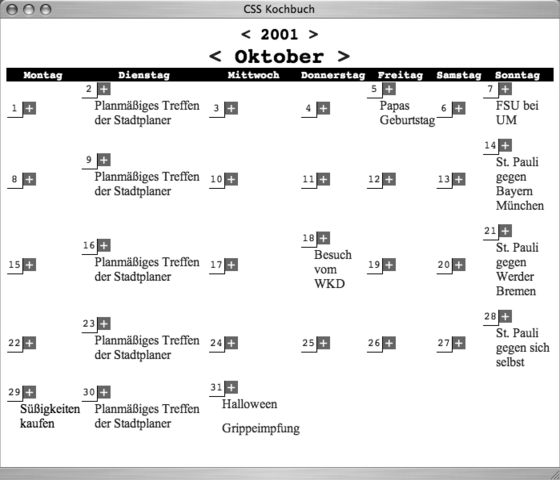
Figure: Appointment links are treated as block-level elements.
Give each cell a width of 14%: dividing the table’s total width, 100% of the visible area, among seven days gives approximately 14. Surround the cells with white borders and use the property vertical-align to align their content at the top (see the next figure):
td {
 width: 14%;
 background-color: #ccc;
 border: 1px solid white;
 vertical-align: top;
}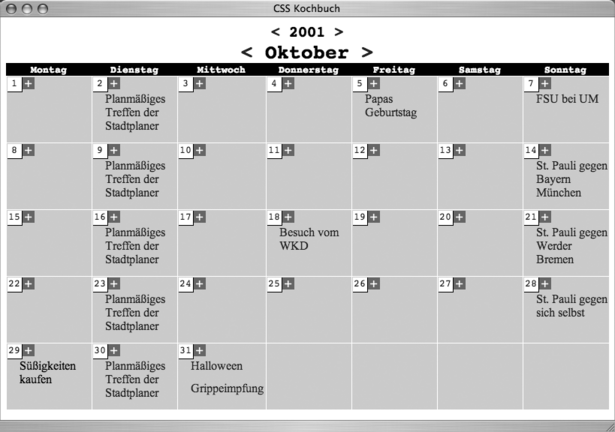
Figure: Cell contents aligned at the top.
Use a darker background for weekend appointments than for weekdays (see the following figure):
.wochenende {
 background-color: #999;
}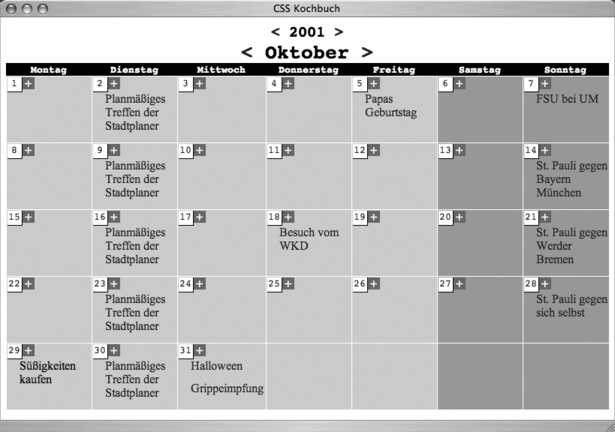
Figure: Weekend days highlighted with a dark gray background.
Give the remaining days a light gray background (see the next figure):
.leer {
 border-right: 1px solid #666;
 border-bottom: 1px solid #666;
 font-family: monospace;
 text-decoration: none;
 float: left;
 width: 1.5em;
 height: 1.5em;
 background-color: #ccc;
 text-align: center;
}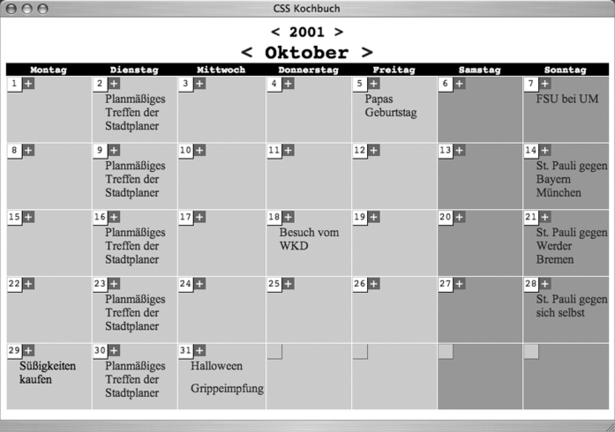
Figure: Styles for empty dates in the following month.
Mark the current day, the 27th in our example, with a two-pixel black border:
#heute {
 border: 2px solid black;
}
The calendar is now complete (see the following figure).
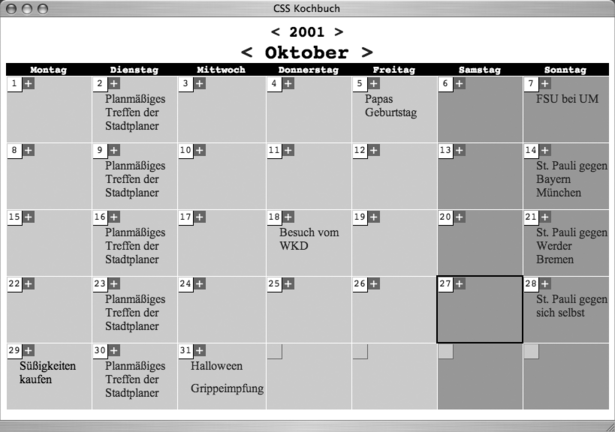
Figure: Current date marked with a darker border.
Copyright of the German edition © 2007 by O’Reilly Verlag GmbH & Co. KG
You may print the online version for your private use.
Otherwise, this chapter from “CSS Kochbuch” is subject to the same conditions as the bound edition: the work, including all its parts, is protected by copyright. All rights reserved, including reproduction, translation, microfilming, and storage and processing in electronic systems.
O’Reilly Verlag GmbH & Co. KG, Balthasarstr. 81, 50670 Köln
back to top