

XML technologies / WordML / Ready for XML?
(Montero Pineda, Manuel, Herkert, Steffen, Klevenz, Tobias, Kutscherauer, Nico: Praxistipps Word: XML-tauglich?, in: technische kommunikation, Heft 6, 2008).
Microsoft Word has been able to edit XML documents since Office 2003. Its integrated editor’s features and behavior remained unchanged in Office 2007.
Users accustomed to a dedicated XML editor’s capabilities and reliability are unlikely to switch to Word. Its XML editing features are limited and not particularly user-friendly. Moreover, its integrated parser has numerous errors unacceptable for XML editing. Nevertheless, this practical tip examines XML processing in Word because Microsoft’s flagship application is established in many industries.
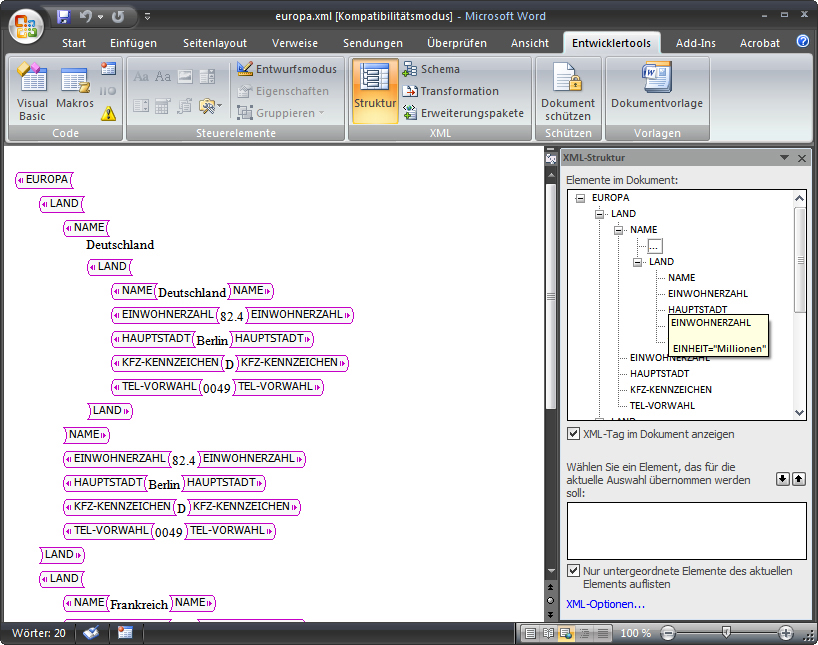
Fig.: Word’s integrated XML editor interface.
Preparing Word
Before creating XML in Word 2007, configure several settings. First enable the Developer tab, containing the advanced XML commands. If absent from the ribbon, enable it through Word Options > Popular > Show Developer tab in the Ribbon.
Next, tell Word which schema to associate with the new file. An XML schema defines rules an XML document must follow, including which elements are permitted, where and in what order. Word supports XSD schemas but not other rule systems such as the widespread DTD approach. Unlike other XML editors, Word does not directly follow schema paths. On opening XML, it identifies the schema from the namespace and root element. The schema must first be registered in its Schema Library, where users can add or delete schemas and edit aliases.
Schemas themselves cannot be edited in Word. Experienced users can make small changes with a plain text editor, but complex changes require a dedicated XML editor. After the schema is registered and selected, available elements appear in the XML Structure task pane, opened through Developer > Structure.
XML Structure task pane
The pane has two sections. The top displays the document hierarchy and marks schema-rule violations. The bottom lists all schema elements. Enabling “List only child elements of current element” restricts the list to elements valid at the cursor’s current position.
Clicking a listed element inserts it into the document. There is no other insertion method, making repeated editing laborious.
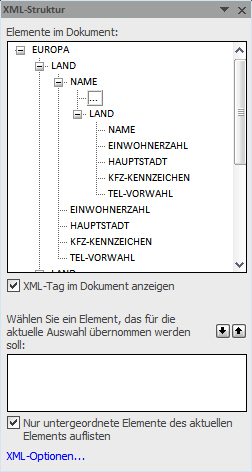
Fig.: laborious insertion of a new element
Word recognizes permitted elements but does not adequately display additional schema conditions such as required sequences. Users must therefore know their XML structure intuitively to create documents with reasonable effort.
Attributes are even more laborious: they require another dialog opened by right-clicking the element. Word at least recognizes schema attributes and shows permitted values when constrained, but their display is poor.
Added attributes are not shown in the document itself, only in a tooltip when the cursor hovers over the element in XML Structure view.
Parsing documents
Beyond awkward handling, parsing also weakens Word’s case as an XML editor. Parsing lets users check the document against schema-defined structures.
Schema checking runs in real time. Errors appear immediately as a jagged line in the document and a type-specific icon in Structure view. Hovering over the icon displays a description, but it is not very helpful. If a required element is missing from a sequence, Word does not name it; instead, the next element is marked “Not allowed in this context”. This is a simple example, but with increasing complexity users can hardly locate or resolve errors. Descriptions also fail when several schema violations occur together. Only saving reveals whether the document is valid.
Saving XML files
To save XML in Word 2007, use Save As, select “Word 2003 XML Document” and enable “Save data only”. Otherwise Word saves a WordML file containing its entire internal data structure.
Saving plain XML as WordML also stores typical Word background information, including margins and layout settings.
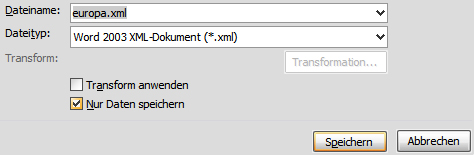
Fig.: saving an XML file.
Conclusion
XML editors fall into two groups: developer and author editors. Word is wholly unsuitable for developers. It edits only XML instances; other XML-based applications, such as XSL stylesheets or schemas, cannot even be opened.
Word offers authors little as an XML editor either. Even simple structures lack clear guidance supporting document creation. Authors unfamiliar with the document’s rules or permitted structures are left on their own.
Dedicated XML editors such as Epic, Oxygen Author and XMetal offer far more display options. Their interfaces can specify CSS-based properties, greatly improving the view of otherwise unformatted data. Word’s XML functions are not aimed at people preparing and maintaining XML. Document-validity checking, DTD integration and one-click validation are entirely absent.
Who, then, is the editor for? Microsoft remains focused on office communication. Simple automation can support office users. Prepared forms can be edited without further implementation; their elements mark fields populated through Smart Documents and a database connection. Exploiting XML’s full potential, however, requires a dedicated XML editor.
Copyright © 2008 tcworld GmbH
You may print the online version for private use.
Otherwise, this article from "technische kommunikation" (issue 6, 2008) is subject to the same terms as the printed edition: the work and all its parts are protected by copyright. All rights reserved, including reproduction, translation, microfilming, and storage and processing in electronic systems.
tcworld GmbH, Rotebühlstraße 64, 70178 Stuttgart, info@tekom.de, www.tekom.de