

XML technologies / ePUB / ePub für (In)Designer / Text / Tables / Creating a table in InDesign
(Excerpt from “ePub für (In)Designer — Mit InDesign Schritt für Schritt zum E-Book” by Sascha Heck & Yves Apel)
Let us briefly examine how an InDesign table must be prepared for ePub. In InDesign CS5 as well as CS5.5, mark tables with table and cell styles. CS5.5 also exports all layout settings without defined styles, but the exported HTML and CSS files then contain unintelligible class names that you cannot identify.
InDesign CS5 still struggles to export table and cell styles correctly; not everything reaches CSS. With CS5 or older, CSS editing afterward is almost unavoidable. Creating tables with table and cell styles is identical in CS5 and CS5.5. Here is a brief introduction to these styles. If table creation still causes problems, consult InDesign Help or a beginner’s book such as “Gestaltung und Typografie mit InDesign” by Sigrid Rätzer, published by dpunkt.
Table and cell styles
InDesign’s table hierarchy begins with a table style, subdivided into cell styles. Cells contain text with paragraph and character styles, so all kinds of formatting interact. Define styles in reverse order, small to large: first paragraph styles for entries, then character styles for emphasis such as italics or bold. Next define cell styles, which must also select the paragraph style used inside cells. Finally, the table style brings everything together.
To define styles, use the two panels Table Styles and Cell Styles. First design the table until satisfied. Select, for example, the header row and, in the panel Cell Styles click Create New Style. Hold Alt to open the settings menu immediately.
| Figure: Table Styles and Cell Styles panels. |
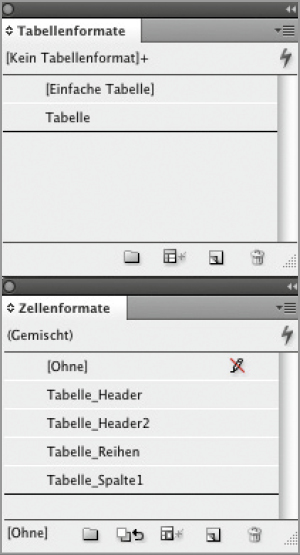
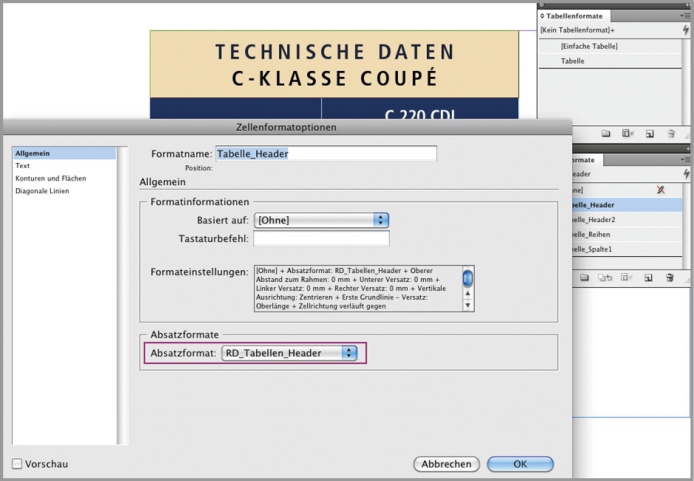
Figure: Select the previously created paragraph style within the cell style.
A dialog opens to define the cell style. Its key settings are cell fill color and the paragraph style used inside cells.
After paragraph, character and cell styles, create the final level: table styles. These define the table’s overall appearance, such as alternating fills in our example. Under the first item, General specify which cell styles compose the table and how they are nested. You need, for example, styles for the header, content cells and y-axis. Better, more structured styles make table creation more automatic and CSS conversion in ePub more successful.
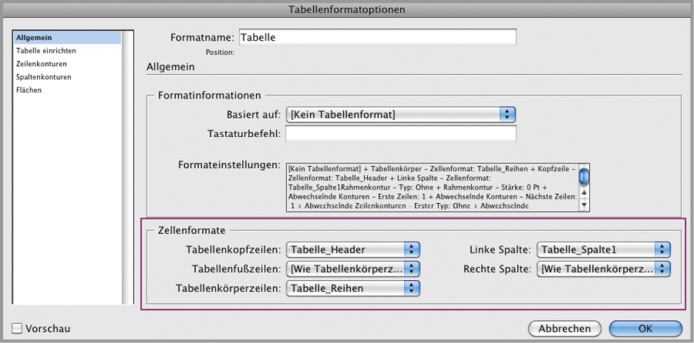
Figure: The table style defines the cell styles composing the table.
Further formatting outside InDesign is covered during ePub post-processing under Further table editing.
Copyright © dpunkt.verlag GmbH 2012
You may print the online version for your private use.
Otherwise, this chapter from “ePub für (In)Designer” is subject to the same terms as the printed edition: the work and all its parts are protected by copyright. All rights reserved, including reproduction, translation, microfilming, and storage and processing in electronic systems.
dpunkt.verlag GmbH, Wieblinger Weg 17, 69123 Heidelberg, fon 06221-14830, fax 06221-148399, hallo(at)dpunkt.de