

XML technologies / ePUB / ePub für (In)Designer / Before you begin / First preparation steps
(Excerpt from “ePub für (In)Designer — Mit InDesign Schritt für Schritt zum E-Book” by Sascha Heck & Yves Apel)
For a clean, well-structured ePub, build the structure in a new InDesign file. A preview of production steps explains why this is better than reusing the print document.
ePub is one text flow from beginning to end, ignoring headers, footers and page numbers. Chapter, image, box and design-element ordering also differs. Print images may sit away from their intended text location for layout reasons; ePub can place them at that location.
Correct text order and chapter definitions for navigation are essential. To start each ePub chapter on a new page, use a separate InDesign file per chapter; other methods are much less reliable. Print-optimized files are usually hard to restructure and split. A new document with structure defined directly is quicker and easier. Details begin under Book features. Also link text, images and boxes into one flow per chapter, or ePub may show all text before images.
Defining the new InDesign page size
A common ePub target is iBooks on iPad. Portrait provides about 560 × 800 pixels of text area; landscape with facing pages about 400 × 570 per page. Full-screen mode, introduced in iBooks 1.5, provides about 570 × 860 portrait and 430 × 620 landscape. Unless stated otherwise, book examples use regular view.
Do not copy these measurements directly: InDesign and iBooks interpret them differently. An InDesign 600 × 800-pixel text area closely approximates portrait iBooks, so define that page size. To simulate the entire iPad screen, not iBooks full-screen mode, use 768 × 1024, with 112-pixel top/bottom and 84-pixel side margins. Choose Web intent and pixel units; Web selects pixels automatically.
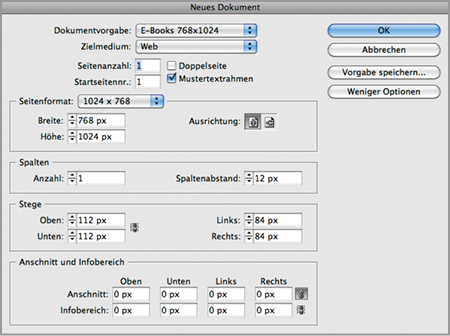
Figure: Defining the new InDesign page size.
These simulated page sizes merely simplify ePub preparation. ePub itself has no page size except fixed-layout ePubs, as intended by the standard.
Also enable Master Text Frame. Facing Pages is best left disabled.
Smart Text Reflow
After creating the document, open Preferences at Type and enable Smart Text Reflow. InDesign adds pages to fit text and removes empty ones if Delete Empty Pages is enabled.
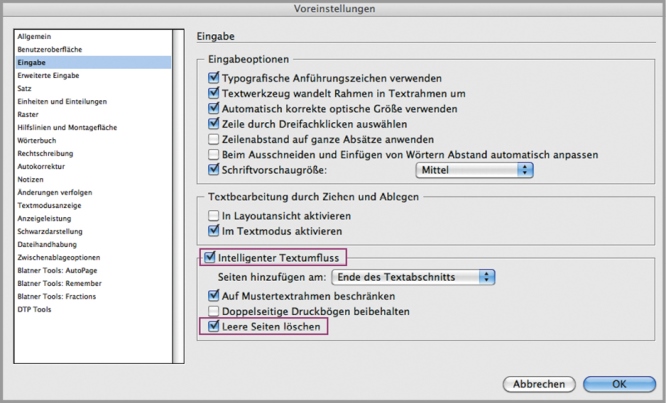
Figure: Configure Smart Text Reflow in InDesign.
Copying text
Copy all required print text into the ePub-optimized document in reading order. For every chapter or text that must start a new ePub page, create a new InDesign page unthreaded from preceding text.
Manual footnotes
InDesign’s print footnote functionality could be more mature. Often footnotes must be created and positioned manually for print. Converting these back into automatic ePub notes is laborious. No automation exists: for every manual footnote create a new one and copy/paste text from print to ePub.
Images, boxes and other objects
Only text and structure have been copied deliberately: images, boxes and objects wait. Next we prepare text for ePub, changing page counts. Copying objects now would require repositioning them afterward, needless extra work.
Copyright © dpunkt.verlag GmbH 2012
You may print the online version for your private use.
Otherwise, this chapter from “ePub für (In)Designer” is subject to the same terms as the printed edition: the work and all its parts are protected by copyright. All rights reserved, including reproduction, translation, microfilming, and storage and processing in electronic systems.
dpunkt.verlag GmbH, Wieblinger Weg 17, 69123 Heidelberg, fon 06221-14830, fax 06221-148399, hallo(at)dpunkt.de