

XML technologies / SVG / Interactive graphics / Manipulating graphic elements / Changing formatting
(Excerpt from “Das Einsteigerseminar SVG — Webgrafiken mit XML” by Helma Spona)
The previous example mainly showed and hid elements by setting the visible property. You can also set several properties at once by changing multiple properties of the style attribute. Even simpler, assign another stylesheet through the class attribute, changing several formatting settings in one step.
Extend the example to change the font color when hovering over vertical navigation elements. For a hyperlink-style pointer, add an <a> tag. Assign to its attribute onmouseover a function call assigning the stylesheet a.schwarz; when leaving the element, restore the format a.weiss. Passing the stylesheet name to the function allows reuse in different situations. Calling such a function named linkshovern could look as follows.
<g id="vertikal"  style="font-family:'Arial Black',Helvetica;font-size:12px;fill:rgb(0,0,0)">
  <text x="0" y="230" transform="rotate(-20) translate(-70,0)" onclick="anzeigen(evt,'K01',140,180)">
    <a class="weiss" onmouseover="linkshovern(evt,'schwarz')" onmouseout="linkshovern(evt,'weiss')">Was ist SVG?</a>
  </text>
  ...
</g>
Now define the function assigning the stylesheet passed as its second parameter, again in the graphic’s <script> tag.
    function linkshovern(evt,klasse)
    {
      var hlink=evt.getTarget();
      hlink.setAttribute("class",klasse);
    }
The result looks as follows when hovering over the vertical navigation bar.
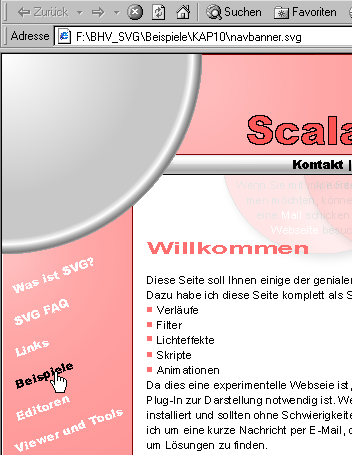
Figure: Changing text color on hover.
Copyright © verlag moderne industrie GmbH 2001
You may print the online version for your private use.
Otherwise, this chapter from “Das Einsteigerseminar SVG — Webgrafiken mit XML” is subject to the same conditions as the bound edition. The work, including all its parts, is protected by copyright. All rights reserved, including reproduction, translation, microfilming, and storage and processing in electronic systems.
verlag moderne industrie GmbH, Justus-von-Liebig-Straße 1, D-86899 Landsberg/Lech, fon ++49 (0) 81 91 / 125 – 0, leserservice(at)mi-verlag.de
back to top