

XML technologies / ePUB / ePub für (In)Designer / Refining tables / Designing alternating fills
(Excerpt from “ePub für (In)Designer — Mit InDesign Schritt für Schritt zum E-Book” by Sascha Heck & Yves Apel)
InDesign can automatically apply alternating table fills. Our example alternates two colors.
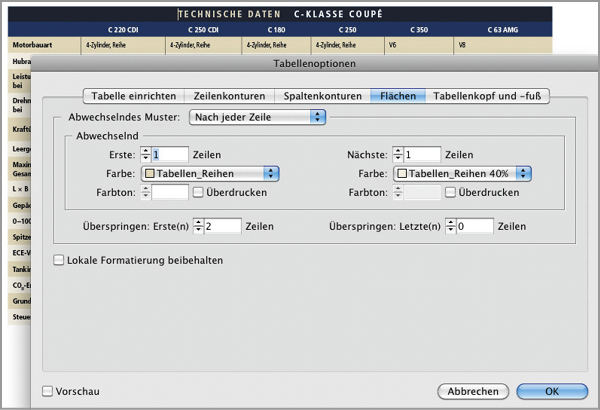
Figure: To define alternating fills, place the cursor in the table
and choose Table → Table Options → Alternating Fills.
InDesign will not automatically produce this in ePub. Assign each row its color through CSS. In the HTML file, assign a class to each element <tr> (= table row). In CS5, create and define the class; in CS5.5, create a second class because every row was exported with the same one.
<tr class="AbwechselndeFlaeche1">When a <tr> tag closes and a new one starts, assign the new one the second class, for example:
<tr class="AbwechselndeFlaeche2">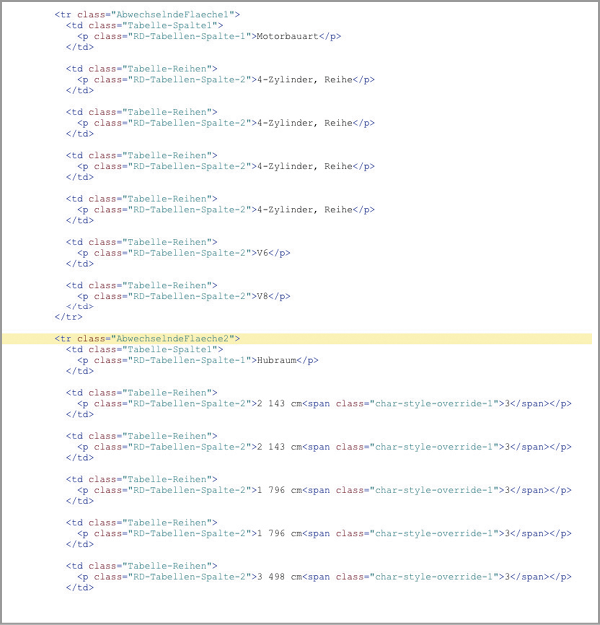
Figure: Assigning separate CSS classes for table colors to the <tr> elements.
Alternately assign the appropriate class to each <tr> tag. Then switch to CSS and add the two classes with their cell background-color definitions.
tr.AbwechselndeFlaeche1 {
  background-color: #ebe1c3;
}

tr.AbwechselndeFlaeche2 {
  background-color: #fffbe7;
}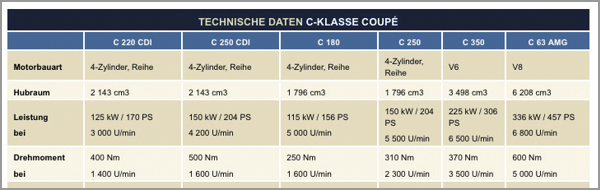
Figure: Table after CSS adjustment.
Copyright © dpunkt.verlag GmbH 2012
You may print the online version for your private use.
Otherwise, this chapter from “ePub für (In)Designer” is subject to the same terms as the printed edition: the work and all its parts are protected by copyright. All rights reserved, including reproduction, translation, microfilming, and storage and processing in electronic systems.
dpunkt.verlag GmbH, Wieblinger Weg 17, 69123 Heidelberg, fon 06221-14830, fax 06221-148399, hallo(at)dpunkt.de
back to top