

XML technologies / SVG / Using text elements / Available SVG tags for text elements / Formatting individual characters in text
(Excerpt from “Das Einsteigerseminar SVG — Webgrafiken mit XML” by Helma Spona)
The <tspan> tag formats individual characters differently inside a <textPath> or <text> tag, somewhat like HTML’s <span> tag. Here it formats text only and cannot contain other elements.
The <tspan> tag works inside <text> or <textPath>. The listing makes S, V and G larger and red in the earlier logo.
<?xml version="1.0" standalone="no"?>
...
<svg width="500" height="500">
  <text x="100" y="130" style="font-family:'Arial Black';font-size:46;stroke:none;fill:rgb(0,0,255)">SVG</text>
  <path id="sichel" d="M130 80 Q333 96 215 135 Q315 96 130 80" style="stroke:rgb(0,0,0);stroke-width:1;fill:rgb(0,0,139)"/>
  <text style="alignment-baseline:text-bottom; baseline-shift:5;font-family:Arial;font-size:11;fill:darkblue">
    <textPath xlink:href="#sichel" startOffset="5"><tspan style="fill:red;font-size:16">S</tspan>calable <tspan style="fill:red;font-size:16">V</tspan>ector <tspan style="fill:red;font-size:16">G</tspan>raphics</textPath>
  </text>
</svg>
Enclose the affected characters between <tspan> and </tspan>. Set formatting through the tag’s style attribute. Text after the closing tag resumes parent formatting.
The advantage of the <tspan> tag is that the rest can be formatted uniformly and positioned as one. Otherwise varied formatting requires many <text> tags, each positioned separately. This needs much code and extra rendering time, making users perceive slow transmission even when transfer itself is fast.
The preceding listing produces:
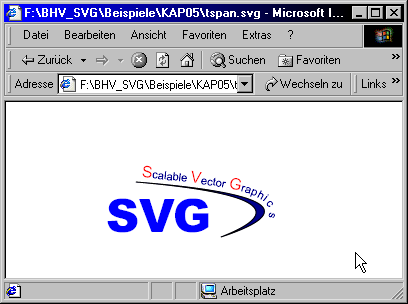
Figure: Different character formatting with tspan.
The <tspan> tag, besides the universal attribute style, has the attributes x, y, dx, dy, rotate and textLength.
The attributes x and y set character positions. Supply a single value for the first character’s absolute horizontal or vertical position, or a comma-separated list assigning successive positions to characters until the list ends. The instruction
<text x="10" y="80" style="fill:black;font-size:20;font-family:Arial">Die <tspan y="76,72,68,64,64,68,72,76">Webseite</tspan> zum Buch</text>
produces the following through its y attribute:
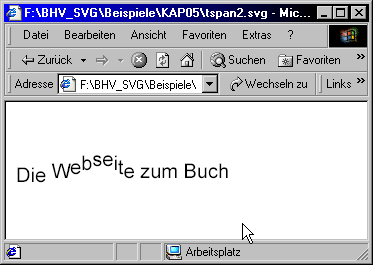
Figure: Effects from positioning letters with the y attribute.
Alongside the y attribute, supply a list for the x attribute too. Values are paired into x/y coordinates.
The attributes dx and dy set relative positions, again using a single value or list. The example supplements the y attribute by varying horizontal positions with the dx attribute.
<text x="10" y="80" style="fill:black;font-size:20;font-family:Arial">Die <tspan y="76,72,68,64,64,68,72,76" dx="2,4,8,16,16,8,4,2">Webseite</tspan> zum Buch</text>The result is:
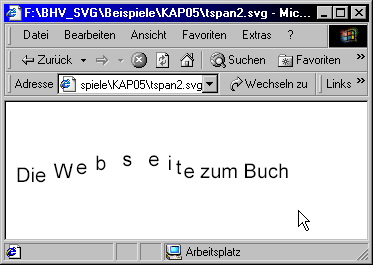
Figure: Dynamic letter distortion with dx.
The attribute rotate rotates the text enclosed in <tspan>. One value or a list specifies rotation in degrees. At 180°, text is mirrored around each character’s lower-left corner.
Note:
SVG documentation says remaining characters use the last listed value if the list is shorter than the text. One value should therefore rotate all characters, but Adobe SVG Viewer rotates only the first. Supply enough values for a uniform rotation.
The instruction
<text x="10" y="80" style="fill:black;font-size:20;font-family:Arial">Die <tspan y="76,72,68,64,64,68,72,76" dx="2,4,8,16,16,8,4,2">Webseite</tspan> zum <tspan rotate="180,180,180,180">Buch</tspan></text>
therefore produces:
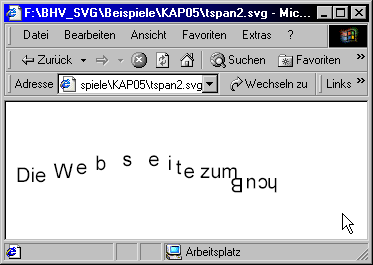
Figure: Rotation by 180°.
Note:
The rotated word shifts unattractively toward the rest because characters rotate around their lower-left corners. Compensate by using the dx attribute to move it right.
Finally, the attribute textLength sets text length in a specified unit or pixels but is unsupported by SVG Viewer.
Copyright © verlag moderne industrie GmbH 2001
You may print the online version for your private use.
Otherwise, this chapter from “Das Einsteigerseminar SVG — Webgrafiken mit XML” is subject to the same conditions as the bound edition. The work, including all its parts, is protected by copyright. All rights reserved, including reproduction, translation, microfilming, and storage and processing in electronic systems.
verlag moderne industrie GmbH, Justus-von-Liebig-Straße 1, D-86899 Landsberg/Lech, fon ++49 (0) 81 91 / 125 – 0, leserservice(at)mi-verlag.de
back to top