

XML technologies / DocBook / Generating FO (PDF) / Modifying typography / Font size tips
(Excerpt from "DocBook-XML: Media-neutral and platform-independent publishing" by Thomas Schraitle)
To change the font size of your body text, use the parameter body.font.master. This parameter expects a plain number without a unit and defaults to 10 (for 10 points). The DocBook stylesheets use this parameter to specify spacing and other dimensions relative to the font size of the body text. For example, the font size of a footnote is only 80% of that of the body text.
The section Customizing with an attribute set showed how to customize headings using attribute sets. In documents with several hierarchy levels, a heading must clearly indicate its level. One way to achieve this is through font size. Sizes should follow a scheme rather than be chosen arbitrarily. The following have generally proved useful for choosing different sizes: Fibonacci sequences. Each number is calculated as the sum of its two predecessors. Mathematically, this is expressed by the following equation:
Equation: Fibonacci sequence
fn = fn − 1 + fn − 2 for n ≥ 2; f0 = 0 and f1 = 1
In “The Elements of Typographic Style” (Hartley & Marks, 2005), Robert Bringhurst describes the following numbers:
(a) 5 8 13 21 34 55 89 …
This is already sufficient for most tasks. Depending on the starting number, the equation produces a different sequence:
(b) 6 10 16 26 42 68 110 …
(c) 4 7 11 18 29 47 76 …
All these sequences satisfy the Fibonacci equation. Combining (a) and (b) produces a very versatile sequence:
(d) 6 8 10 13 16 21 26 34 42 55 68
The following figure illustrates scale (d).
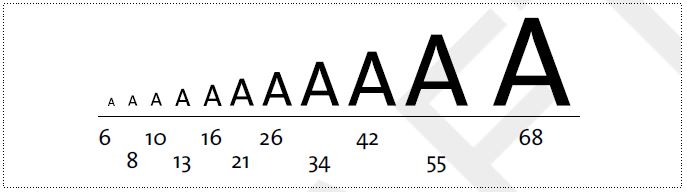
Fig.: Illustration of the Fibonacci numbers in scale (d)
Le Corbusier, a French-Swiss architect, used a different scale:
(e) 4 5 6½ 8 10½ 13 17 21 27½ 34 44½ 55 72 89 …
You need to experiment to find the right scale for your document. The simplest approach is to define several Entities that you can adjust as needed:
<!ENTITY footnotesize   "6">
<!ENTITY small          "8">
<!ENTITY normal         "10">
<!ENTITY large          "13">
<!ENTITY Large          "16">
<!ENTITY LARGE          "21">
<!ENTITY huge           "26">
<!ENTITY Huge           "34">
<!ENTITY HUGE           "42">
<!ENTITY titanic        "55">
<!ENTITY Titanic        "68">
Save the contents in a file (for example, fontsizes.ent). For each XSLT file in your stylesheets, insert the following lines at the start of the file:
<!DOCTYPE xsl:stylesheet
[
    <!ENTITY % fontsizes SYSTEM "fontsizes.ent">
    %fontsizes;
]>
To use the entity names, write:
<xsl:attribute-set name="section.title.level1.properties">
    <xsl:attribute name="font-size">&LARGE;pt</xsl:attribute>
    <!-- Weitere Attribute ausgeblendet -->
</xsl:attribute-set>
The numbers are specified without units to allow calculations. For this reason, you must also add the unit pt in the code above.
Copyright © 2009 Millin Verlag
You may print the online version for your private use.
Otherwise, this chapter from "DocBook-XML: Medienneutrales und plattformunabhängiges Publizieren" is subject to the same provisions as the printed edition: the work, including all its parts, is protected by copyright. All rights are reserved, including reproduction, translation, microfilming, and storage and processing in electronic systems.
Millin Verlag, Siebengebirgsring 36, 53797 Lohmar, info(at)millin.de
back to top